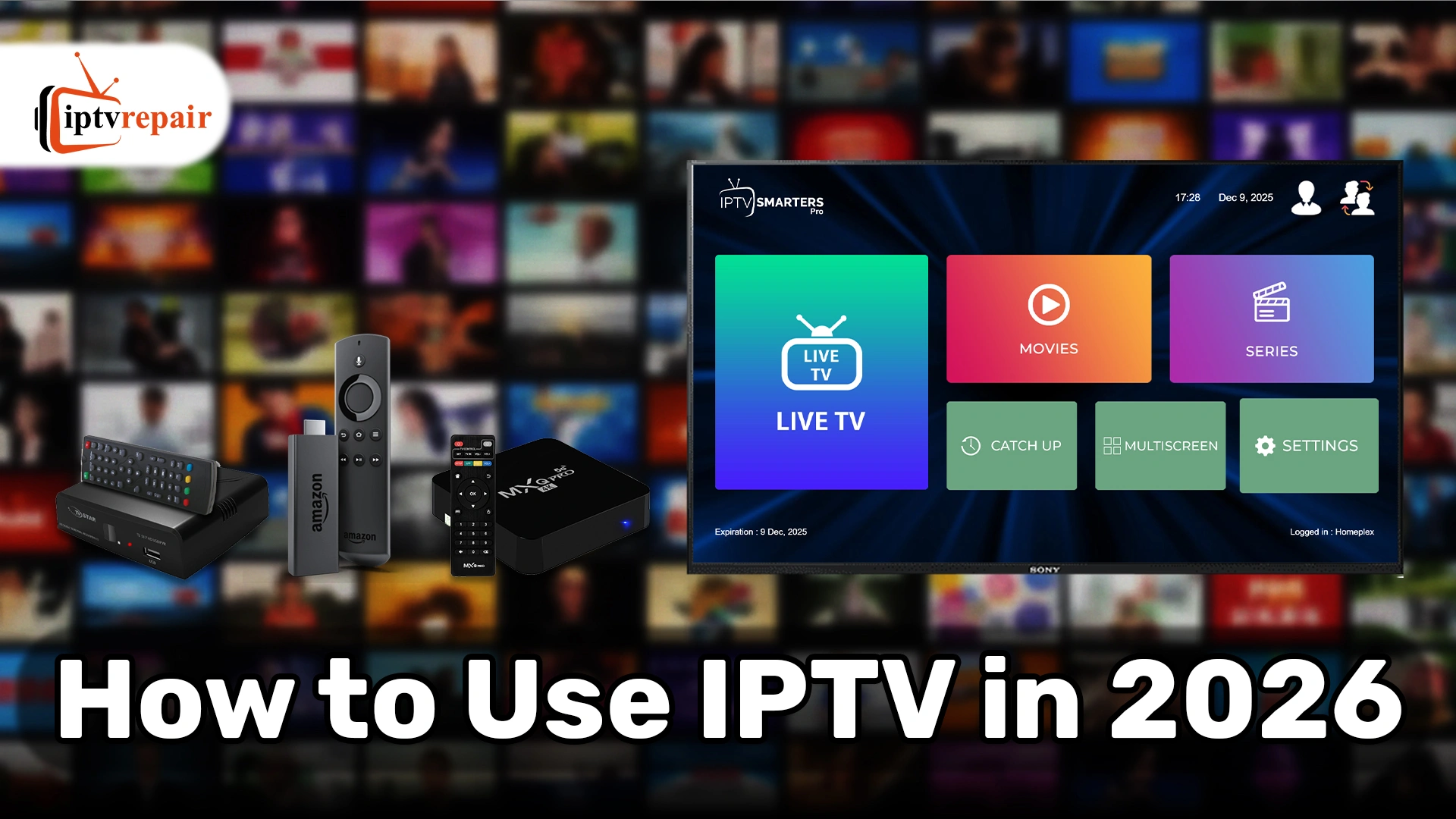
Cable is getting old school and modern viewers are slowly turning to Internet Protocol Television, IPTV, the online-based alternative to cable or satellite. As IPTV offers greater control, more content, and a more personalized viewing experience, people are embracing it with open arms. Moreover, TV over broadband also costs a fraction of the price of traditional entertainment and offers various interactive features like catch-up, cloud DVR, EPG, and others.
However, there’s a catch. Many people still have doubts about how to use IPTV properly. Setting up IPTV correctly is crucial to getting the best entertainment experience. In this IPTV tutorial, I’ll talk in detail about how to use IPTV in 2026 – from installation to using it on different devices to troubleshooting.
Let’s walk into it –
What is IPTV & Why Does it Matter in 2026?
IPTV (Internet Protocol Television) delivers live TV, on-demand, and pay-per-view content over the internet, offering high-quality streaming on multiple devices.
With features like AI-driven recommendations, catch-up TV, and support for HD, 4K, or 8K content, it has become a cost-effective alternative to cable and satellite. Today, many smart TVs and smartphones come with built-in IPTV support, making it easier than ever to stream your favorite shows seamlessly.
How IPTV Works?
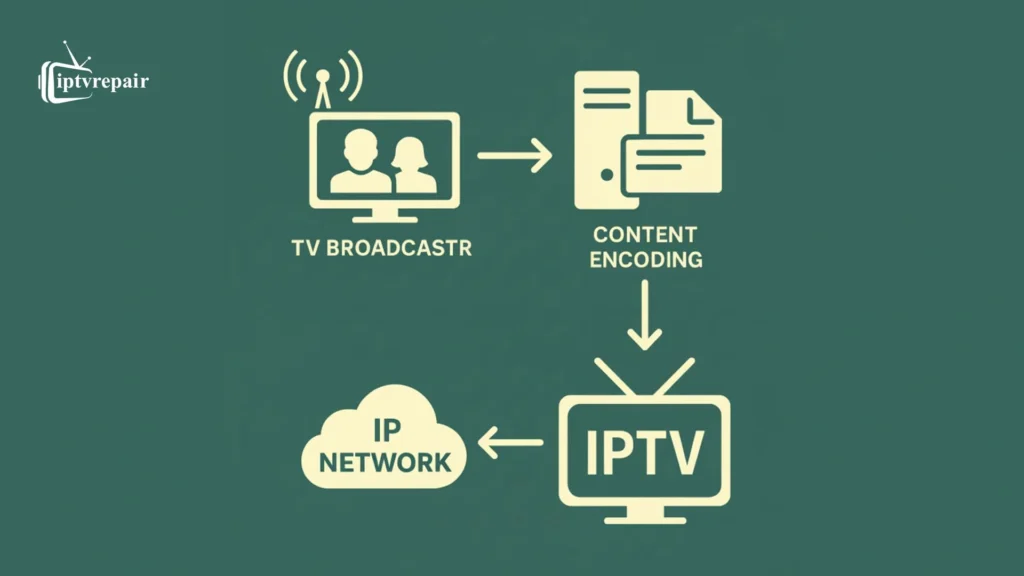
IPTV delivers TV shows and movies over the internet rather than cable or satellite. The content is converted to data and sent to your device, where it gets reassembled. Then you can watch live channels, on-demand movies, and other video content.
- Content Acquisition: The Online TV collects TV channels, movies, binge-worthy TV shows, and PPV events from different sources(like live broadcasts or VOD libraries). Then the content is converted to a digital, internet-friendly format so it streams seamlessly.
- Preparing and Sending the Stream: When the content gets ready, it’s stored on robust servers. These servers stream live channels to many users at once. Then, send on-demand videos individually when someone requests them. This ensures fast, reliable delivery no matter what you’re watching.
- Viewing on Your Device: You use an app or set-top box connected to the internet to access the service. Your device receives the data, decodes it, and displays it on your TV, phone, laptop, or computer. Hence, you can enjoy live TV or on-demand content without a hassle.
Things I Need to Use IPTV
You can use IPTV on almost any modern device, including:
- Smart TVs: Samsung, LG, Android TV, Google TV, Hisense, Konka.
- Streaming devices: Amazon Firestick 4K Max 2025, Roku, Nvidia Shield, XBOX, Chromecast, ONN.
- Smartphones & tablets: iPhone, iPad, Android, Surface.
- PC/Laptop: Windows, macOS
- IPTV set-top boxes: MAG boxes, Formuler, BuzzTV
You’ll need a reliable high-speed internet connection (20 Mbps or more), preferably Ethernet or Starlink. You’ll also need an IPTV service provider (legal one), IPTV player app—like TiviMate, IPTV Smarters Pro, or VLC, and an IPTV playlist such as an M3U/M3U8 link, Xtream Codes, or a Portal URL.
How to Use IPTV (Step-by-Step IPTV Streaming Guide)
To use IPTV, choose a provider (like Mom IPTV, Hulu+ Live, or Sling TV) and fire it up on any compatible device (Streaming stick, smartphone, smart TV, PC, or laptop). Install an IPTV player such as IPTV Smarters Pro, TiviMate, or Perfect Player from your device’s app store, or sideload an APK. Then enter your account details or an M3U link, and you’re ready to stream.
- Purchase a Service and a Streaming Device
- Choose a Service Provider: Find a suitable IPTV service that can meet your requirements and sign up. You can begin with these popular IPTV streaming service providers: Mom IPTV, YouTube TV, Hulu+ Live TV.
- Compatible Device: Acquire a compatible device, such as smartphones, tablets, phablets, smart TVs, streaming sticks (like Firestick, Roku, ONN), gaming consoles, or other Android-based devices.
- Ensure a Superior Internet: Online TV requires a strong internet connection to deliver seamless streaming.
- Choose a Service Provider: Find a suitable IPTV service that can meet your requirements and sign up. You can begin with these popular IPTV streaming service providers: Mom IPTV, YouTube TV, Hulu+ Live TV.
- IPTV Player App Installation
- Visit App Store: Visit your device’s app store (e.g., Android TV, Google Play Store, Apple Store).
- Search & Install: Write down the name and find the IPTV Player app. It would be best if you download the best IPTV player app so you can enjoy a more sophisticated viewing experience. You may need to sideload an APK for some devices.
- Visit App Store: Visit your device’s app store (e.g., Android TV, Google Play Store, Apple Store).
- Arrange Account and Playlist
- Open the App: Launch the IPTV player after installation.
- Select Login Method: You’ll receive an email from your provider with your login credentials. Either you’ll get an M3U URL or a file, or the Xtream Codes API.
- Open the App: Launch the IPTV player after installation.
- Set Up EPG (TV Guide)
- Most IPTV service providers offer an EPG URL that adds TV listings. Go to EPG Settings>Add EPG URL>Refresh EPG. You’ll now see a full-fledged TV guide.
- Most IPTV service providers offer an EPG URL that adds TV listings. Go to EPG Settings>Add EPG URL>Refresh EPG. You’ll now see a full-fledged TV guide.
- Add Account
- Enter your login details or playlist, save the account, and the app will automatically load your channels.
- Enter your login details or playlist, save the account, and the app will automatically load your channels.
- Start Streaming
- Now, you can navigate the user interface and enjoy streaming.
- Now, you can navigate the user interface and enjoy streaming.
This is the overall procedure of using IPTV. Do you want more thorough information on installing Internet Protocol TV on different devices? Let’s look below –
How to Use IPTV on a Fire TV Stick, Fire TV, and Apple TV
- Initiate your Fire Stick, Fire TV, or Apple TV.
- Open your device’s app store and choose the streaming app you want.
- Click “Download” to install the IPTV subscription service.
- When the download is complete, hit “Open” to open the app.
- Log in or sign up to enjoy live TV, movies, binge-worthy TV shows, adult content, or whatever you want.
How to Set Up IPTV on Windows or Mac
To set up IPTV on Windows or Mac, get a subscription, install an IPTV player (like VLC, IPTV Smarters, or MyIPTV Player), and enter your provider’s login details or M3U URL to start streaming live TV and movies.
- Get a Subscription – Sign up with an IPTV service provider.
- Download an IPTV Player – Install a compatible app like VLC, IPTV Smarters, or MyIPTV Player.
- Launch the App – Open the IPTV player on your computer.
- Enter Login Details – Add your M3U URL or username/password from your IPTV provider in the app settings.
- Start Streaming – Load the channels and enjoy live TV and movies.
How to Use IPTV on iOS or Android Device
For Android Devices
- Install an IPTV Player – Visit the Google Play Store and install an app like Tivimate, XCIPTV, KMPlayer, or OTTNavigator.
- Launching – Initiate the app after installation.
- Enter Login Credentials – Choose the option to add a new user or login (often labeled “Xtream Codes API” or “Add User”).
- Input – Input the user credentials given by the service provider.
- Enjoy – Save the details and start streaming!
For iOS Devices
- Install the Player – Go to the App Store and install an app like IPTV Smarters Player Pro, IPTV Player Live, or Chillio IPTV Smart Player.
- Open the App – Hit the app icon and open it.
- Choose Playlist – Choose “Xtream Codes” or “M3U Playlist” login.
- Enter – Enter the login info given by the subscription provider.
- Fetching – Save and wait a bit as the app catches up on channels and the VOD library.
How to Use IPTV on Smart TVs
- Subscribe to an IPTV Service – Choose a provider and get your login details or M3U link.
- Install an IPTV App – Download a compatible app like Smart IPTV, IPTV Smarters, or TiviMate from your TV’s app store.
- Launch the App – Open the IPTV player on your Smart TV.
- Enter Your Details – Add your M3U URL or account credentials.
- Start Watching – Browse channels and enjoy live TV, movies, binge-worthy shows, and adult programming with an IPTV subscription provider offering 18+ channels.
How to Use IPTV on Gaming Consoles
- Get an IPTV Subscription – Firstly, purchase an IPTV subscription that provides an M3U or XtremeCodes URL.
- Find Your Console’s App Store – Open the Microsoft Store (Xbox) or PlayStation Store (PS4/PS5).
- Search for Apps – Look for IPTV players like Kodi, Plex, or specific apps like “IPTV Simple Client,” “Any IPTV Player,” or “Open IPTV Player”.
- Install the App – Download and install the player as you like.
- Enter Credentials – Open the app and enter your M3U link or your IPTV service’s login credentials (username, password, server URL).
- Start Streaming – Browse channels and VOD content directly from the console’s interface.
How to Stream IPTV Smoothly (Buffer-Free Tips) – IPTV Streaming Settings
Here are 6 necessary tips for optimizing your IPTV experience to enjoy lag-free streaming:
- Connect to a high-speed Wi-fi, Ethernet, or Starlink (if available in your area).
- Keep your app up to date to fix bugs and improve performance.
- Clear the app’s cache regularly to keep it running smoothly.
- Free up bandwidth by shutting down unused apps or devices.
- Try to use modern devices rather than older ones. Older devices don’t work seamlessly with IPTV apps.
- Use a reputable and trustworthy VPN service to bypass geo-restrictions.
Troubleshooting IPTV Issues
- Buffering or Freezing – Reboot the streaming device and the router to establish a new connection. Try switching to a lower streaming quality to improve network performance.
- Channels Not Loading – Refresh your playlist or re-add the M3U/Xtream Codes. Also, clear the caches.
- No Sound or Black Screen – Restart the app or try a new player setting.
- EPG Not Working – Re-enter your EPG URL. Refresh EPG from app settings.
- App Crashing – Update the IPTV app and free up storage by removing unnecessary apps.
- ISP Throttling or Blocked Streams – Use a VPN service or restart the modem.
What Future IPTV Holds?
If you’re a streaming enthusiast, this question can hover on your mind. Well, Internet Protocol Television is the future of entertainment, as people are now accepting cord-cutting solutions instead of bulky cables. According to IndustryResearch, the IPTV Market size was valued at USD 86469.52 million in 2024 and is expected to reach USD 346399.34 million by 2033. So, it’s clear that the Internet TV market will only expand.
As TV over broadband offers more diverse entertainment, high-quality streaming, a massive VOD library, catch-up, and other sophisticated features, it is set to rule the next decade of entertainment.
Summing Up – How IPTV Works
So, what do you think after the lengthy discussion? Is it a challenging task to use IPTV on your streaming device? I don’t think so! And, I’m certain you’ll also agree with my take! Right?! Just purchase a solid IPTV service provider, use a high-speed internet connection, and a top-class streaming device. You’re mostly done! By the way, if you still feel any confusion or need any help, you’re welcome to let me know in the box below. Bye for today.
FAQs on the IPTV Setup Guide
- How do you use IPTV?
A – Firstly, install an IPTV player app on your streaming device, enter the M3U URL or login details from your IPTV provider. Then load the playlist to start watching channels and on-demand content. - How to watch channels through IPTV?
A – IPTV lets you watch live channels and on-demand content on devices like smart TVs, phones, tablets, and computers. Simply install a supported app and create an account to start streaming. For legitimate options, see our guides to the best legal IPTV service providers. - How can I run IPTV?
A – To run Streaming TV, you’ll need an Internet TV subscription, a streaming device (smart TV, laptop, set-top box), a stable internet connection, and M3U or XtreamCode. A VPN can help, but isn’t required. - Which IPTV is best?
A – There’s no direct answer to it. Before choosing an Internet Protocol Television provider, check the streaming quality, channel & VOD listings, reviews & feedback, intuitive features, and user-friendliness. Mom IPTV, Twit IPTV, Hulu+ Live TV, YouTube TV, fuboTV, etc., are extremely popular in the USA. - What is an IPTV box?
A – An IPTV box is a device that connects to your TV and streams channels and online content over the internet instead of cable or satellite. - Should I use a VPN with IPTV service?
A – Yes, you can. Although using a VPN isn’t a must, but with it, a provider can bypass geo-restrictions, hiding traffic from the ISP, and keeping your viewing private. - How do I connect to IPTV?
A – To use an IPTV service, you need a reliable internet connection and a compatible device such as a smart TV, set-top box, or phone. Typically, you connect the device to your network, install an IPTV player app, and enter the username, password, and server URL supplied by your provider. - How much does IPTV cost a month?
A – Actually, it depends. There’s no fixed price for that. The cost of Online TV could be around $10 – $99.99. Usually, legal IPTV providers cost more than the unverified ones. - How to watch channels on IPTV?
A – To access IPTV, you need a stable internet connection, a compatible device (smart TV, phone, Roku, XBOX, or Fire Stick), and an IPTV player app. Simply enter your subscription details or M3U link in the app to start streaming channels and on-demand content. - Can I get local channels on IPTV?
A – Yes, many legal IPTV subscription providers offer legal channels on IPTV. Hulu+ Live TV, fubo, YouTuve TV, Philo, Southwark.TV, BBC iPlayer, NetJOI, VT TV, Sky, etc., offer local channels in the USA, UK, Canada, etc.