Tested on Ubuntu 24.04, Linux Mint 22, Fedora 40, Arch Linux & Debian 12
The best IPTV player for Linux in 2026 is Kodi 21.3 Omega. The reason is that it supports M3U playlists, XMLTV EPG integration, and DVR recording. Moreover, it works on Ubuntu, Linux Mint, Fedora, Arch Linux, Debian, Raspberry Pi OS, and Xtream Codes, with support via the PVR IPTV Simple Client add-on.
Hypnotix is the best lightweight option for M3U playlists on Linux Mint and Ubuntu.
IBO Player Pro is known for its intuitive design and smooth interface, while MPV Player is recognized for its customizable layout and smart channel shifting. On the other hand, IPTVnator is the best cross-platform option for Linux, Windows, and macOS.
| Disclaimer: This article is for informational and educational purposes only. IPTV service availability and performance may vary depending on the provider, region, and legal restrictions. Users are responsible for ensuring they access only properly licensed content in their country. |
How I Tested These IPTV Players
Testing included IPTV player Fedora, IPTV player Ubuntu, IPTV player Arch Linux, and IPTV app Linux compatibility across multiple distributions to ensure consistent real-world performance.
To ensure fair and accurate recommendations, every IPTV player in this guide was tested using the same IPTV playlist and network environment.
Test Environment
- Ubuntu 24.04 LTS
- Linux Mint 22
- Fedora 40
- Arch Linux
- Debian 12
Testing Criteria
- Installation difficulty
- M3U playlist compatibility
- Xtream Codes support
- EPG functionality
- 1080p playback quality
- 4K playback quality
- Hardware acceleration support
- Recording capabilities
- Resource consumption
- Stability during long streaming sessions
Total Testing Time
More than 35 hours of real-world IPTV testing across multiple Linux distributions and hardware configurations.
| Expert Advice: If you’re new to IPTV on Linux, start with Hypnotix or VLC for quick setup and reliable M3U playback. Advanced users who need DVR recording, XMLTV EPG, and extensive customization should choose Kodi 21.3 Omega. For the best long-term experience, pair your IPTV player with a wired Ethernet connection, hardware acceleration, and a reliable IPTV provider to ensure smooth HD and 4K streaming. |
What is Linux IPTV?
Linux IPTV is IPTV streaming on a Linux-based system, offering better stability, lower resource usage, improved privacy, and greater hardware control than Android TV or smart TV platforms.
How does Linux IPTV Work?
Linux IPTV delivers live TV and on-demand content over an internet connection rather than traditional cable or satellite signals. A Linux system receives and processes video streams from an IPTV provider, ensuring smooth, stable playback with low resource usage.
You can use Linux IPTV in two main ways:
- Dedicated Linux IPTV Boxes: Preconfigured devices, such as MAG boxes, that run a lightweight Linux operating system built specifically for IPTV streaming.
- Linux Desktop Applications: Installing IPTV player software on Linux distributions like Ubuntu or Linux Mint to stream content via M3U playlists or Xtream Codes.
This flexibility makes Linux IPTV a popular choice for users seeking reliability, performance, and greater system control.
Why is Linux IPTV different?
Compared to Android TV, Fire TV, Windows, and Apple TV, Linux IPTV offers several advantages:
- Faster Performance: Lightweight Linux systems use fewer resources. They deliver smoother HD and 4K streaming with minimal lag.
- Better Privacy: As an open-source platform, Linux provides greater transparency. It avoids unnecessary tracking or background data collection.
- No App Bloat: Dedicated Linux IPTV devices focus solely on streaming, delivering a cleaner, more reliable viewing experience.
- Greater Customization: Users can fine-tune settings such as caching, hardware acceleration, and network performance for optimal IPTV playback.
- Enhanced Stability: Fewer background processes and system overhead often result in more consistent, long-term performance.
Three things a good Linux IPTV player must do in 2026:
- Support M3U URLs and, ideally, Xtream Codes API for any IPTV provider.
- Install cleanly through apt, dnf, pacman, Flatpak, Snap, or AppImage without breaking dependencies.
- Handle EPG (XMLTV) properly and decode 1080p or 4K streams using VAAPI or VDPAU hardware acceleration.
Comparison Between Best Free and Open Source Linux IPTV Players
| IPTV Player | M3U Support | SupportXtream Codes | EPG | DVR Recording | Best For |
|---|---|---|---|---|---|
| Kodi 21.3 Omega | Yes | Yes | Yes | Yes | Power Users |
| Hypnotix | Yes | Yes | Basic | No | Beginners |
| VLC Media Player | Yes | No | No | No | Quick Streaming |
| IPTVnator | Yes | Yes | Yes | No | Cross-Platform Users |
| Open TV | Yes | No | Limited | No | Lightweight Usage |
| IBO Player Pro | Yes | Yes | Yes | No | Smart TV Users |
| MPV | Yes | No | No | No | Advanced Linux Users |
7 Best IPTV Players for Linux 2026 (Check the Top Performers)
Are you running a basic Linux PC or laptop? Or, a customizable box such as a Raspberry Pi? Let’s check the top IPTV player for Linux options that deliver smooth playback, broad format support, and reliable performance.
Here we go –
- Kodi 21.3 Omega
Platforms: Ubuntu, Debian, Fedora, Arch, openSUSE, Pop!_OS, Linux Mint, Manjaro, Raspberry Pi OS, Steam Deck
For the most reliable installation, use Kodi 21.3 Omega via Flathub. This method offers consistent updates, cross-distribution compatibility, and avoids the dependency and repository issues often found on Ubuntu, Linux Mint, and other Linux distributions.
Kodi isn’t a typical Internet TV app, but with the PVR IPTV Simple Client add-on installed, it becomes a powerful IPTV experience app for Linux in 2026. The entire setup procedure took 23.3 minutes.
However, after configuration, it can handle M3U playlists, Xtream Codes API, EPG (XMLTV), and live TV recording with ease.
How to Install Kodi on Linux
Flatpak (Recommended): The best option for most users, offering the latest Kodi version with broad Linux compatibility.
| flatpak remote-add –if-not-exists flathub https://flathub.org flatpak install flathub tv. kodi.Kodi |
APT (Ubuntu/Debian): Install Kodi from the official PPA if you prefer native packages.
| sudo add-apt-repository ppa:team-xbmc/ppa sudo apt update sudo apt install kodi |
Flatpak is generally recommended for easier updates and fewer dependency issues.
| Pros | Con |
|---|---|
| Improved Blu-ray compatibility and corrected audio and subtitle synchronization during playback resume. | Problematic setup of any player on this list. |
| Improved inactivity triggers so that add-ons update properly even after long periods offline. |
- Hypnotix
Platforms: Linux Mint (preinstalled in newer releases), Ubuntu via PPA, Debian
Hypnotix offers a simple “plug-and-play” IPTV experience on Linux, with support for live TV, movies, and series via M3U playlists and Xtream Codes.
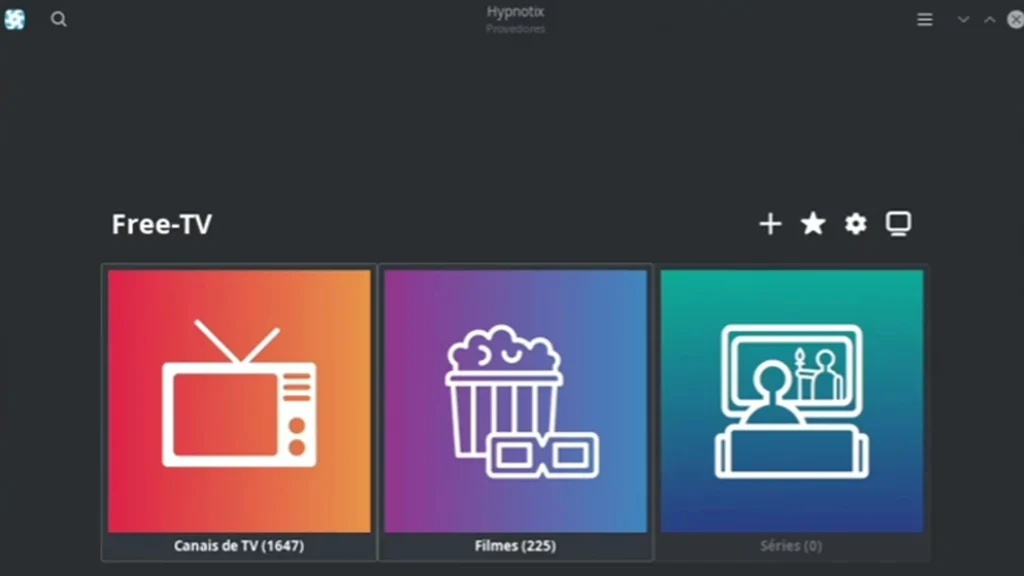

How to Install Hypnotix on Linux
Installing Hypnotix is easiest on Linux Mint, where it comes pre-installed. On other Linux distributions, you can install it via PPA or AppImage.
1. Linux Mint (Pre-installed)
If you’re a Linux Mint user, the Hypnotix player comes pre-installed as the default:
- Open the System Application Menu
- Go to the Search box
- Type Hypnotix and click the Install button.
2. Ubuntu & Debian (PPA Install)
On Ubuntu, Hypnotix can be installed via a Linux Mint community-maintained PPA, making setup quick and straightforward.
- Open your terminal (Ctrl + Alt + T).
- Add the PPA by running:
| sudo add-apt-repository ppa:kelebek333/mint-tools sudo apt update sudo apt install hypnotix |
3. Any Linux Distro (AppImage)
Download the Hypnotix AppImage from its official release page, make it executable, and run it directly without installation.
For non-Debian Linux distributions like Fedora or Arch, Hypnotix can be run using an AppImage, which works as a portable, containerized app.
- Go to the unofficial Hypnotix AppImage GitHub repository
- Download the latest.AppImage from the Releases section
- Make it executable and launch it directly (or run via GUI)
| Pros | Con |
|---|---|
| Built for Linux, preinstalled on Mint and highly customizable. | Unlike dedicated set-top box apps, the EPG is not that extensive. |
| 100% free and open source. |
- VLC Media Player
Platforms: Every Linux distribution
VLC is a highly reliable media player for Linux. The installation process is effortless and you can do it by using the app store or the system’s package manager. It can handle all M3U URLs and play any codec and container format. Since it’s a media player and not a full-featured Internet Protocol TV interface, you won’t find any EPG, catch-up or DVR facilities.
But it’s perfect for single-channel viewing and as a backup IPTV player on Linux.
How to Install VLC on Linux
Installing VLC on Linux is quick and easy. Open Terminal (Ctrl + Alt + T) and run the command for your distribution:
- Ubuntu/Debian: sudo apt install vlc
- Fedora: sudo dnf install vlc
- Arch Linux: sudo pacman -S vlc
Once installed, launch VLC, add your M3U playlist, and start streaming IPTV channels.
| Pros | Con |
| Available on all major Linux distributions. It’s like a “Swiss Army Knife”. | Hardware acceleration may require manual setup. |
| Supports streaming and file conversion |
- IPTVnator
Platforms: Linux (AppImage, Snap, Flatpak), Windows, macOS
IPTVnator is a modern Electron-based IPTV player that runs identically on Linux, Windows, and macOS. It supports M3U and M3U8 URLs, EPG via XMLTV, and Xtream Codes login. The interface is clean, modern, and easier to learn than Kodi.
For Linux users who also use Windows or Mac (especially on a work laptop), IPTVnator is the only player on this list with full feature parity across all three desktop operating systems.
How to Install IPTVnator on Linux
IPTVnator can be installed on most Linux distributions, including Ubuntu, Debian, Fedora, Arch Linux, Manjaro, and EndeavourOS. The application supports multiple installation methods, including Snap packages, AppImage, and AUR packages.
Install IPTVnator via Snap (Recommended)
The easiest way to install IPTVnator on Linux is through Snap. This method automatically manages updates and dependencies.
Open Terminal and run:
sudo snap install iptvnator
You can also install IPTVnator directly from your distribution’s Software Center or App Store if Snap support is enabled.
Run IPTVnator Using AppImage
If you prefer not to install the software system-wide, IPTVnator provides an AppImage version that runs without installation.
- Download the latest IPTVnator AppImage from the official GitHub releases page.
- Open Terminal and make the file executable:
chmod +x IPTVnator-*.AppImage
- Launch the application:
./IPTVnator-*.AppImage
Install IPTVnator on Arch Linux
Arch Linux, Manjaro, and EndeavourOS users can install IPTVnator directly from the Arch User Repository (AUR).
Run:
yay -S iptvnator-bin
This installs the latest pre-built IPTVnator package without requiring manual compilation.
| Pros | Con |
|---|---|
| It supports M3U and M3U8 playlist formats for streaming IPTV content. | I faced a bit of a problem while saving the custom favorite lists after content formatting. |
| No pop-up ads and immersive streaming performance. |
- Open TV
Platforms: Ubuntu, Debian, Fedora, Arch Linux, Linux Mint, openSUSE, Raspberry Pi OS
Open TV (formerly Fred TV) is a lightweight IPTV player designed specifically for Linux users seeking a fast, straightforward streaming experience. Unlike Kodi, it focuses exclusively on IPTV playback, making setup much quicker for beginners.
During testing, Open TV loaded M3U playlists within 2.53 minutes and handled live TV streams smoothly with minimal CPU usage.
How to Install Open TV on Linux
To install Open TV on Linux, the most reliable options are Flatpak (recommended), .deb packages for Ubuntu/Debian, or AUR for Arch-based systems.
1. Flatpak (Recommended – Works on All Distros)
Flatpak is the easiest and most universal method for installing Open TV on Linux.
Steps:
- Install Flatpak (if not already installed)
- Add the Flathub repository
flatpak remote-add –if-not-exists flathub https://flathub.org
- Install Open TV
flatpak install flathub dev.fredol.open-tv
2. Ubuntu / Debian (.deb Package)
Best for Debian-based systems like Ubuntu and Linux Mint.
Install dependencies first:
sudo apt update
sudo apt install mpv ffmpeg yt-dlp
Then install Open TV:
- Download the latest .deb file from the Open TV GitHub Releases page
- Install it via terminal:
cd ~/Downloads
sudo apt install ./Open.TV_*.deb
3. Arch Linux (AUR)
For Arch and Arch-based distributions:
yay -S open-tv-bin
| Pros | Con |
|---|---|
| Quick setup with M3U playlist support. | No built-in DVR recording |
| Low CPU and memory consumption. |
- IBO Player Pro
Platforms: Android, Smart TVs, Windows (No native Linux support)
IBO Player Pro does not have a native Linux version, but it can still be used on Linux through Android emulation. It is mainly designed for Smart TVs, Android devices, and Windows, so Linux users must rely on workarounds.
Alternatively, IBO Player Pro can be used on Linux via its web player directly in a standard browser, with no installation required.
How to Install IBO Player Pro on Linux
1. Android Emulator (Recommended)
- Install an Android emulator (like BlueStacks or Android Studio) on Linux
- Open the emulator and sign in to the Play Store
- Search and install “IBO Player Pro”
- Launch the app and note the MAC address and Device Key
- Activate it on the official IBO Player Pro website
2. Web Browser Method
- Open Chrome or Firefox on Linux
- Visit the official IBO Player Pro website
- Log in or create an account
- Add your M3U playlist and activate the device using the MAC address
The emulator method gives full app features, while the web method is faster and requires no installation.
| Pros | Con |
|---|---|
| Simple activation using the MAC address | No native Linux application |
| Users can enjoy content through a seamless, well-designed interface. |
- MPV
Platforms: Every Linux distribution
MPV is the media player of choice for Linux power users who want minimal overhead and maximum codec support. It is widely used as the playback engine inside other IPTV players and runs anywhere FFmpeg compiles.
MPV is not a turnkey IPTV app. You feed it either an M3U URL or a playlist file. There is no GUI(Graphical User Interface) channel list, no EPG, and no DVR. But for a Linux user who lives in the terminal and just wants to play a stream as fast as possible, MPV is unmatched.
How to Install MPV on Linux
Ubuntu / Debian / Linux Mint:
sudo apt install mpv
Fedora:
sudo dnf install mpv
Arch Linux:
sudo pacman -S mpv
Play an IPTV Stream
mpv “http://your-iptv-provider/playlist.m3u8”
| Pros | Con |
|---|---|
| Supports modern GPU decoding (VA-API and VDPAU | Depends heavily on keyboard shortcuts for navigation and control. |
| Supports automation through Lua or JavaScript scripting. |
Best IPTV Players for Raspberry Pi
Many Linux users build dedicated IPTV systems using Raspberry Pi devices. During testing, Kodi delivered the best overall experience on Raspberry Pi OS due to its excellent hardware acceleration support, stable playback, and DVR functionality.
Recommended Raspberry Pi IPTV Players:
- Kodi
- IPTVnator
- Open TV
- VLC Media Player
For Raspberry Pi 4 and Raspberry Pi 5 users, Kodi remains the most complete IPTV solution.
Best IPTV Players by Linux Distribution
Kodi 21.3 Omega and VLC Media Player are the most reliable IPTV players for Ubuntu and Fedora. Hypnotix is widely used as a native IPTV app that Linux Mint users prefer, while IPTVnator performs best as a cross-platform Linux IPTV app for Ubuntu, Debian, Fedora, and Arch Linux users.
If you are looking for an IPTV app Linux setup, these tools provide the most stable experience across distributions.
For users specifically searching for IPTV player Fedora or IPTV player Arch Linux solutions, Kodi and IPTVnator offer the best balance of performance and compatibility.
These Linux IPTV clients also support M3U player Linux workflows. Thus, it makes it easy to stream IPTV channels using playlist URLs.
How to Add an M3U Playlist on Linux (Universal Guide)
The process is similar across players. Here is the universal flow:
- **Get your M3U URL** from your IPTV provider (it usually looks like `http://provider.com:port/playlist.m3u`).
- **Open your chosen IPTV player.**
- **Find the Add Playlist option:**
- Kodi: System, Addons, PVR IPTV Simple Client, Configure, M3U Playlist URL
- Hypnotix: Settings, Add Provider, M3U URL
- VLC: Media, Open Network Stream, paste URL
- IPTVnator: Add Playlist, From URL
- **Paste your M3U URL** and save.
- **The channel list loads.** Browse and start watching.
How to Add Xtream Codes Login on Linux
For players that support Xtream Codes API (Kodi PVR, IPTVnator):
1. Get these three details from your IPTV provider:
– **Server URL** (e.g. `http://provider.com:port`)
– **Username**
– **Password**
2. In your player, choose **Add Xtream Codes** or **Xtream API Login**.
3. Enter all three fields and save.
4. The player will pull live channels, VOD, series, and EPG.
Xtream Codes is more feature-rich than M3U URLs because it provides players with access to categories, EPG, and VOD libraries via a structured API rather than just a flat playlist.
6 Common Linux IPTV Player Issues (and How to Fix Them)
| Problems | Possible Reasons | Fixing Methods |
|---|---|---|
| Channels buffer or freeze forever | Slow internet connection, overloaded IPTV server, or unstable Wi-Fi | Switch to a wired connection, reduce stream quality, or try a different IPTV server. |
| The playlist will not load or shows “empty” | Invalid M3U URL, expired playlist, or incorrect format | Recheck the playlist URL, update the M3U link, or reload the IPTV source. |
| No video, only audio (or vice versa) | Missing codecs, wrong decoder settings, or player incompatibility | Install FFmpeg codecs, change video output settings, or switch player (e.g., MPV/Kodi) |
| 4K streams stutter or drop frames | Low hardware performance or missing hardware acceleration | Enable hardware decoding, close background apps, or lower stream resolution. |
| Missing Channels | Outdated playlist or provider-side changes | Refresh playlist, re-import M3U, or contact the IPTV provider. |
| Broken Dependencies or App Crashes | Missing libraries, outdated packages, or unstable installs | Update system packages, reinstall the IPTV app, or use the Flatpak version for stability. |
Final Recommendations
Despite Windows’ dominance in PCs and laptops, Linux remains a formidable OS. As per StatCounter.com, 3.09% os world users are still using this OS. If you’re one of them or have a plan to join Linux, you should know which is the best IPTV player for Linux.
Here are the final recommendations:
Best Overall: Kodi
Best for Beginners: Hypnotix
Best Lightweight Player: MPV
Best Cross-Platform Player: IPTVnator
Best for Linux Mint: Hypnotix
Best Free IPTV Player: VLC
FAQs on the IPTV Player for Linux
Does IPTV Smarters Pro work on Linux?
No, IPTV Smarters Pro does not have an official native Linux build in 2026. It runs on Windows, Mac, Android, iOS, and Firestick only. Linux users who want a similar experience should use **Kodi with PVR IPTV Simple Client ** or **IPTVnator** as native alternatives.
Can I install TiviMate on Linux?
No, TiviMate is Android-only and does not run on Linux desktop distributions. The closest Linux alternative is **Kodi 21.3 Omega** with the PVR IPTV Simple Client add-on, which provides similar EPG quality and DVR functionality on Ubuntu, Mint, Fedora, and Arch.
What is the best IPTV player app in 2026?
Kodi 21.3 Omega is widely considered the best IPTV player app in 2026 due to its support for M3U playlists, Xtream Codes API, EPG integration, DVR recording, and cross-platform compatibility.
Which IPTV player works on all devices?
IPTVnator is one of the most versatile IPTV players because it supports Linux, Windows, macOS, and other desktop platforms while maintaining a consistent user experience.
Is an IPTV player app legal to use?
Yes. IPTV player applications are legal software tools. The legality depends on the content source and whether the IPTV service has the proper licensing rights.
What IPTV player supports M3U playlists?
Kodi, Hypnotix, IPTVnator, VLC, Open TV, IBO Player Pro, and MPV all support M3U playlists.
Which IPTV player is best for Firestick?
TiviMate and IPTV Smarters Pro are among the most popular IPTV players for Firestick due to their user-friendly interface and EPG support.
What is the difference between an IPTV app and an IPTV player?
An IPTV player is software used to stream IPTV content through M3U playlists or Xtream Codes credentials. An IPTV service provides the actual channels and content.
Can I install an IPTV app directly on Samsung or LG Smart TVs?
Yes. Samsung Smart TVs support IPTV applications such as Smart IPTV and IBO Player, while LG webOS TVs support several IPTV player apps available through the LG Content Store.
Does Linux support IPTV streaming?
Yes. Linux supports IPTV streaming through applications such as Kodi, Hypnotix, VLC, IPTVnator, Open TV, and MPV.
Can IPTV run on a Raspberry Pi?
Yes. Raspberry Pi devices running Raspberry Pi OS can use Kodi, IPTVnator, VLC, and Open TV for IPTV streaming.