
Want to watch IPTV VLC style, with no extra app? VLC media player is a free, open-source player from VideoLAN that runs on Windows, Mac, Linux, Android, iPhone and Apple TV, and it can open IPTV streams and M3U playlists through its network stream feature. If you already have VLC installed, it’s the quickest way to test a playlist. This guide shows you how to add IPTV to VLC on every device, how to play a GitHub IPTV playlist in VLC, how to fix buffering and crashes, and when a dedicated IPTV player is a better choice.
Key takeaways (TL;DR)
- VLC can play IPTV: open Media › Open Network Stream (Ctrl+N on Windows), paste an M3U link, and click Play.
- VLC is a player only. It includes no channels, so you need a playlist from a licensed provider or a free legal source such as iptv-org on GitHub.
- VLC has no TV guide (EPG), no Xtream Codes login and no channel logos. For those, use a dedicated IPTV player.
- Most VLC IPTV problems come from dead links, too little network caching, or hardware decoding conflicts.
Can VLC Play IPTV?
Yes. VLC opens network streams over protocols such as HTTP, HTTPS, RTSP, RTP and UDP, according to the VideoLAN wiki, and it reads M3U and M3U8 playlists, the format most IPTV services use. If you’re new to the technology, start with our guide to what IPTV is and how it works.
VLC is not built for IPTV, though. A VLC developer noted on the VideoLAN forum that there’s “no specialized interface available for IPTV setups”, and that still holds: you get a plain playlist instead of a channel grid with a TV guide. That makes VLC for IPTV ideal for testing a link or watching a few channels, but not for daily channel surfing.
Requirements: What You’ll Need
- VLC media player: the latest version from the official site (3.0.24 on Windows at the time of writing), or VLC from Google Play or the App Store.
- An M3U playlist link: from one of the licensed IPTV providers we recommend, or a free legal playlist such as iptv-org.
- A stable internet connection: a wired connection or 5 GHz Wi-Fi works best for HD streams.
- A supported device: Windows, Mac, Linux, Android phone or TV, iPhone, iPad or Apple TV.
Only download VLC from videolan.org or the official app stores. VideoLAN describes VLC as “completely free”, with no ads or user tracking.
How to Watch IPTV on VLC Player (Windows)
This is the fastest way to play IPTV on VLC on a PC. The same steps work on Linux.
Step 1: Open VLC media player.
Step 2: Click Media in the menu bar.
Step 3: Select Open Network Stream (or press Ctrl+N).
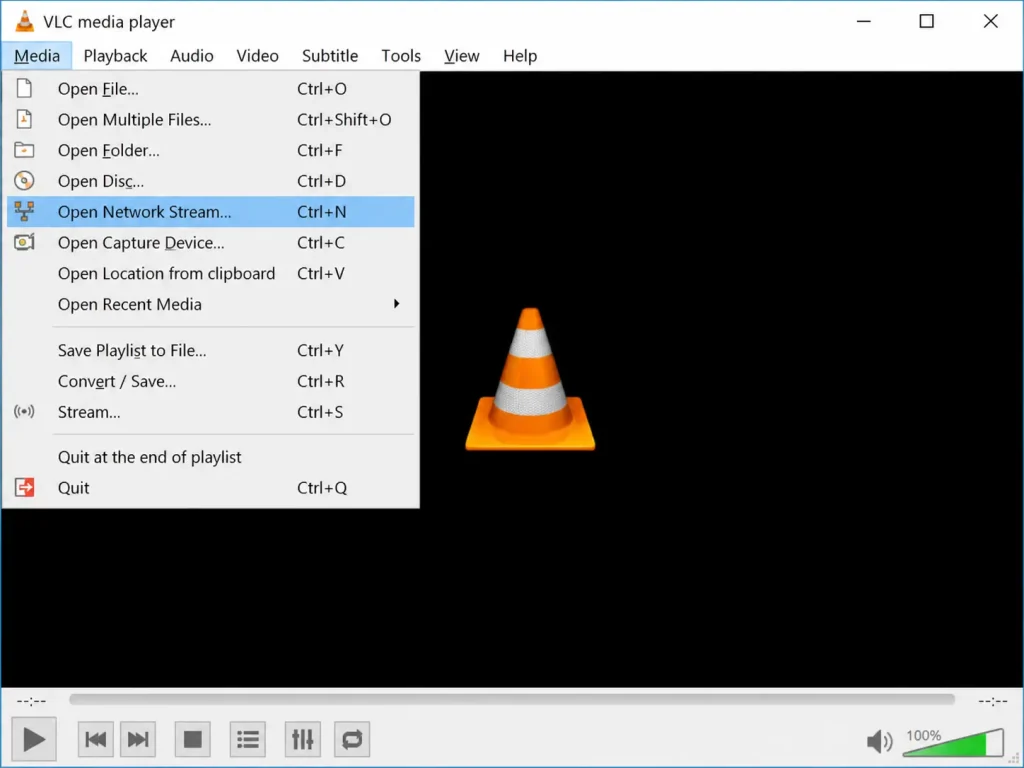
Step 4: Paste your M3U playlist URL into the network URL box.
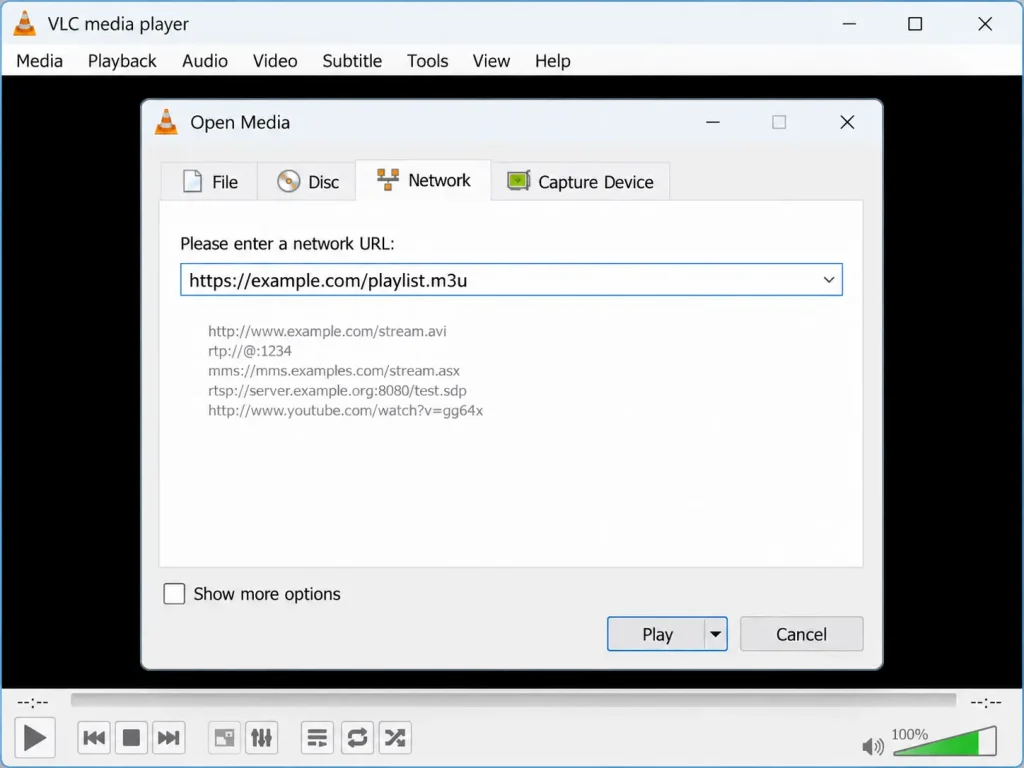
Step 5: Click Play.
Step 6: Press Ctrl+L (View › Playlist) to see every channel in the playlist.
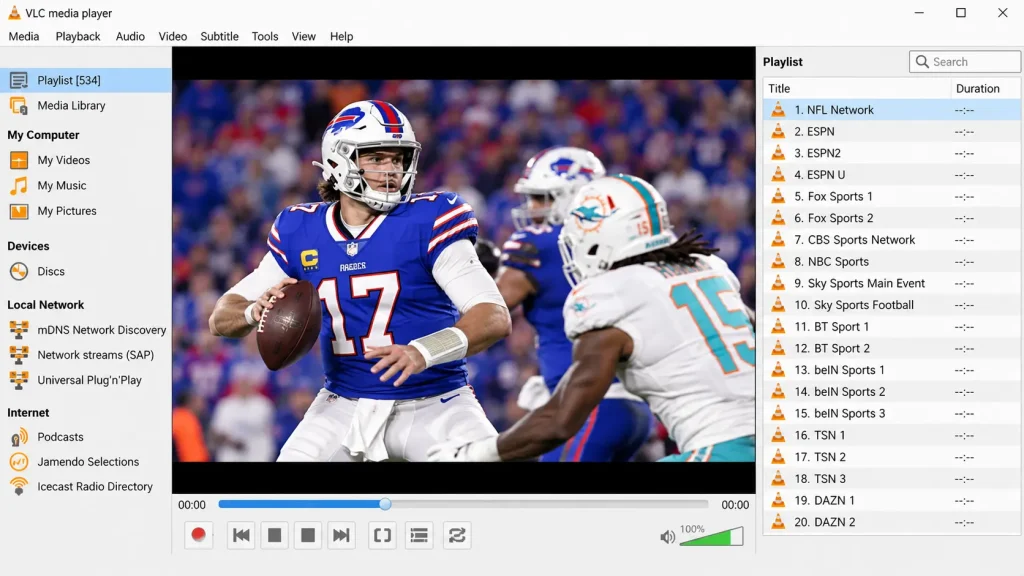
Step 7: Double-click a channel to start watching.
Already downloaded the playlist as an .m3u file? Use Media › Open File instead, or drag the file onto the VLC window.
Add IPTV to VLC Player on Mac
Step 1: Open VLC on your Mac.
Step 2: Click File in the menu bar.
Step 3: Select Open Network (or press Cmd+N).
Step 4: Paste your M3U link into the URL field.
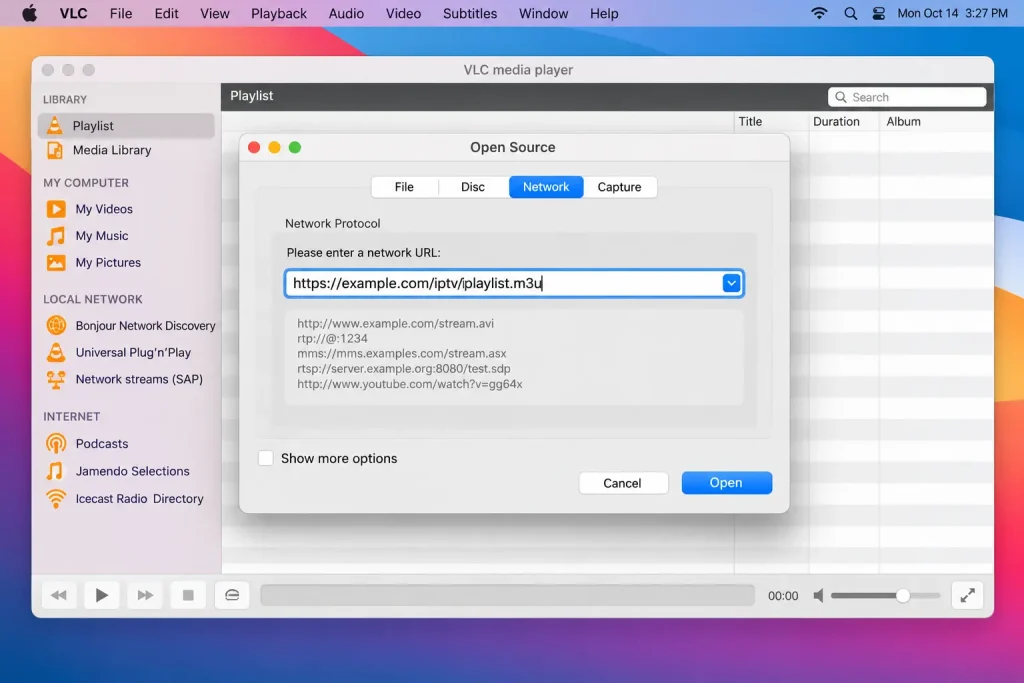
Step 5: Click Open, then open the playlist from Window › Playlist to pick a channel.
VLC IPTV Player on Android and Android TV
VLC for Android has more than 500 million downloads on Google Play and supports network streams, including adaptive streaming, on phones, tablets and Android TV.
Step 1: Install VLC from Google Play and open it.
Step 2: Go to the More tab.
Step 3: Tap New stream.
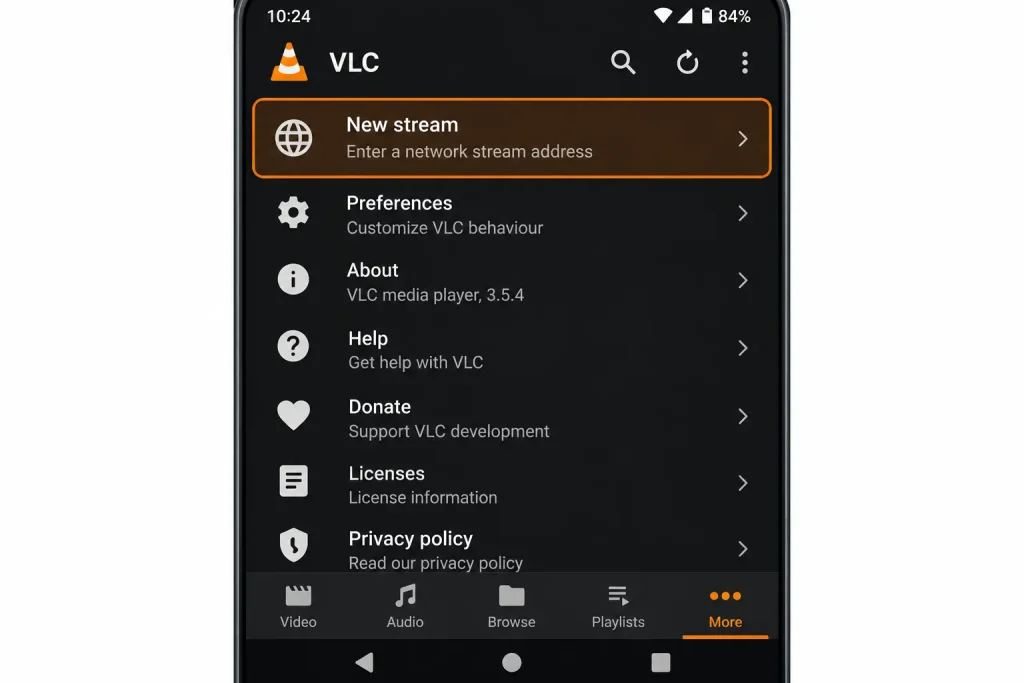
Step 4: Paste your M3U link and tap the arrow to play.
On Android TV, typing a long URL with a remote is slow. Paste the link from your phone instead, or use a TV-friendly player from our IPTV player guide.
IPTV on VLC for iPhone, iPad and Apple TV
VLC for iOS is free on the App Store and also runs on Apple TV (tvOS 11 or later).
Step 1: Install VLC from the App Store and open it.
Step 2: Tap the Network tab.
Step 3: Tap Open Network Stream.
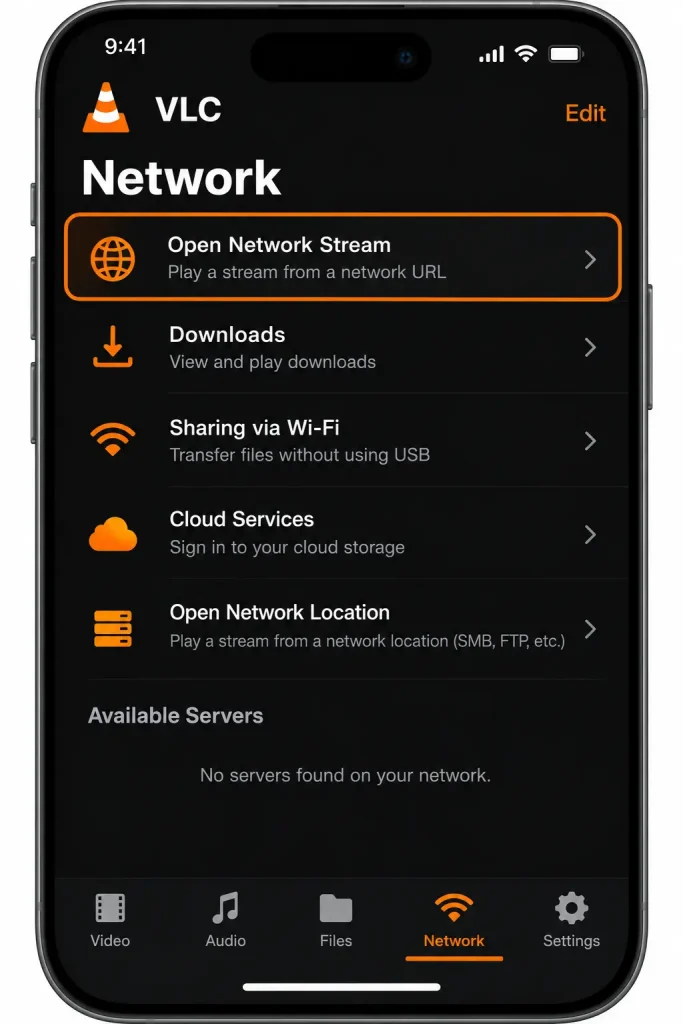
Step 4: Paste your M3U link and tap Open Network Stream to play.
VLC keeps your recent stream links in this screen, so you can reopen a playlist with one tap.
GitHub IPTV for VLC: Free Legal Playlists
The most popular free playlist for VLC is iptv-org on GitHub, a collection of publicly available channels from around the world. Its main playlist link is https://iptv-org.github.io/iptv/index.m3u, and the project also publishes smaller playlists by country, language and category in its PLAYLISTS.md file.
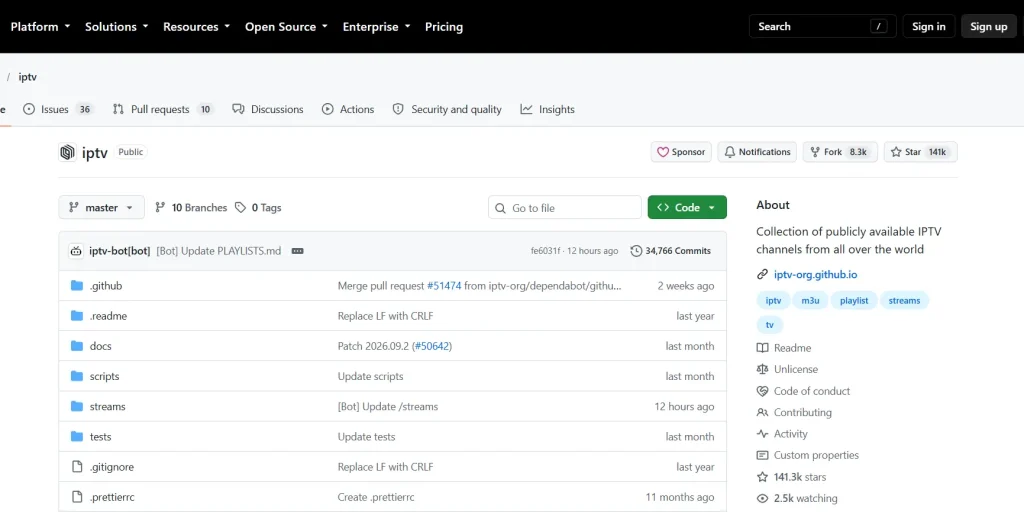
PCWorld highlighted this setup in a September 2026 tip, noting that it gives you thousands of news, sports, music and local channels, but that some streams go offline, change address or are blocked in certain regions. The iptv-org repository stores no video itself, only links to streams that are already public. For more free sources, see our guide to IPTV GitHub playlists.
Be careful with “VLC IPTV links” shared on Reddit or forums that promise premium sport and pay-TV channels for free. These are usually unlicensed and often stop working within days. Stick to legal sources from our list of legal IPTV services, and read our guide to IPTV legality to understand the risks.
Create Your Own M3U Playlist for VLC
If you only want a few channels, you can build a small playlist file yourself and open it in VLC. An M3U file is plain text: one header line, then an #EXTINF line with the channel name followed by the stream address on the next line.
Step 1: Open Notepad (Windows) or TextEdit in plain-text mode (Mac).
Step 2: Type #EXTM3U on the first line.
Step 3: For each channel, add a line such as #EXTINF:-1,Channel name, then the stream link (for example https://example.com/live/stream.m3u8) on the next line.
Step 4: Save the file as my-channels.m3u with UTF-8 encoding.
Step 5: Drag the file onto VLC, or open it with Media › Open File.
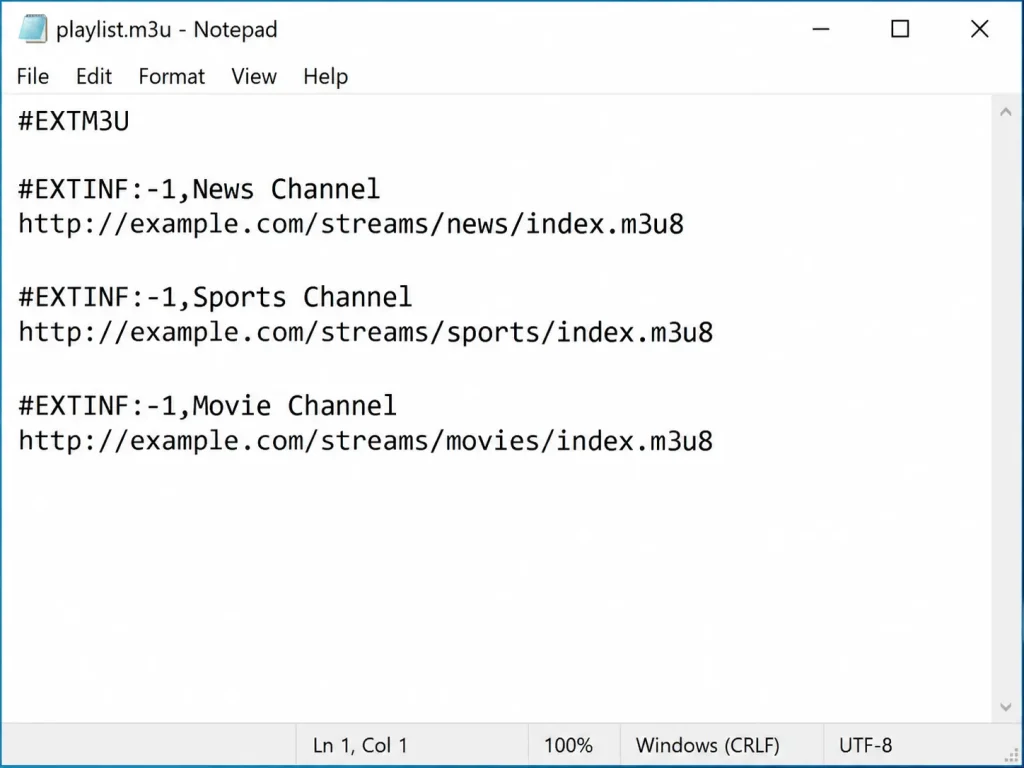
This is handy for keeping your favourite channels from a long playlist in one short list. Only add links from sources you’re allowed to use.
Cast IPTV From VLC to Your TV
VLC can send an IPTV stream to a Chromecast or a TV with Chromecast built in, so you can browse channels on your phone or laptop and watch on the big screen.
Step 1: Connect your device and the Chromecast to the same Wi-Fi network.
Step 2: Start playing a channel in VLC.
Step 3: On desktop, open Playback › Renderer and choose your Chromecast. On Android or iPhone, tap the cast icon at the top of the player.
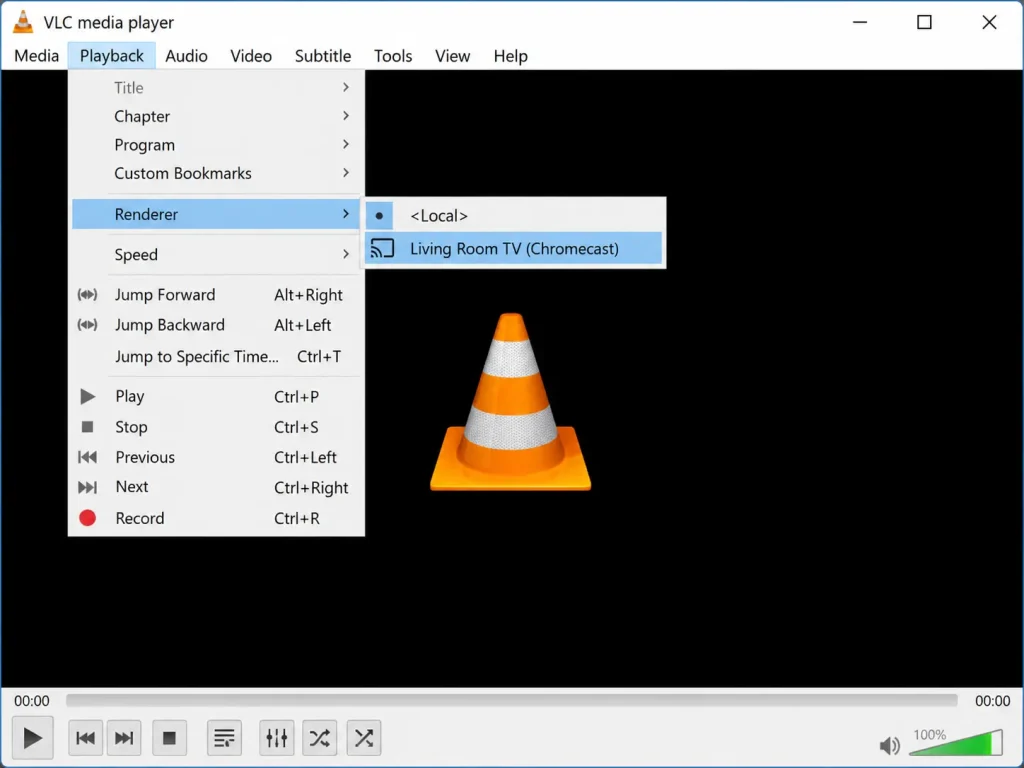
Android Authority notes that VLC on iPhone can cast to Chromecast devices and smart TVs with Chromecast built in when both are on the same Wi-Fi network. Some stream formats may need converting while casting, so a channel that plays fine in VLC can occasionally fail on the TV.
How to Configure VLC for IPTV (Better Playback)
A few settings make IPTV on VLC smoother on desktop:
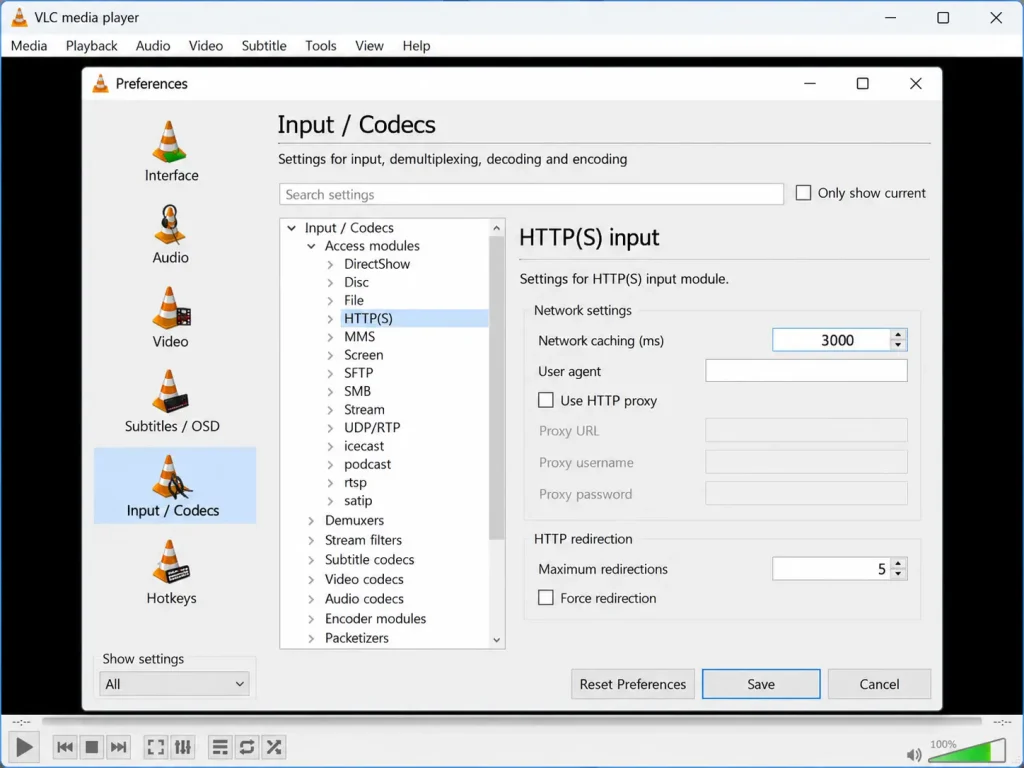
- Network caching: go to Tools › Preferences, choose Show settings: All, open Input / Codecs and raise Network caching (ms) to 3000. A bigger buffer reduces stuttering on slower connections.
- Hardware decoding: under Tools › Preferences › Input / Codecs, set Hardware-accelerated decoding to Automatic, or Disable if channels stutter or crash.
- Repeat playlist: turn on Loop in the playlist view so a channel reconnects if the stream drops.
VLC IPTV Troubleshooting: Common Problems and Fixes
- “Your input can’t be opened”: the link is wrong or dead. Check that the URL is complete, open it in a browser to test it, or ask your provider for a fresh link.
- The playlist loads but a channel won’t play: that stream may be offline or geo-blocked. Try another channel, since free playlists always include some dead links.
- Buffering or freezing: raise network caching to 3000 ms or more, switch to a wired connection, and close other apps that use your bandwidth.
- VLC closes or crashes when playing IPTV: update to the latest version, disable hardware-accelerated decoding, or reset VLC with Tools › Preferences › Reset Preferences.
- No TV guide or channel logos: VLC doesn’t support EPG. Use a dedicated IPTV player instead.
- Xtream Codes login only: VLC can’t log in with a username and password. Ask your provider for an M3U link, or use an app that supports Xtream Codes.
VLC vs Dedicated IPTV Players
VLC is perfect for testing a link, but a dedicated app is easier for everyday viewing:
| Feature | VLC | Dedicated IPTV player |
|---|---|---|
| M3U playlists | Yes | Yes |
| Xtream Codes login | No | Usually |
| TV guide (EPG) | No | Yes |
| Channel groups and favourites | Basic playlist only | Yes |
| Price | Free | Free to a few dollars |
Popular alternatives include TiviMate for Android TV, IPTV Smarters Pro for most devices, and GSE Smart IPTV for iPhone and Apple TV.
Frequently Asked Questions About IPTV on VLC
-
Why is VLC closing?
If VLC closes on its own while playing IPTV, the usual causes are an outdated version, a hardware decoding conflict or corrupted settings. Update VLC, disable hardware-accelerated decoding and reset your preferences. VLC itself isn’t shutting down: VideoLAN still lists version 3.0.24 as the current release.
-
Does VLC support M3U?
Yes. VLC opens M3U and M3U8 playlists from a URL (Media › Open Network Stream) or from a saved file (Media › Open File), and lists every channel in its playlist view.
-
Where can I find the GitHub link for the IPTV VLC Player?
There’s no separate “IPTV VLC Player” on GitHub. VLC comes from VideoLAN, and the free playlist most people use with it is iptv-org at https://iptv-org.github.io/iptv/index.m3u. Paste that link into VLC’s network stream box.
-
What is the best video player for IPTV?
VLC is the best free player for testing links, while TiviMate, IPTV Smarters Pro and GSE Smart IPTV are better for daily use thanks to their TV guide and channel groups. Compare all options in our best IPTV player guide.
Final Thoughts: Is IPTV VLC Worth Using?
IPTV VLC playback is the simplest free way to open an M3U playlist on almost any device: paste the link into Open Network Stream and press Play. VLC doesn’t include channels, so pair it with one of the legal IPTV options we recommend, and remember that it has no TV guide or Xtream login. For licensed channels, compare our best IPTV service providers, and check is IPTV legal? before you load any playlist. New to all this? Start with how IPTV works.