IPTV Smarters Pro is one of the most widely used IPTV players in the world. It’s a free app that turns an IPTV subscription into a cable-style experience with live channels, a TV guide, movies and series. Here’s what trips up most new users: the app doesn’t include any channels. It’s a player, not a provider. This guide covers what IPTV Smarters Pro does, where to download it safely in 2026, how to set it up on Firestick, Android, Windows, Mac and Samsung TVs, and how to fix the most common problems.
Key takeaways (TL;DR)
- IPTV Smarters Pro is a free media player. It has no built-in channels, so you need a subscription or playlist from a provider.
- You log in with Xtream Codes details (username, password, server URL) or an M3U playlist link.
- The app has been pulled from official app stores several times, and many look-alike apps use the name, so check the developer before you install.
- The app itself is legal. Whether your viewing is legal depends on the content source you load into it.
What Is IPTV Smarters Pro?
IPTV Smarters Pro (often shortened to Smarters, Smarters Pro or IPTV Smarters) is a video player built for IPTV services. It was created by WHMCS Smarters, a software company in India also known as New Spark Technology. The developer has been clear about its role, stating: “We don’t provide or Sell any Subscriptions, Stream and Content. We are a Software Development Company.”
Think of it like a web browser: the browser doesn’t own the websites you visit, and the Smarters player doesn’t own the channels you watch. You bring your own content source, and the app organises it into a clean interface. If you’re new to the technology behind it, start with our guide on what IPTV is and how it works.
IPTV Smarters Pro vs. IPTV Smarters Player vs. Smarters Plus
Searching for “IPTV Smarters” brings up several similar names, including IPTV Smarters Player, IPTV Smarters Player Pro, Smarters Plus and smarterpro. Some are older or platform-specific versions from the original developer. Many others are unrelated apps that borrow the name. For example, one current Google Play listing called “IPTV Smarters PRO” is published by a different company altogether. Always check the developer name on the store page, and avoid APK downloads from random mirror sites.
IPTV Smarters Pro Features
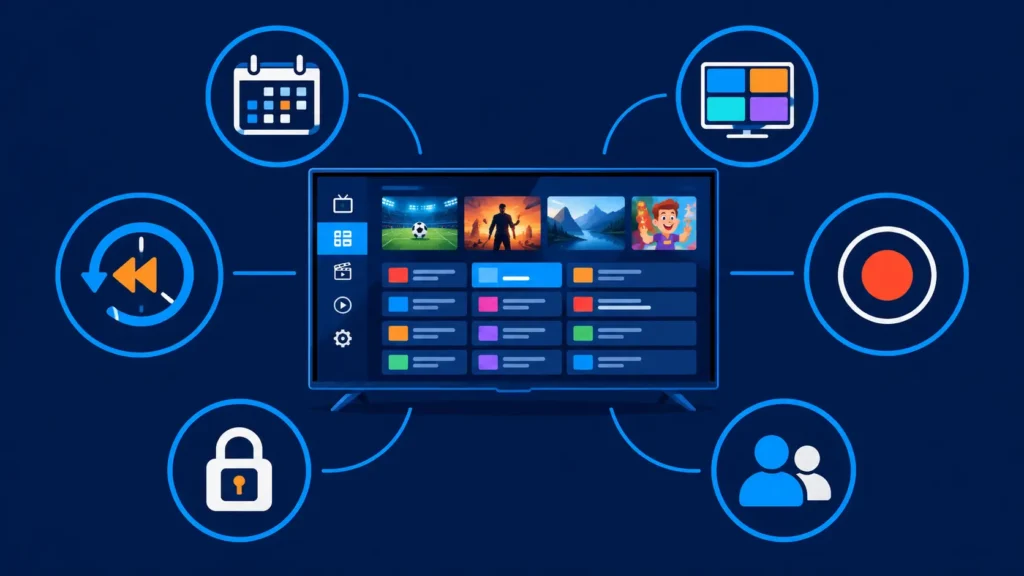
The Smarters player is popular because it packs features into a layout that feels familiar to anyone who has used cable TV:
- Two login methods: Xtream Codes API (username, password and server URL) or an M3U playlist URL. Local playlist files are also supported.
- Electronic programme guide (EPG): a TV-guide grid that fills in automatically with Xtream Codes logins. Learn more in our explainer on how EPG works.
- Catch-up TV: replay past programmes if your provider supports it.
- Separate sections for Live TV, Movies and Series, with search across all of them.
- Multi-screen: watch up to four channels at once on supported devices.
- Recording: save live TV on Android-based devices (storage permitting).
- Parental controls: PIN-lock categories you don’t want children to access.
- Multiple profiles: store more than one subscription in the same app.
- External player support: hand streams to VLC or MX Player if the built-in player struggles.
Is IPTV Smarters Pro Still Available in 2026?
Store availability for IPTV Smarters Pro has been unstable for years, and it’s worth knowing why before you download anything.
- 2019: Google removed the app from Google Play following a complaint. It was the third time the app had been pulled from the store, according to TorrentFreak.
- December 2022: a Madrid court, acting on a complaint from LaLiga, ordered Google to remove IPTV Smarters Pro from Google Play.
- March 2026: broadcaster JioStar, using a Delhi High Court injunction, had 36 IPTV apps removed from Google Play and the iOS App Store during the T20 World Cup. IPTV Smarters Pro was named among them, and the apps had more than 26 million downloads between them.
The takeaway: what’s on the store in your country today may not be the original app, and it may be gone tomorrow. Download only from an official store listing where the developer name matches, or from the developer’s own website (iptvsmarters.com). If you want other options, our list of the best IPTV players covers apps with steadier store availability.
How to Download and Install IPTV Smarters Pro
IPTV Smarters Pro on Firestick
Because the app isn’t reliably listed in the Amazon Appstore, most Fire TV owners sideload the APK using Amazon’s free Downloader app:
- From the Fire TV home screen, search for Downloader and install it.
- Go to Settings → My Fire TV → Developer options. If you don’t see Developer options, open About and click your device name seven times to unlock it.
- Select Install unknown apps and turn it on for Downloader.
- Open Downloader and enter the download link from the developer’s official website.
- When the file finishes downloading, select Install, then delete the setup file to free up storage.
Note: some newer Fire TV models, such as the Fire TV Stick 4K Select, run Amazon’s Vega OS instead of Android-based Fire OS and can’t install Android APKs. For more options, see our round-up of IPTV players for Firestick.
IPTV Smarters Pro APK on Android phones and Android TV
If the original app appears in Google Play in your region (check that the developer is WHMCS Smarters), install it there. If not, download the IPTV Smarters Pro APK from the developer’s site, then allow your browser or file manager to install unknown apps when prompted. Android TV and Google TV boxes follow the same process as Firestick, using Downloader or a file manager.
IPTV Smarters Pro for PC (Windows)
The developer offers a Windows installer through the Downloads section of its official website. Run the .exe file, follow the setup wizard, and log in as you would on any other device. If the PC version doesn’t suit you, compare it against other IPTV players for Windows, such as VLC and Kodi.
IPTV Smarters Pro for Mac (MacBook Air and MacBook Pro)
Mac support has changed over the years, so check the developer’s Downloads page for a current macOS build first. On Apple silicon Macs (M1 and later, including every recent MacBook Air), some iPhone and iPad apps can also be installed from the Mac App Store if the developer allows it. If neither option works, a cross-platform player is the simplest route. Our guide to IPTV players for Mac lists tested alternatives.
How to use IPTV Smarters Pro on Samsung TV
Samsung smart TVs run Tizen, and a native IPTV Smarters app isn’t reliably available in Samsung’s app store. You have three practical options:
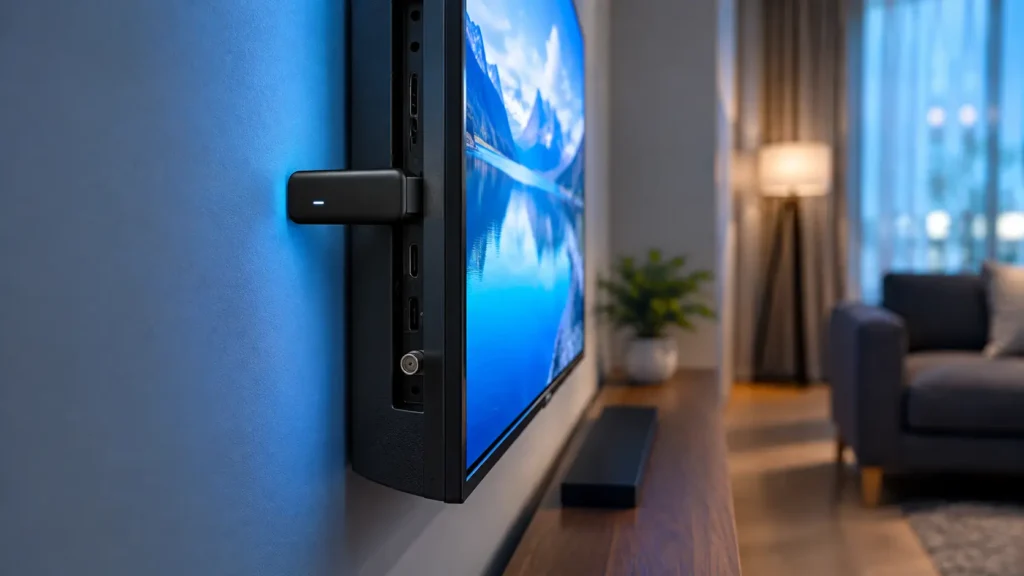
- Add a streaming device. Plug a Fire TV Stick or Android TV box into an HDMI port and install Smarters on that. This is the most dependable method.
- Use the web player. Smarters offers a browser-based player that some providers support, and you can open it in the TV’s built-in browser.
- Choose a Tizen-native player. Several third-party IPTV players install directly from the Samsung app store and accept the same M3U or Xtream Codes login details.
How to Set Up IPTV Smarters Pro
Once the app is installed, setup takes about two minutes:
- Open IPTV Smarters Pro and accept the terms.
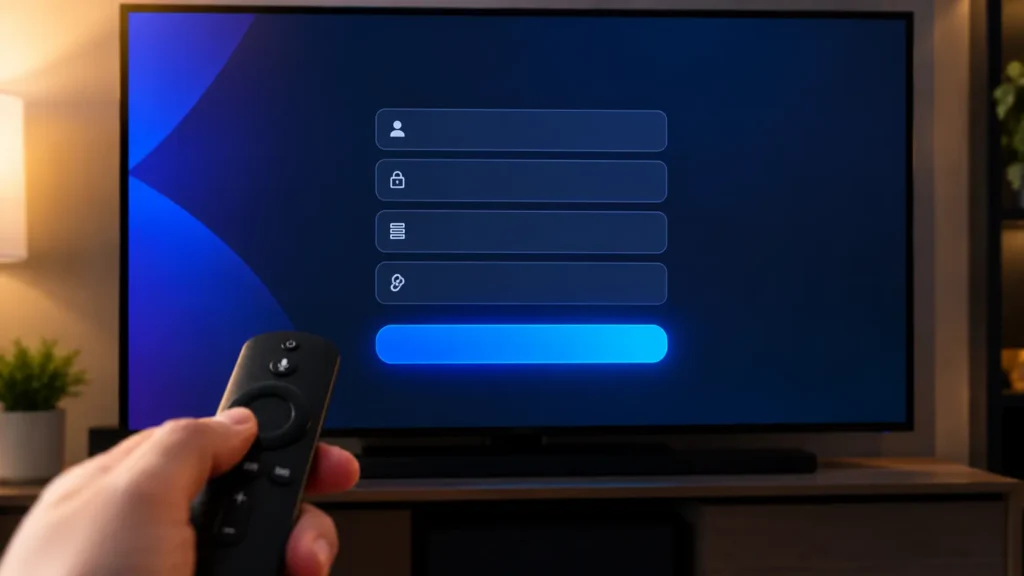
- Choose Login with Xtream Codes API (recommended) or Load Your Playlist or File/URL for an M3U link.
- For Xtream Codes, enter any profile name, then the username, password and server URL from your provider’s welcome email.
- Select Add User. The app downloads your channel list, movies, series and EPG data.
- Pick a section (Live TV, Movies or Series) from the dashboard and start watching.
Xtream Codes logins usually load faster and fill in the TV guide automatically, while M3U playlists sometimes need a separate EPG URL. For a broader walkthrough, read our beginner’s guide on how to use IPTV.
How to add favorites on IPTV Smarters (Firestick)
Saving your go-to channels means less scrolling:
- Open Live TV and browse to the channel you want.
- Highlight it and press and hold the Select (OK) button on your Fire TV remote.
- Choose Add to Favourites from the pop-up menu.
- Your saved channels now appear in the Favourites category at the top of the Live TV list.
The same long-press method works for movies and series. For tips that apply across other apps too, see how to add favourites on IPTV.
Common IPTV Smarters Pro Problems and Fixes
- “Invalid username or password”: re-type the details carefully. Server URLs usually need
http://and sometimes a port number such as:8080. If they’re correct, your subscription may have expired. - Buffering or freezing: Netflix recommends a stable 5 Mbps for 1080p and 15 Mbps for 4K, and live IPTV needs similar headroom. Use Ethernet if you can, or upgrade to a faster dual-band router.
- Black screen or audio only: in Settings → Player Selection, switch between hardware and software decoding, or set VLC as an external player.
- Empty TV guide: go to Settings → EPG and refresh, or ask your provider for an EPG URL if you use an M3U playlist.
- App crashes after updating: clear the app’s cache (Settings → Applications on Firestick) or reinstall the latest official version.
Is IPTV Smarters Pro Legal?
The app itself is legal software. It’s a media player, much like VLC. What matters legally is the content you load into it. Using Smarters with a licensed service, your own recordings or free public playlists is fine. Using it with an unlicensed “10,000 channels for $10” subscription is where users and sellers run into copyright problems. That’s exactly why rights holders such as LaLiga and JioStar keep targeting apps that are widely used for pirated streams.
For the full picture by country, read is IPTV legal?, and pair Smarters with one of the legal IPTV services we track. (This is general information, not legal advice.)
IPTV Smarters Pro Alternatives
If Smarters isn’t available on your device, or you want something different, these players are worth a look:
- TiviMate: the favourite on Android TV and Firestick for its polished TV guide. See how to set up IPTV on TiviMate.
- VLC Media Player: free, open-source and on almost every platform. Here’s how to set up IPTV on VLC.
- Kodi, IMPlayer and OTT Navigator: each has its strengths. Compare them in our IPTV player comparison.
Frequently Asked Questions About IPTV Smarters Pro
Is IPTV Smarters Pro legal in the USA?
Yes. IPTV Smarters Pro is a legal media player in the USA because it doesn’t host or sell any content. Legality depends on what you watch: pairing it with licensed providers is legal, while streaming copyrighted channels from an unlicensed service is not. Our list of licensed IPTV services is a safe place to start.
Can I use IPTV Smarters Pro for free?
Yes, the app itself is free to download and use, although some versions show ads. You still need a content source, so either a paid subscription or a free, publicly available M3U playlist. Our guide to free IPTV playlists on GitHub explains the legitimate free options.
How much does IPTV cost monthly?
Licensed live-TV streaming services in the US currently start at about $45.99/month for Sling TV, with YouTube TV at $82.99 and Fubo from $88.99, according to Streaming Price Tracker. Telecom IPTV bundles vary by provider and country. Very cheap offers promising thousands of premium channels are usually unlicensed.
How much does an IPTV subscription cost?
It depends on the service and the plan. In the US, legal live-TV subscriptions cost roughly $46 to $89 per month before add-ons such as sports or premium channel packs. Annual plans and bundles with broadband can lower the monthly price. For the difference between telecom IPTV packages and streaming services, see our explainer on what IPTV is.
Final Thoughts on IPTV Smarters Pro
IPTV Smarters Pro earns its popularity: it’s free, runs on almost every device, and makes any compatible subscription look and feel like premium cable. Its weak points are unstable app-store availability and the many copycats that share its name. Download it only from official sources, check that your IPTV source is legal, pair it with a licensed provider, and keep one of the alternatives above in mind if the Smarters player ever disappears from your device’s store.
Your point of view caught my eye and was very interesting. Thanks. I have a question for you.
Thank you so much for your kind words! I’m glad you found my perspective interesting. Of course, feel free to ask your question—I’ll be happy to help!
Can you be more specific about the content of your article? After reading it, I still have some doubts. Hope you can help me.
Thank you for your feedback! I’d be happy to provide more specific details and clarify anything that may be unclear. Feel free to share your questions, and I’ll do my best to help!