TiviMate is the IPTV player many Android TV and Firestick owners end up using once they’ve tried everything else. Its cable-style TV guide, fast channel switching and deep customisation make an ordinary IPTV playlist feel like a premium set-top box. It’s also one of the most misunderstood apps in streaming: TiviMate doesn’t come with channels, the most useful features sit behind TiviMate Premium, and it doesn’t run on every device. This guide explains what the TiviMate IPTV player is, what Premium costs, how the Companion app and your TiviMate account work, and which devices it supports.
Key takeaways (TL;DR)
- TiviMate is a media player only. You add your own M3U or Xtream Codes playlist from an IPTV provider.
- The free version works with one playlist. TiviMate Premium adds multiple playlists, recording, catch-up, multiview and more for a yearly or one-time fee.
- It runs on Android TV, Google TV and Android-based Fire TV devices, but not on iPhone, Apple TV, Mac or Windows.
- The TiviMate Companion app on your phone buys and manages Premium on devices without Google Play, such as a Firestick.
What Is TiviMate?
TiviMate IPTV Player (often misspelt as tvmate, tv mate or tivi mate) is an Android TV app developed by Armobsoft FZE. The developer describes it simply: “TiviMate is a media player. Add your own playlists to watch live TV, movies and shows.” Its Google Play listing makes the same point even more directly, stating that TiviMate “does not provide any content”. The listing shows more than 5 million installs.
In other words, the TiviMate app is the TV, not the channels. You supply the content by adding a playlist from an IPTV service, and TiviMate turns that list into a guide-driven, remote-friendly interface. If the technology behind those playlists is new to you, read our explainer on what IPTV is and how it works first.
Why TiviMate is so popular
- Built for the remote: the interface is designed for TV screens and D-pads, not touchscreens, so navigation feels like a cable box.
- Speed: channels switch quickly and large playlists with thousands of entries stay responsive.
- Customisation: reorder, hide and rename channels and groups, and choose how the guide looks.
- Active development: the app still receives regular updates in 2026.
TiviMate Features
These are the features that set the TiviMate IPTV app apart from basic players:
- TV guide (EPG): a clean, cable-style programme grid that can pull data from your provider or an external EPG source. Learn how guide data works in our article on what EPG is.
- Catch-up: replay programmes that have already aired, if your provider supports it. See catch-up TV in IPTV for how this works.
- Recording: schedule and save live TV to local or network storage, much like a DVR. Here’s more on DVR in IPTV.
- Multiview: watch several channels on one screen, which is handy on busy sports days.
- Multiple playlists: combine several sources in one interface.
- Favourites and custom groups: build your own channel lists and hide the categories you never watch.
- Parental controls: PIN-protect groups or channels.
- Movies and series sections: browse your provider’s on-demand library alongside live TV.
TiviMate Free vs. TiviMate Premium
You can download and use TiviMate free, but the free tier is deliberately limited. Here’s how it compares with TiviMate Premium:
| Feature | Free | Premium |
|---|---|---|
| Playlists | 1 | Multiple |
| TV guide (EPG) | Yes | Yes, with more guide options |
| Catch-up | No | Yes |
| Recording | No | Yes |
| Multiview | No | Yes |
| Favourites and group management | Limited | Full |
| Customisation options | Basic | Full |
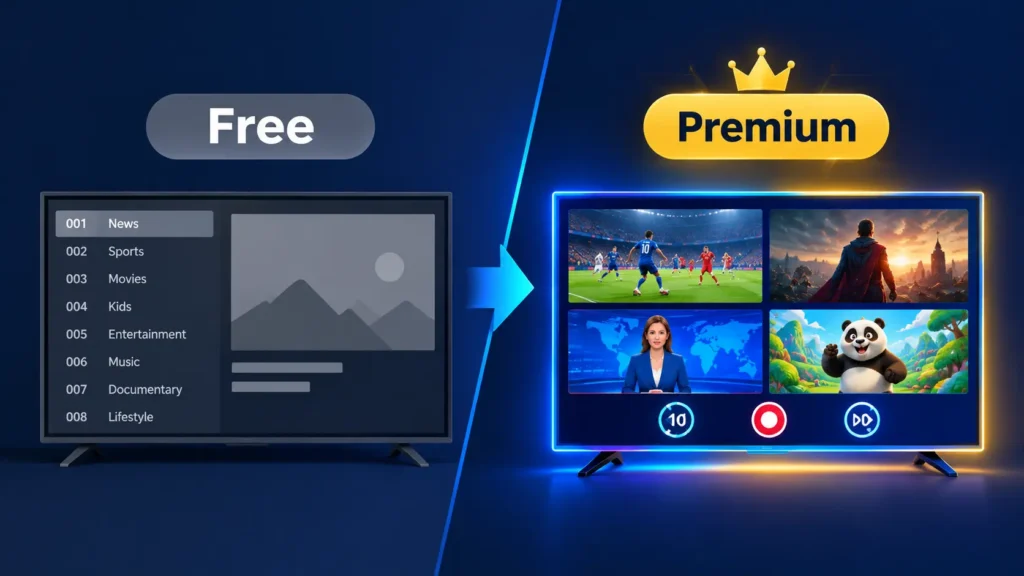
For most people who watch IPTV every day, Premium is where TiviMate becomes worth using. The free version is best treated as an extended trial to check that the interface suits you and your playlist loads properly.
How much does TiviMate Premium cost?
TiviMate Premium is sold as either an annual subscription or a one-time lifetime purchase. According to a September 2026 guide from Plume, the lifetime licence costs about $33.99 and covers up to five devices, while the annual plan is roughly $10–12 per year. Prices vary by region and have risen over time, so check the price shown in the app before you buy.
Beware of “TiviMate Premium APK” or “TiviMate mod” downloads that promise Premium for free. They’re unofficial modified builds that can carry malware, and they stop working whenever the developer updates its licence checks.
TiviMate Companion App and Your TiviMate Account
The TiviMate Companion app is a small phone app that handles purchases and device management. The developer explains that it is “intended to unlock Premium functionality of TiviMate IPTV player on devices without Google Play” and that it also lets you manage your activated devices. It isn’t a player, so you can’t watch anything in it.
This is why it matters to Firestick owners: Fire TV devices don’t have Google Play, so you can’t buy Premium on the TV itself. Instead, you:
- Install TiviMate Companion on an Android phone and create your TiviMate account.
- Buy the annual or lifetime Premium plan inside Companion.
- Use the TiviMate login option in the TV app’s settings with the same account details to activate Premium on that device.
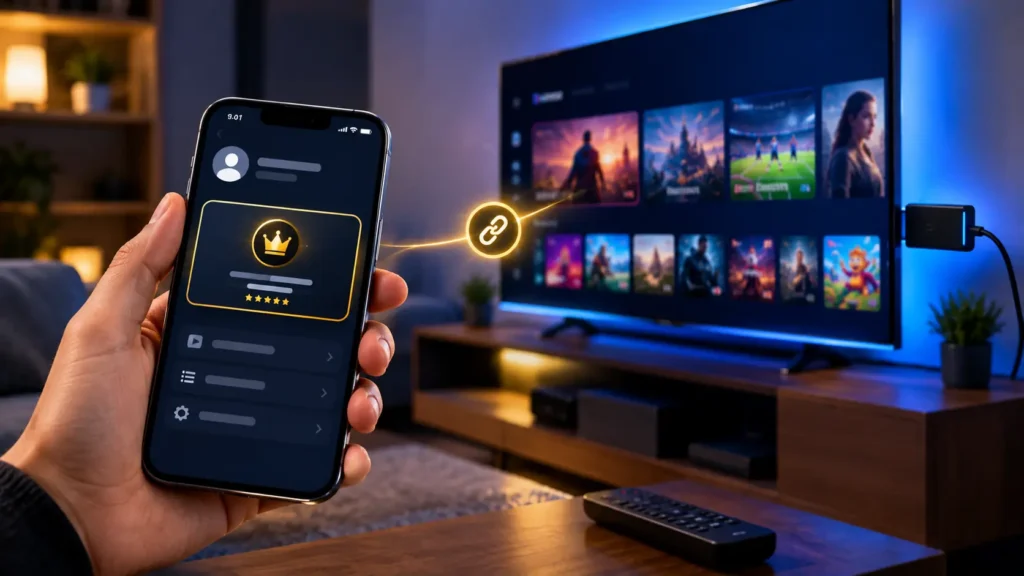
Because your licence is tied to your account rather than a single device, you can move Premium to a new streaming stick later by signing in with the same TiviMate login and managing your devices in Companion.
Which Devices Does TiviMate Support?
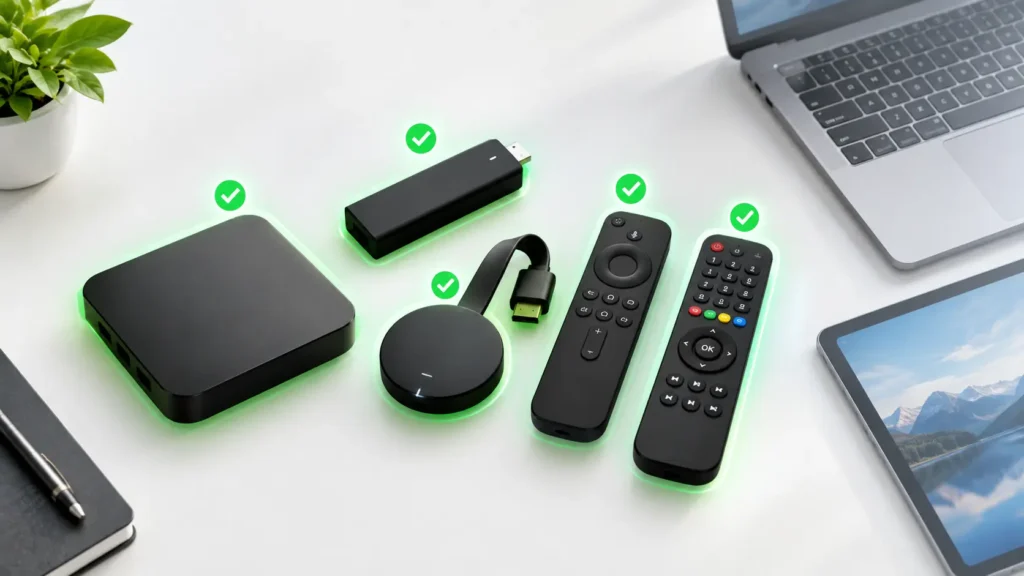
TiviMate is built exclusively for Android-based TV devices:
- Supported: Android TV and Google TV devices (including Chromecast with Google TV and NVIDIA Shield), Android TV boxes, and Android-based Amazon Fire TV devices.
- Not optimised: Android phones and tablets. The app may install, but it’s designed for a remote, not a touchscreen.
- Not supported: iPhone, iPad, Apple TV, Mac, Windows, Roku and web browsers.
TiviMate on Firestick
TiviMate works well on Fire TV devices that run Amazon’s Android-based Fire OS, and it’s one of the most common ways people use the app. It isn’t listed in the Amazon Appstore, so Firestick users sideload the official APK with Amazon’s Downloader app. Some newer Fire TV models run Amazon’s Vega OS instead of Fire OS and can’t install Android apps at all, so check your model first. For other options on Amazon hardware, see our round-up of IPTV players for Firestick.
TiviMate for Mac and Apple TV
There’s no TiviMate for Mac and no TiviMate IPTV player for Apple TV, and the developer hasn’t announced one. Any site offering a “TiviMate Mac download” is distributing something unofficial. Apple users get a similar experience from players built for Apple’s platforms. Compare them in our guides to IPTV players for Apple TV and iPhone and IPTV apps for Mac.
Choosing an IPTV Provider for TiviMate
Because TiviMate supplies no channels, the service you pair it with decides your whole experience. When comparing an IPTV service for TiviMate, look for:
- Xtream Codes or M3U support: TiviMate accepts both. Xtream Codes logins usually bring the guide, movies and series in automatically.
- A reliable EPG: a playlist without guide data wastes TiviMate’s biggest strength.
- Catch-up on the server side: TiviMate’s catch-up only works if the provider stores past programmes.
- Enough simultaneous connections: multiview and multi-room viewing each use a separate stream.
- Proper licensing: a provider that holds the rights to its channels won’t vanish overnight.
Our list of the best IPTV service options is a good place to start your shortlist. Prioritise legal IPTV services, because unlicensed “cheap IPTV for TiviMate” sellers are the ones that regularly disappear, taking prepaid subscriptions with them.
Tips to Get More Out of TiviMate
- Hide what you don’t watch: hiding unused channel groups makes large playlists far faster to browse.
- Set the EPG to update automatically: a daily guide refresh keeps programme times accurate.
- Use a wired connection: Ethernet is steadier than Wi-Fi, especially for multiview, which runs several streams at once.
- Back up your settings: TiviMate Premium can back up and restore your layout, favourites and playlists, which saves time when you switch devices.
- Match the buffer to your connection: a slightly larger buffer in the player settings can reduce stuttering on slower connections.
Is TiviMate Legal?
Yes. TiviMate is a legal media player, available on Google Play, and it doesn’t host, sell or link to any content. As with any player, legality depends on what you load into it. A licensed IPTV provider or your own recordings are fine, but streaming copyrighted channels from an unlicensed service is not. For a country-by-country breakdown, read is IPTV legal? (This is general information, not legal advice.)
TiviMate Alternatives
If TiviMate doesn’t run on your device, or you’d rather not pay for Premium, these players are worth comparing:
- IPTV Smarters Pro: free, and available on more platforms. Read our full guide to IPTV Smarters Pro.
- OTT Navigator and IMPlayer: strong Android TV alternatives with their own premium tiers.
- VLC and Kodi: free and cross-platform, though less TV-like.
See how they stack up in our comparison of the best IPTV players.
Frequently Asked Questions About TiviMate
How much does a TiviMate subscription cost?
TiviMate Premium costs roughly $10–12 per year, or about $33.99 for a one-time lifetime licence covering up to five devices, according to 2026 pricing reports. Prices vary by region, so check the current price in the app or in TiviMate Companion. This is separate from your IPTV provider’s subscription, which you can compare in our guide to the top IPTV services.
Can you use TiviMate for free?
Yes. TiviMate’s free version lets you add one playlist and watch live TV with the TV guide. Catch-up, recording, multiview and multiple playlists require TiviMate Premium. Either way, you still need a playlist from an IPTV provider, because TiviMate has no channels of its own. See how IPTV works if you’re new to playlists.
Does TiviMate still work on Firestick?
Yes. TiviMate still works on Firestick and Fire TV models running Amazon’s Android-based Fire OS, installed by sideloading the APK. It isn’t available in the Amazon Appstore, and newer Fire TV models running Vega OS can’t run it. Premium is activated through the TiviMate Companion app.
Does TiviMate work anymore?
Yes. TiviMate is still actively developed and available on Google Play, with updates released in 2026. If channels suddenly stop loading, the cause is almost always the playlist or the provider rather than the app. Confirm your subscription is active, then refresh the playlist in TiviMate’s settings. If you’re still unsure, compare other top-rated IPTV players as a backup.
Final Thoughts on TiviMate
TiviMate remains one of the best IPTV players for Android TV and Firestick, especially if you watch live TV daily and want a real TV-guide experience. Try the free version first. If it suits your setup, TiviMate Premium’s lifetime licence is inexpensive for what it adds. Just remember that the app is only as good as the playlist behind it, so pair it with a reliable, legal provider and check our guide to IPTV legality before you subscribe to anything new.