
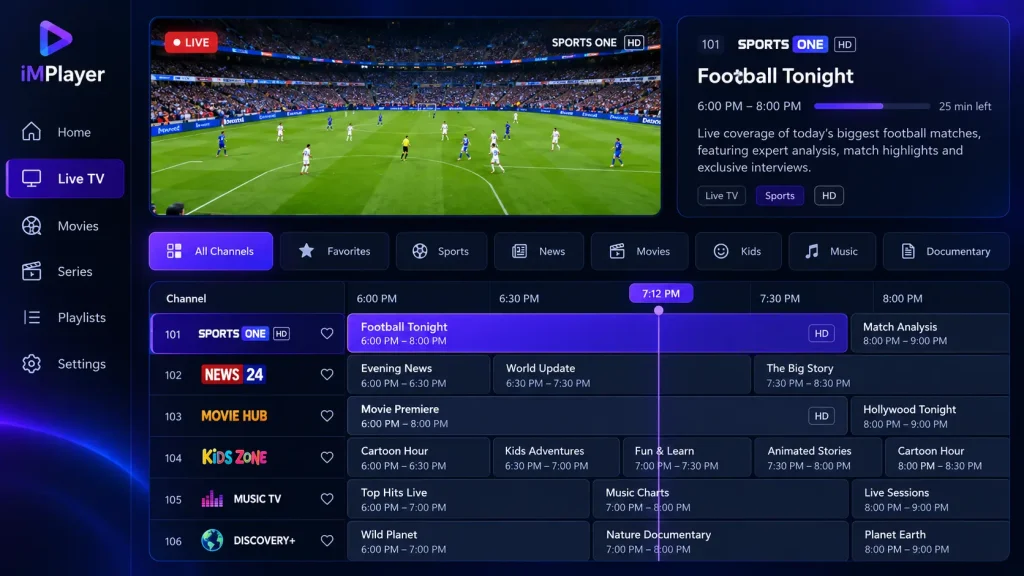
iMPlayer is a modern IPTV player app that turns your M3U or Xtream Codes playlist into a polished TV guide, with live channels, movies, series and catch-up in one place. It runs on Android TV, Firestick, Android phones, iPhone, iPad, Mac and Apple TV, and one premium purchase can cover several devices. This step-by-step guide shows you how to download iMPlayer from official sources, install it on each device, log in with your playlist, activate iMPlayer Premium, and fix common problems like buffering.
Key takeaways (TL;DR)
- iMPlayer is a media player from HzApps (Horizon Applications LLC). It doesn’t include channels, so you add your own playlist.
- Install it from Google Play (Android TV and phones) or the App Store (iPhone, iPad, Mac, Apple TV). On Firestick, you sideload it with Downloader.
- The free version works with basic features. iMPlayer Premium is sold through the app and the official implayer.tv account dashboard.
- Avoid “iMPlayer Premium APK” or cracked versions: they can carry malware and break after updates.
What Is iMPlayer?
iMPlayer is an IPTV player developed by HzApps (Horizon Applications LLC). Its official TV app, iMPlayer TV IPTV Player, has more than 500,000 downloads on Google Play, and the developer describes it as “a powerful, modern media player built to deliver a fast, flexible, and highly customizable viewing experience.”
There are three official versions:
- iMPlayer TV: for Android TV, Google TV and Fire TV devices.
- iMPlayer Mobile IPTV Player: for Android phones and tablets, available on Google Play and rated 4.6 stars.
- iMPlayer for Apple devices: for iPhone, iPad, Mac (M1 and later), Apple TV and Apple Vision Pro, available on the App Store and rated 4.8 out of 5.
Like every IPTV player, iMPlayer doesn’t provide channels. You add a playlist from your provider. If you’re new to IPTV, see our guide to how IPTV works, and compare iMPlayer with other apps in our IPTV player guide.
Key iMPlayer features
- M3U and Xtream Codes playlist support
- EPG (TV guide) browsing, with custom EPG links for Xtream playlists
- Catch-up and VOD (movies and series)
- Favourites, plus channel and group reordering
- Trakt integration for watch history
- Cloud sync across devices, and MultiView on iPad (Apple version)
What You’ll Need
- A supported device: Android TV or Google TV box, Fire TV Stick (Fire OS models), Android phone or tablet, iPhone, iPad, Mac with Apple Silicon, or Apple TV.
- An IPTV playlist: an M3U URL or Xtream Codes login from a licensed provider. Compare legal options in our IPTV service guide.
- A stable internet connection: Ethernet is best for live TV.
- For Firestick only: Amazon’s free Downloader app.
- For Premium (optional): an account on the official iMPlayer site, implayer.tv.
How to Install iMPlayer on Android TV and Google TV
Step 1: On your Android TV or Google TV home screen, open the Google Play Store.
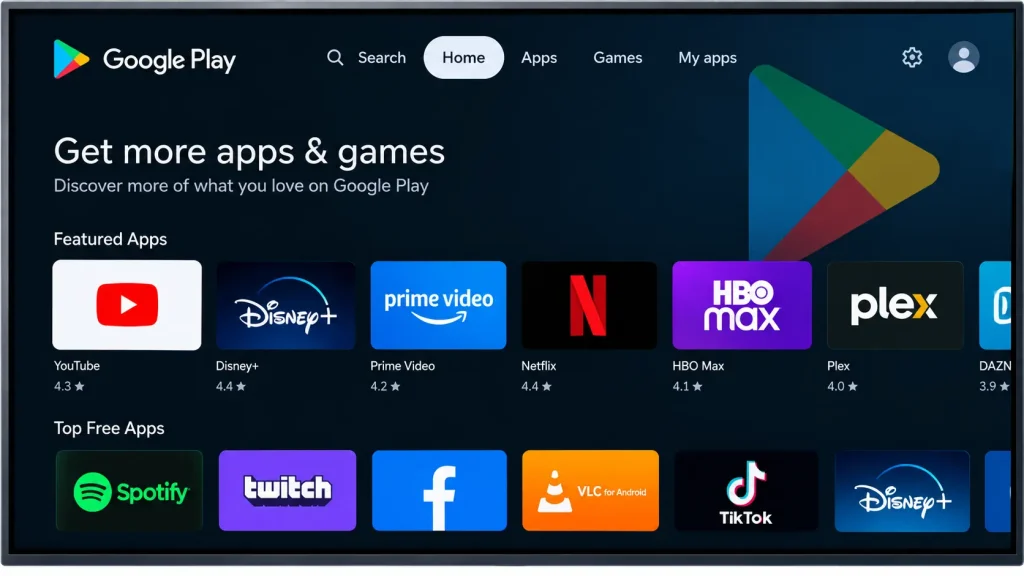
Step 2: Search for iMPlayer TV IPTV Player.
Step 3: Check that the developer is HzApps, then select Install.
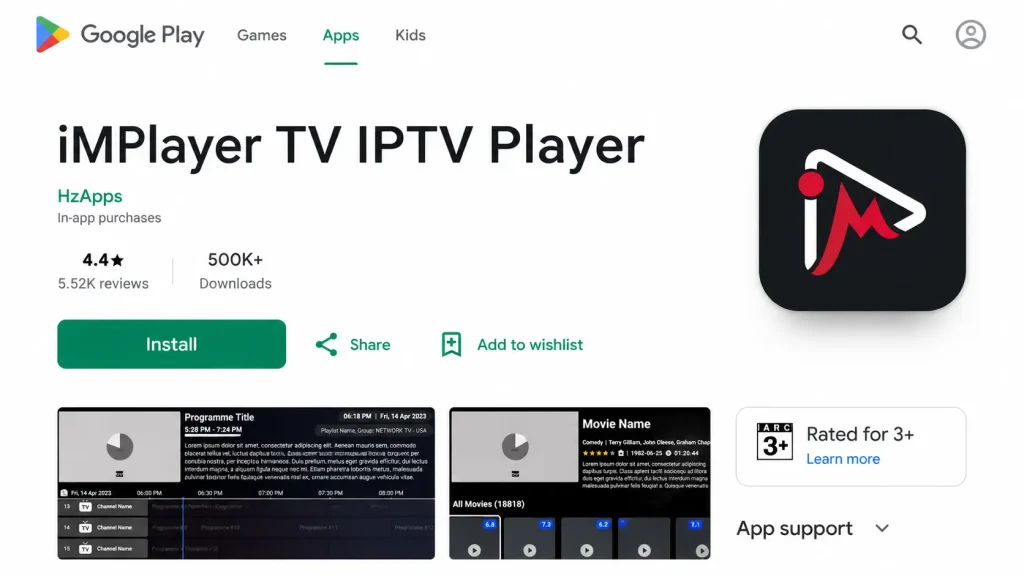
Step 4: Select Open when the installation finishes.
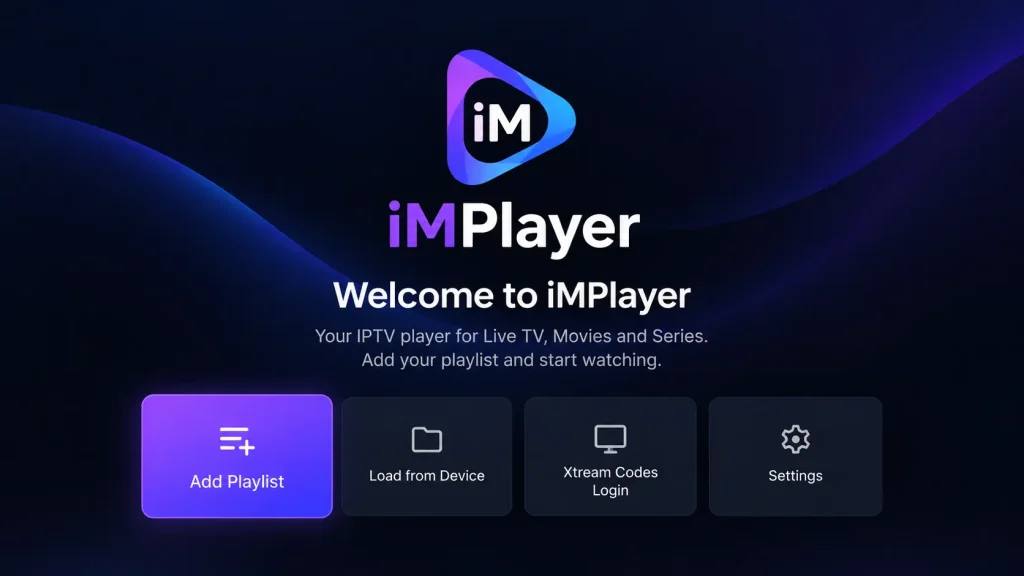
On an Android phone or tablet, follow the same steps but search for iMPlayer Mobile IPTV Player.
iMPlayer Firestick Setup: How to Install iMPlayer on Firestick
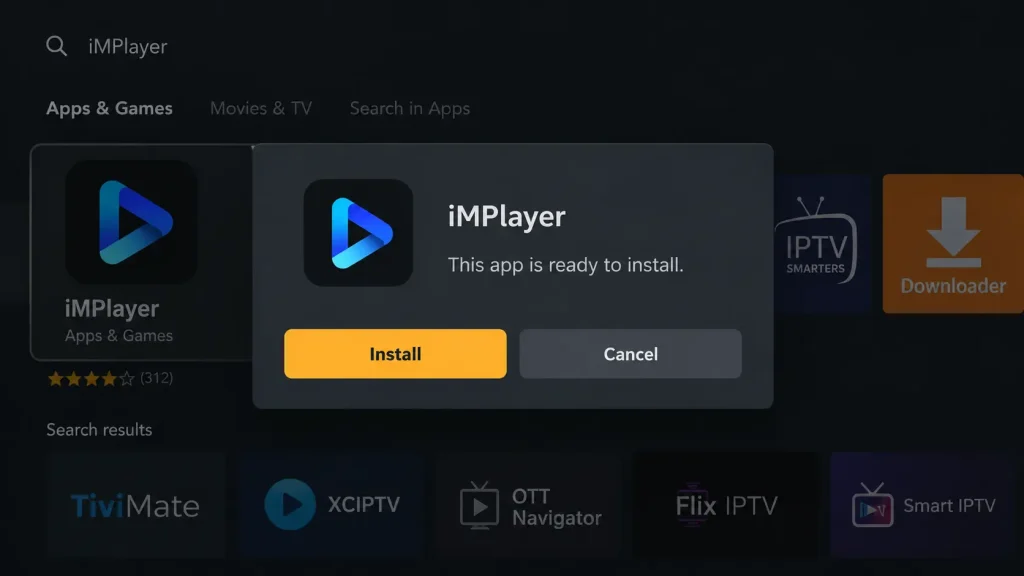
iMPlayer isn’t listed in the Amazon Appstore, so on Firestick you sideload it with Amazon’s Downloader app. Note that newer Fire TV models running Amazon’s Vega OS can’t install Android apps. Check that your device runs Fire OS first.
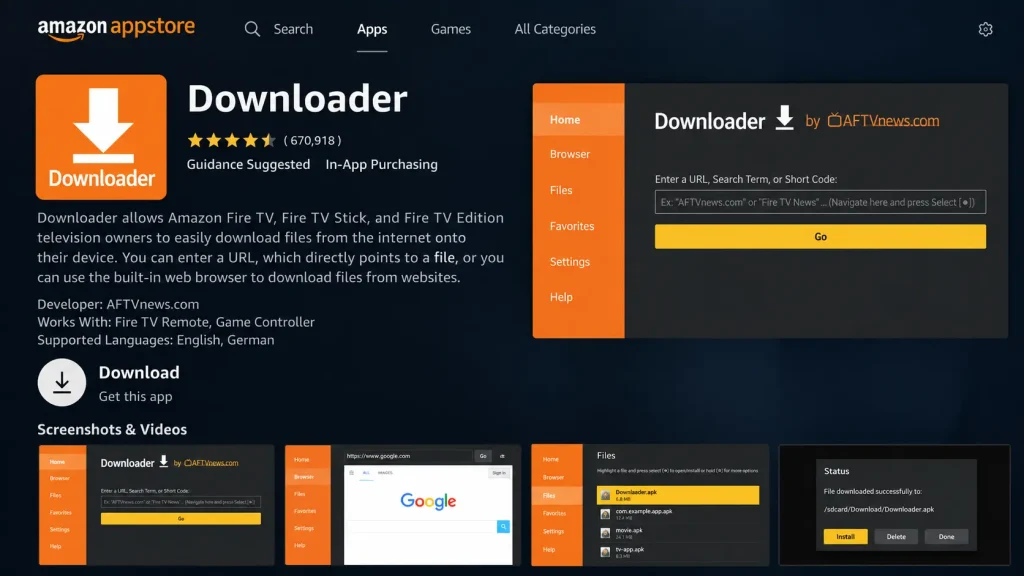
Step 1: From the Fire TV home screen, search for Downloader and install it.
Step 2: Go to Settings → My Fire TV → Developer options. If it’s hidden, open About and click your device name seven times.
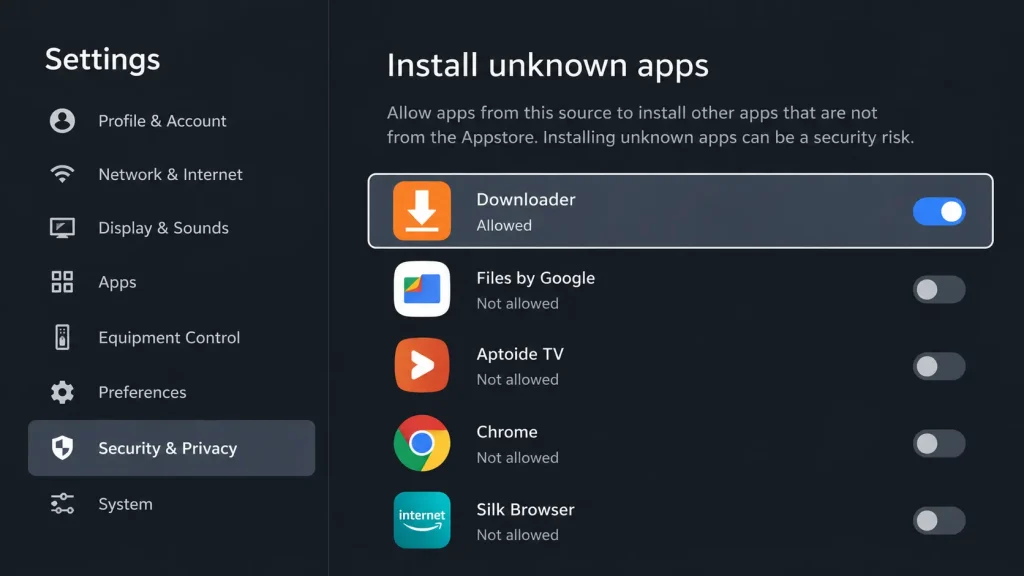
Step 3: Select Install unknown apps and turn it on for Downloader.
Step 4: Open Downloader and enter the official iMPlayer website address, implayer.tv, in the URL box.
Step 5: Follow the site’s Android TV / Fire TV download link to get the official iMPlayer APK, then select Install when the file downloads.
Step 6: Select Done, then Delete the installer file to free up space.
A note on “iMPlayer Downloader codes”: many websites share numeric Downloader codes that point to their own copies of the APK. Use the official implayer.tv address instead, so you know the file comes from the developer. For more Firestick options, see the Firestick section of our IPTV player guide.
How to Install iMPlayer on iPhone, iPad, Mac and Apple TV
Step 1: Open the App Store on your device.
Step 2: Search for iMPlayer IPTV Player and check that the developer is HzApps.
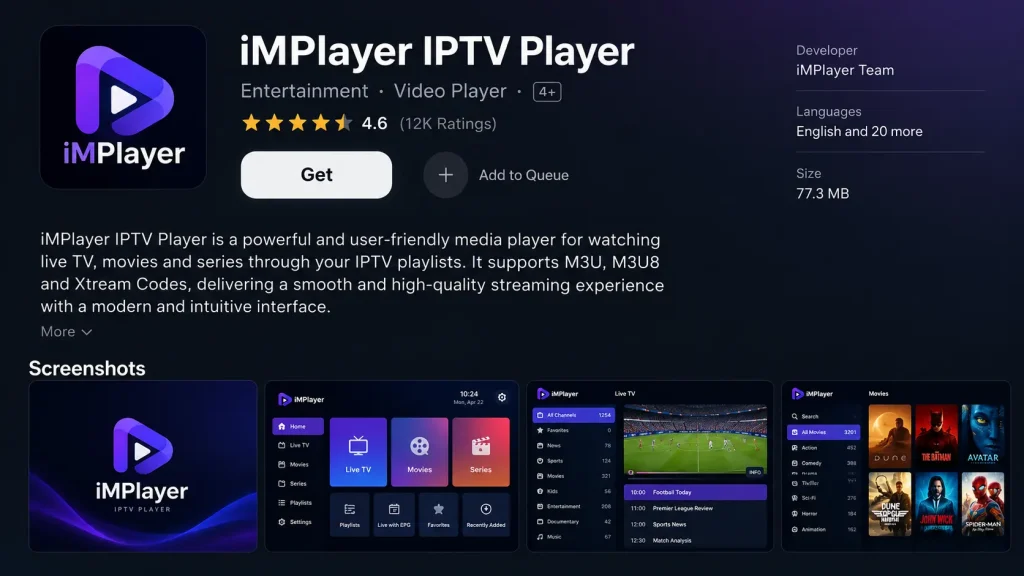
Step 3: Select Get to install the app. It’s free, with in-app purchases.
Step 4: Open iMPlayer when the download finishes.
The Apple version requires a recent OS version (iOS 18 or later, according to the App Store listing), and the Mac version needs an M1 or newer chip.
iMPlayer Login: How to Add Your IPTV Playlist
Once iMPlayer is installed, add your IPTV login. This is usually what people mean by “iMPlayer login”: the app signs in to your provider’s playlist.
Step 1: Open iMPlayer and choose Add Playlist.
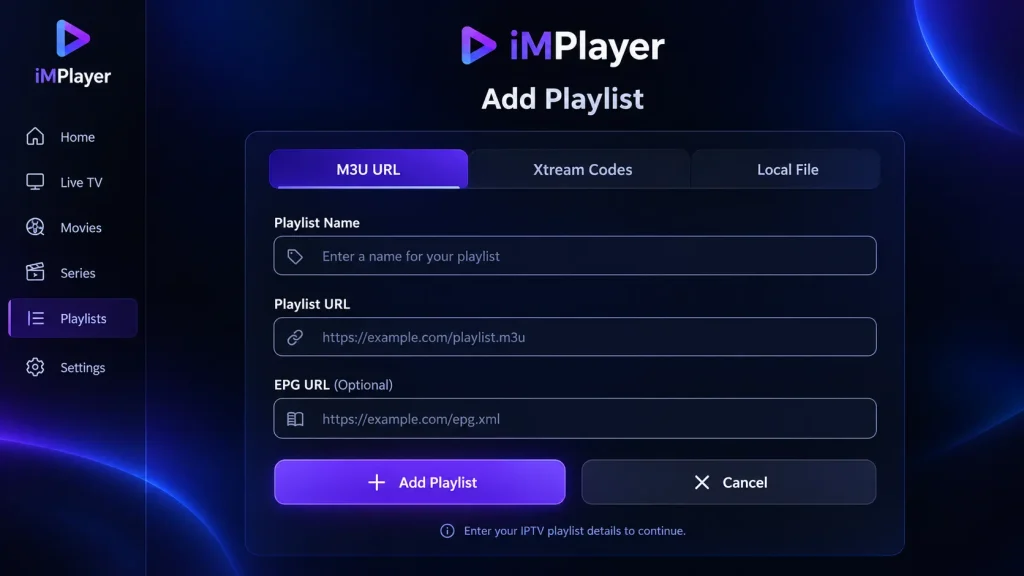
Step 2: Select your login type: Xtream Codes (recommended) or M3U URL.
Step 3: Enter a playlist name, then your server URL, username and password (or paste your M3U link).
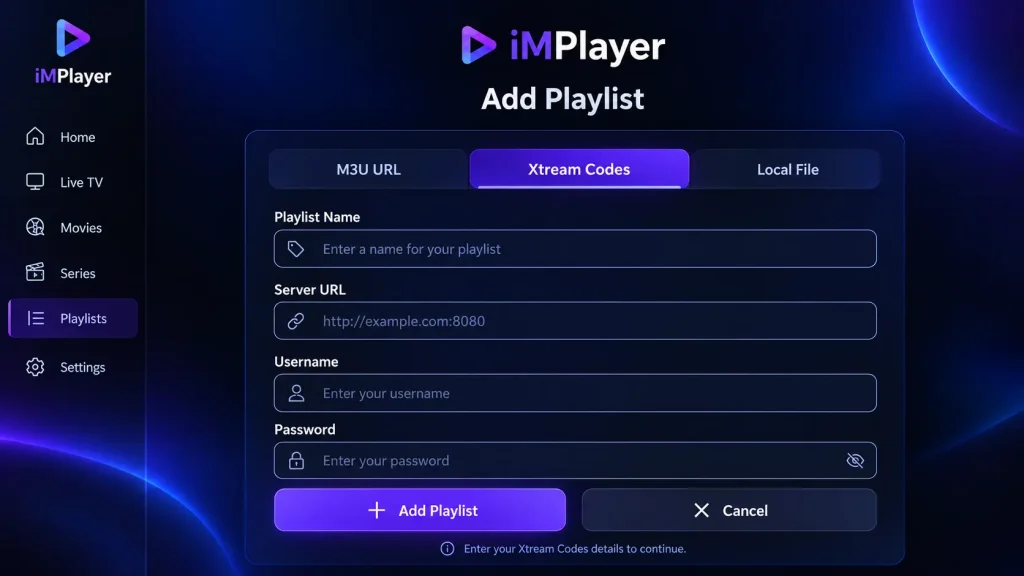
Step 4: Select Save or Add and wait while iMPlayer loads your channels, movies and series.
Step 5: If the TV guide is empty, add your provider’s EPG link in the playlist settings. Learn more about how EPG works.
How to Activate iMPlayer Premium (iMPlayer Dashboard)
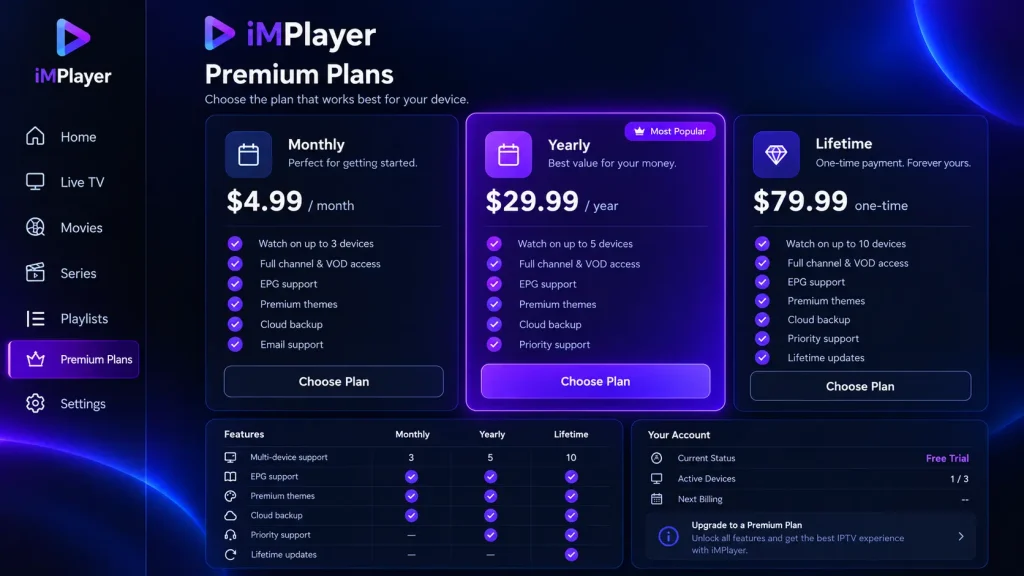
iMPlayer Premium unlocks the app’s full feature set. On Apple devices, the App Store lists a Premium subscription at $24.99, and App Store reviewers note that the premium subscription “works across ecosystems”. On Android TV and Firestick, Premium is managed through your account on the official site.
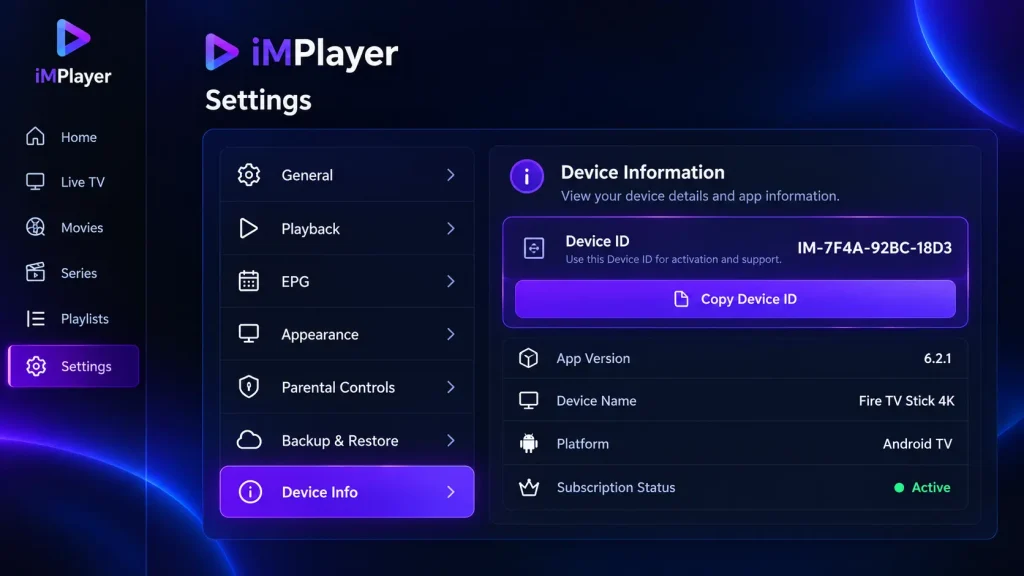
Step 1: Open iMPlayer’s Settings and note your device’s ID or MAC address.
Step 2: On a phone or computer, go to implayer.tv and create an account or log in to your iMPlayer dashboard.
Step 3: Choose a Premium plan that covers the number of devices you need, and complete the payment.
Step 4: Add your device ID or MAC address in the dashboard.
Step 5: Restart iMPlayer on your TV to load Premium.
Plans and prices change, so check the current options in the app or on implayer.tv before you buy. Only buy Premium from the official app or website. Third-party “reseller” sites are not the developer.
iMPlayer Troubleshooting
- iMPlayer buffering: switch to a wired Ethernet connection, restart your router, and check whether the buffering also happens in another player. If it does, the problem is your provider’s stream, not iMPlayer.
- Playlist won’t load: re-check the server URL (including http:// and any port number), username and password. Then confirm your subscription is active.
- App crashes when updating the playlist: some Google Play reviewers report this on large playlists. Update iMPlayer to the latest version, clear its cache, and hide channel groups you don’t watch.
- TV guide (EPG) is empty: refresh the EPG in settings, or add a custom EPG URL for your Xtream playlist.
- Premium isn’t activating: check that the device ID in your dashboard exactly matches the one in the app, then restart iMPlayer.
- Hard to navigate on Fire TV or Shield: Play Store reviewers mention UI navigation challenges on these devices. Try the app’s layout and customisation settings, or compare with TiviMate.
- Can’t install on Firestick: make sure “Install unknown apps” is enabled for Downloader, and check that your model runs Fire OS rather than Vega OS.
Avoid iMPlayer Premium APK, Mod and Cracked Versions
Searches for “iMPlayer Premium APK”, “iMPlayer cracked” or “unlimited account” APKs lead to modified versions of the app. Avoid them:
- Security risk: modified APKs can contain malware. The FBI has warned that millions of streaming devices have been infected through apps from unofficial sources.
- They stop working: cracked versions typically break when the developer updates licence checks.
- No support or sync: you lose cloud sync, updates and help from the developer.
The free version from Google Play or the App Store is safe to try. If you like it, iMPlayer Premium is a modest one-off cost that supports the developer. The same applies to your content: pair the app with a licensed playlist, as explained in our guide to IPTV legality.
Frequently Asked Questions About iMPlayer
-
What is iMPlayer used for?
iMPlayer is used to watch IPTV playlists, both live TV, movies and series, from an M3U link or Xtream Codes login. It organises channels into a TV guide with favourites, catch-up and VOD sections. It doesn’t include any channels, so you need a playlist from a provider.
-
Is iMPlayer better than Tivimate?
It depends on your devices. TiviMate is the long-time favourite on Android TV and Firestick for its TV guide. iMPlayer’s advantage is that it also runs on iPhone, iPad, Mac and Apple TV, with a premium licence that works across ecosystems. Compare both in our TiviMate guide and IPTV player comparison.
-
Is iMPlayer worth the money?
For many users, yes. The free version lets you test it first, and the iMPlayer cost for Premium is modest: the App Store lists it at $24.99. It’s especially good value if you use both Apple and Android devices. If you only use one Android TV device, compare it with TiviMate Premium before buying.
-
Is iMPlayer on Firestick?
iMPlayer works on Firestick, but it isn’t in the Amazon Appstore. You install it by sideloading the app with Amazon’s Downloader app from the official implayer.tv website. Fire TV models running Vega OS can’t install it.
Final Thoughts on iMPlayer
iMPlayer is one of the most versatile IPTV players available, with official apps for Android TV, Android phones and every major Apple device, plus a premium licence that follows you across them. Install it from Google Play, the App Store or the official site, add your playlist, and upgrade to Premium only if you need the extra features. Pair it with a licensed provider, and read our guide to whether IPTV is legal if you’re unsure about a playlist source. For alternatives, see our guide to IPTV Smarters Pro.