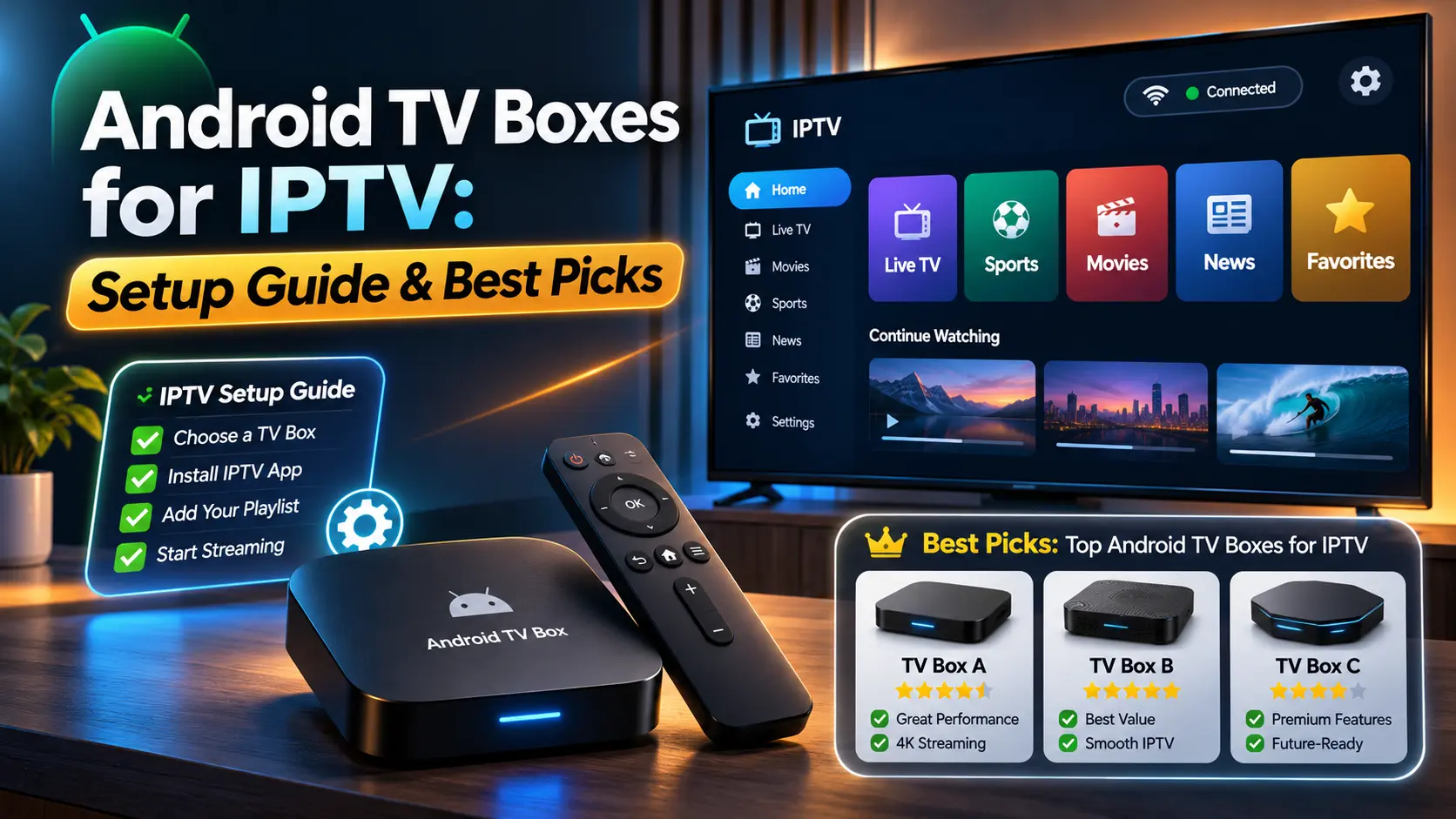

Android TV boxes for IPTV are popular because they are small, affordable and run the same player apps you would use on a phone or a Shield. A good box gives you fast channel changes, 4K playback and a proper TV guide. A bad one can be slow, unsafe or full of malware. This guide shows you how to pick a safe box, set up IPTV on an Android TV box and fix the buffering problems that trip up most beginners. If you are new to the technology, read what IPTV is first.
TL;DR: Key Takeaways
- Buy a Play Protect certified box from a known brand. Avoid generic boxes sold as “fully loaded” or “unlocked.”
- Install a player app from the Google Play Store, then add your provider’s M3U or Xtream Codes details.
- Use Ethernet and a legal playlist to avoid most buffering and legal problems.
- The FBI has warned about malware preinstalled on cheap uncertified Android boxes.
What Is an Android TV Box and Why Use It for IPTV?
An Android TV box is a small device that plugs into your TV’s HDMI port and runs Android TV or Google TV. It is not an IPTV service. It is only the hardware that plays your service. Compared with a basic stick, a box usually has more memory, a wired Ethernet port and better storage. Our overview of an IPTV box explains how boxes differ from sticks and smart TVs.
Safety First: Choose a Certified Android Box
This is the most important step. In June 2025 the FBI’s Internet Crime Complaint Center published an alert about BADBOX 2.0, a botnet that turns compromised streaming devices into proxies for criminals. According to the FBI, warning signs include devices that require Google Play Protect to be disabled and generic boxes advertised as unlocked or able to access free content. Security firm HUMAN said the infected devices were Android Open Source Project builds, not Play Protect certified Android TV OS devices.
In plain terms, choose a box that runs Android TV or Google TV with Google Play certification, from a brand that provides updates.
Best Android TV Box for IPTV: What to Look For
- Certified Android TV or Google TV: access to the official Play Store and security updates.
- Ethernet port: a wired connection is the best defense against buffering. Gigabit is better than 100 Mbps, though most IPTV streams do not need it.
- Enough memory: 3 GB of RAM is a good target for smooth channel switching and large playlists.
- 4K and HDR support if you want 4K IPTV from your provider.
- A known brand with updates.
Examples of Reputable Boxes
- Nvidia Shield TV Pro: TechRadar rates it the top Android box in its 2026 roundup for its hardware and software, and Android Central lists it as its premium pick with 3 GB RAM. Android Authority reported a large price increase in October 2026, so check current pricing.
- Google TV Streamer: 9to5Google notes it has 4 GB RAM and gigabit Ethernet, in a comparison with Walmart’s Onn Pro, which is limited to 100 Mbps Ethernet.
- Formuler Z11 series: an IPTV-focused line that runs Android with its own MYTVOnline app. Check that the model you buy is Google certified, and read reviews first.
For a wider comparison, see TechRadar’s best Android boxes list. Prices and models change often.
What You’ll Need
- A certified Android TV or Google TV box and its remote.
- An HDMI cable and a TV with an HDMI port (4K if you want 4K IPTV).
- An Ethernet cable, or a strong 5 GHz Wi-Fi signal.
- A Google account.
- A licensed IPTV subscription with an M3U URL or Xtream Codes login. See our legal IPTV providers guide if you need a source.
How to Set Up IPTV on an Android TV Box (Step by Step)
Step 1: Connect the Box to Your TV
Plug the HDMI cable into the box and your TV, connect the power adapter, and select the correct HDMI input on the TV.
Step 2: Connect the Network, Preferably With Ethernet
Plug an Ethernet cable into the box and your router. If you must use Wi-Fi, choose the 5 GHz network and stay close to the router. A wired link helps with most android box buffering problems.
Step 3: Sign In With Your Google Account
Follow the setup prompts and sign in. This unlocks the Google Play Store.
Step 4: Confirm the Box Is Play Protect Certified
Open the Google Play Store, go to Settings > About and look for the Play Protect certification entry. If it says the device is not certified, or if setup asked you to turn off Play Protect, do not use it for IPTV. Menu names can vary by version.
Step 5: Update the Box
Open Settings > System > About > System update and install any pending update.
Step 6: Install an IPTV Player From the Play Store
Search the Play Store for a player app, then select Install. Good options include TiviMate, IPTV Smarters Pro and Kodi with the PVR IPTV Simple Client. You can compare more in our guide to the best IPTV players. Formuler boxes also include their own player app.
Step 7: Open the Player and Choose How to Add a Playlist
Launch the app and choose Add playlist (the label differs by app). Options normally include M3U link, Xtream Codes login or a local file.
Step 8: Enter Your M3U URL or Xtream Codes Details
Type or paste the playlist link, or your username, password and server address, exactly as your provider gave them. Check for extra spaces.
Step 9: Add the TV Guide (EPG)
If your provider supplies an EPG link, enter it in the app’s guide settings. See our EPG IPTV guide for how it works.
Step 10: Test a Channel and Adjust Playback Settings
Play a few channels, including an HD one. If a player offers a buffer-size option or a choice of video decoder, try the default first and change it only if you see problems.
Troubleshooting Android TV Box IPTV Problems
Android Box Buffering Fix
If your android box keeps buffering, work through these in order:
- Switch from Wi-Fi to Ethernet.
- Restart the box, the router and the modem.
- Close other apps and clear the player app’s cache.
- Lower the stream quality if your provider offers lower-resolution versions.
- Test the same playlist in another player. Our IPTV on VLC guide shows an easy test.
- If your ISP slows streaming, try a VPN. See the best VPN for IPTV.
- Contact your provider, because overloaded servers also cause buffering.
As a rule of thumb, HD needs far less bandwidth than 4K, so run a speed test if only your 4K channels fail.
Playlist Not Loading
- Re-copy the M3U link and confirm your subscription is active.
- Check the date and time on the box. Wrong settings can break connections.
No Channel Guide
- Re-enter the EPG link and refresh the guide in the app.
- Confirm the EPG matches your playlist.
4K IPTV Looks Blurry or Won’t Play
- Confirm your TV and HDMI port support 4K and set the box’s display output to match.
- Check that the channel is truly 4K and test at a quiet time.
Box Is Slow or Freezing
- Uninstall unused apps and restart.
- If it keeps happening on a cheap uncertified device, consider replacing it with a certified box.
Is It Safe to Use “Loaded” Android Boxes?
Avoid any android box with IPTV installed, or one sold with “free channels.” These devices often rely on unlicensed streams and may carry malware, which matches the FBI’s warning signs. Free does not have to mean risky. You can use free licensed players and legal free channels instead. Read is IPTV legal for details. This is general information, not legal advice.
Frequently Asked Questions
-
Which Android TV box is best for IPTV?
Choose a Play Protect certified box with an Ethernet port, at least 3 GB RAM and regular updates. Reviewers rank the Nvidia Shield TV Pro and Google TV Streamer highly, while Formuler boxes target IPTV users. See our IPTV box guide for more.
-
Can I get IPTV on an Android box?
Yes. Install an IPTV player from the Play Store and add the M3U or Xtream Codes details from your provider. The box only plays your playlist, so you still need an IPTV service. See our IPTV service guide.
-
Which is the best IPTV player for Android TV box?
TiviMate and IPTV Smarters Pro are common choices, and Kodi suits users who want more customization. The best one is the one that supports your playlist type and feels fast on your box. Compare them in our IPTV player roundup.
-
Is an Android TV box legal in the US?
Yes, the hardware is legal. Legality depends on the content you stream. Licensed services are legal, while pre-loaded boxes with unlicensed channels can break copyright law. See our IPTV legality guide.
Conclusion: Set Up Android TV Boxes for IPTV the Right Way
The best Android TV boxes for IPTV are certified, wired and paired with a licensed playlist. Verify Play Protect certification, install a trusted player, add your playlist and EPG, and use Ethernet to cut buffering. To test a service before paying, see our IPTV free trial tips. If you use a Roku instead, our guide to IPTV on Roku covers that setup.