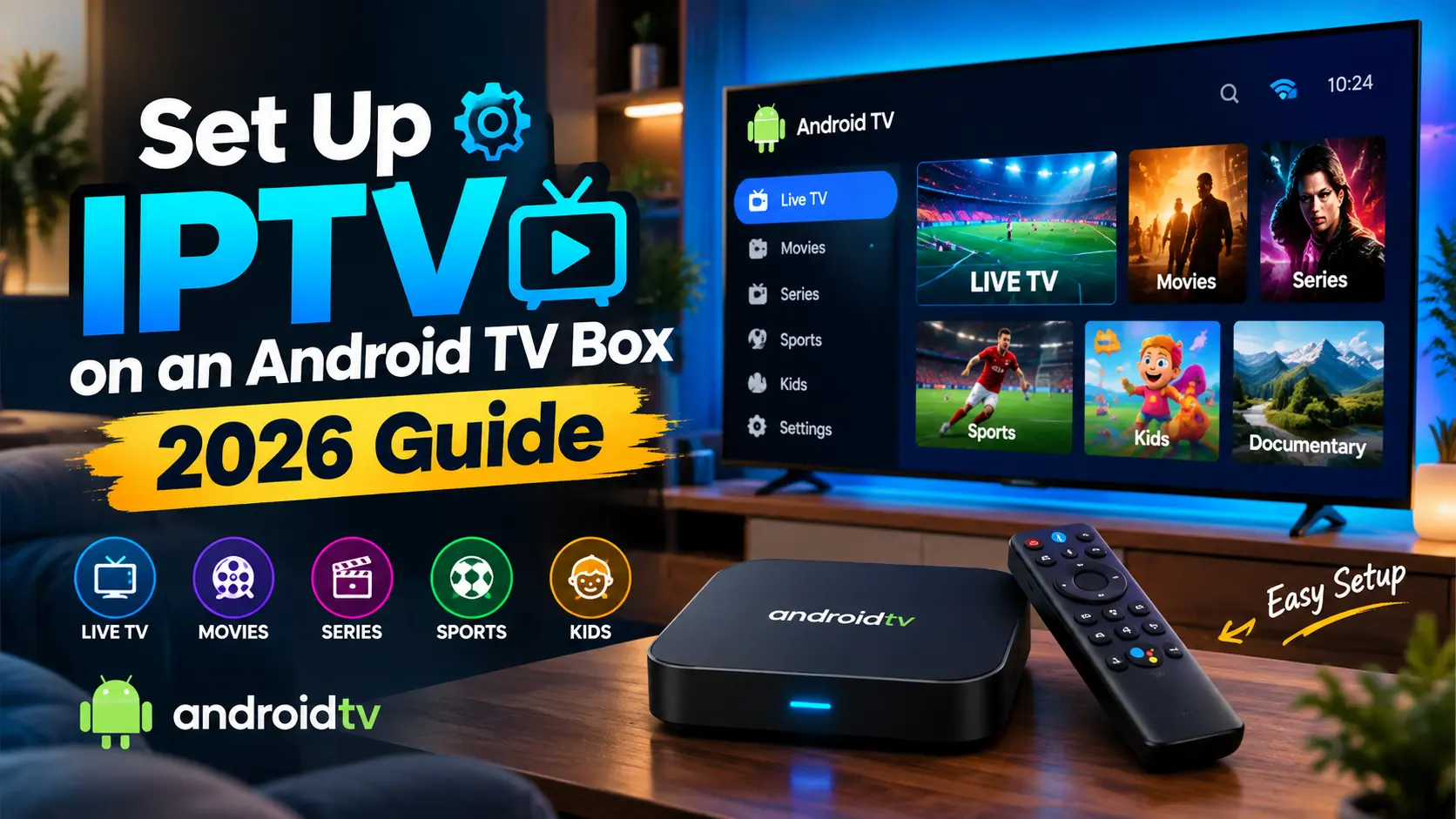
Want to watch IPTV on an Android TV box? The setup is usually simple. You need an Android TV box, a stable internet connection, a compatible IPTV player, and a subscription or playlist from a legitimate IPTV provider.
This guide explains how to set up IPTV on an Android TV box, from installing the player to adding your IPTV service.
What You Need Before Setting Up IPTV
Before you start, make sure you have:
- An Android TV box connected to your TV
- A stable Wi-Fi or Ethernet connection
- An IPTV subscription or legal M3U playlist
- An IPTV player that supports your playlist format
- Your M3U URL or Xtream Codes login, if provided
Your IPTV provider should give you the correct login details and setup information.
How to Stream IPTV on Android TV Box?
To set up IPTV on an Android TV box, install a compatible IPTV player from the Google Play Store. Then add your IPTV subscription using the login details or playlist provided by your service.
Step 1: Install an IPTV App
- Turn on your Android TV box and open the Google Play Store.
- Search for a compatible IPTV player for Android, such as TiviMate or IPTV Smarters Pro.
- Select Install and wait for the app to finish installing.
Step 2: Add Your IPTV Subscription
- Open the IPTV player.
- Choose Xtream Codes API or M3U Playlist, depending on what your provider supports.
- Enter your server URL, username, and password, or paste your M3U link.
- Select Add User or Submit.
Using an M3U Playlist
If your provider gives you an M3U URL:
- Select the M3U playlist option.
- Enter the playlist URL.
- Add a playlist name.
- Save the settings.
- Wait for the channels to load.
The exact menu names can vary between IPTV apps.
Using Xtream Codes
If your provider gives you Xtream Codes:
- Select Xtream Codes API or a similar option.
- Enter your username.
- Enter your password.
- Enter the server URL provided by your IPTV service.
- Sign in and allow the app to load your content.
Xtream Codes can be easier to manage because the provider can organize live TV, movies, series, and other content separately.
Step 3: Start Watching IPTV
Once your playlist loads, open the Live TV section and choose a channel. You can also browse the EPG for upcoming programs or access available VOD content.
Step 4: Set Up the EPG
An Electronic Program Guide, or EPG, shows information about upcoming TV programs and live events.
Some IPTV services automatically provide EPG data. Others may give you a separate EPG URL.
If your IPTV player supports an EPG URL, enter the address supplied by your provider and refresh the guide.
A working EPG makes it much easier to find live sports, news, movies, and scheduled programs.
Step 5: Test Live TV and Sports Channels
Once your playlist has loaded, open the live TV section and test several channels.
Check:
- Channel loading speed
- Picture quality
- Audio and video sync
- Buffering
- EPG information
- Sports channel availability
Test the service at different times if possible. A connection that works well during the afternoon may perform differently during busy evening hours.
Best Internet Speed for IPTV on Android TV Box
Your required speed depends on video quality and network stability, in line with the FCC’s broadband speed guide:
| Quality | Recommended Speed |
|---|---|
| SD | 3 to 5 Mbps |
| HD | 5 to 10 Mbps |
| Full HD | 10 to 15 Mbps |
| 4K | 25 Mbps or higher |
These are general guidelines. Server performance, Wi-Fi strength, network traffic, and video compression can also affect playback.
IPTV Not Working on Android TV Box? Try These Fixes
If IPTV keeps buffering or channels do not load, try these steps:
- Restart the Android TV box: A simple restart can fix temporary app or network problems.
- Check your internet: Run a speed test and check whether other streaming apps work normally.
- Use Ethernet: A wired connection and the right router setup can provide more consistent performance.
- Clear the app cache: Go to Android TV settings and clear the IPTV player’s cache.
- Refresh the playlist: Your provider may have updated the playlist or server details.
- Check your login: Make sure the M3U URL, username, password, and server address are correct.
- Update the app: An outdated IPTV player may cause compatibility problems.
Is IPTV Legal on Android TV Box?
The Android TV box itself is legal. The important issue is the content and service you access through it.
Use IPTV services that have the necessary rights to distribute their channels and content in your country. Avoid providers offering copyrighted channels or premium sports events without clear licensing.
Frequently Asked Questions
Can I install IPTV directly on an Android TV box?
Yes. Most Android TV boxes can run compatible IPTV applications through the Google Play Store or other supported installation methods.
Do I need an IPTV subscription?
Usually, yes. An IPTV player is mainly used to play content from a provider or playlist. It does not automatically include live TV channels.
Is Ethernet better than Wi-Fi for IPTV?
Often, yes. Ethernet can provide a more stable connection, which is useful when watching HD or 4K live TV and sports.
Can I watch sports IPTV on an Android TV box?
Yes, if your IPTV provider legally offers the sports channels or events you want to watch. Check the current channel lineup before subscribing.
Final Thoughts
Setting up IPTV on an Android TV box usually takes only a few steps. Install a compatible IPTV player, add your M3U playlist or Xtream Codes, configure the EPG, and test your channels.
For the best experience, use a reliable internet connection and choose a legitimate IPTV service that supports your preferred channels, sports, video quality, and device.