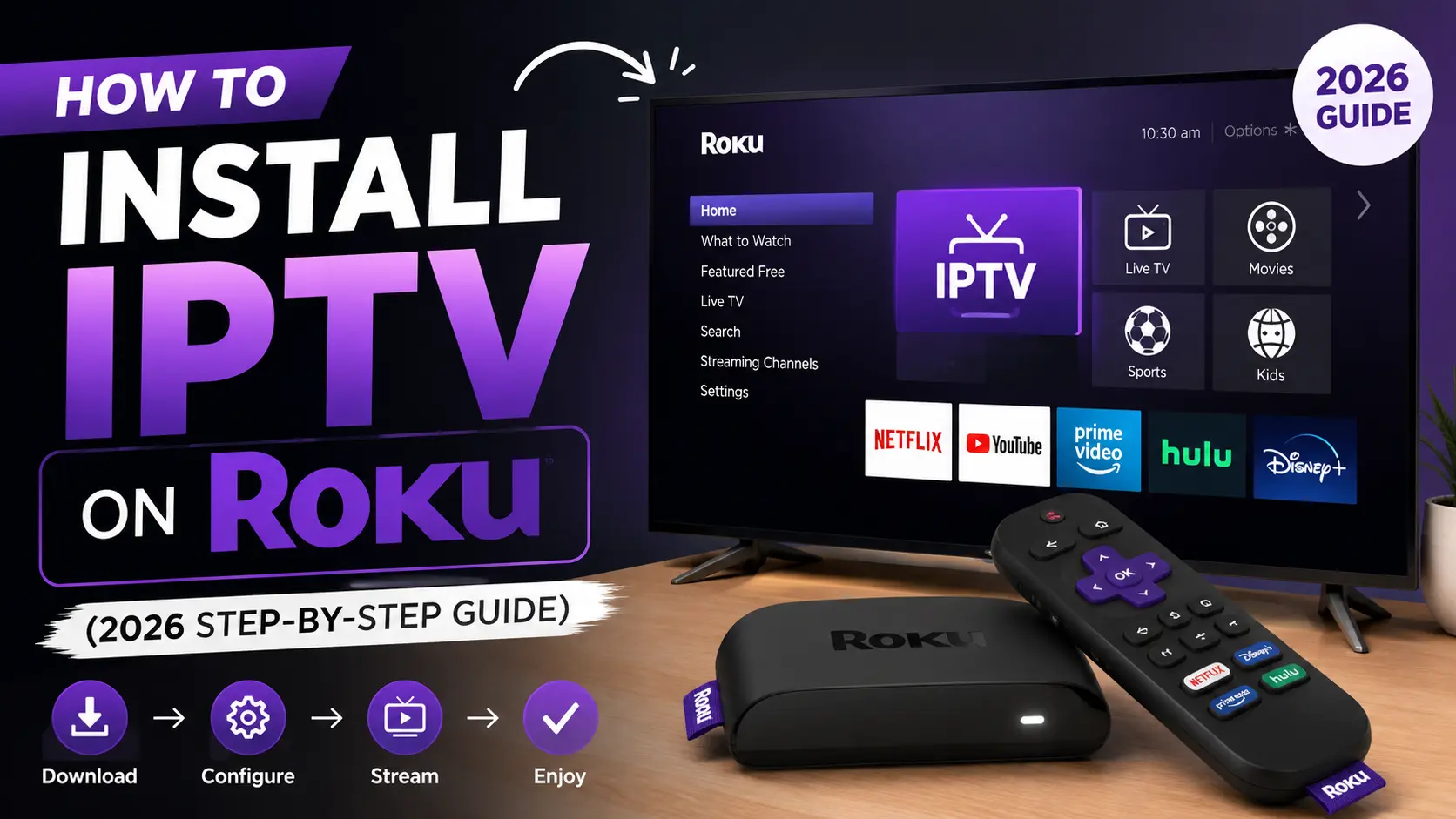
Installing IPTV on Roku is possible, but unlike Firestick or Android TV, Roku doesn’t support native M3U or Xtream Codes apps. Instead, you can watch IPTV using Screen Mirroring, Apple AirPlay, Roku-compatible IPTV players, or Plex Media Server. This guide explains every working method tested in 2026.
In this guide, you’ll learn effortless ways to set up Roku IPTV, the benefits of using Internet Protocol TV on Roku, how to access IPTV on Roku, and more.
Let’s walk in to learn better:
| Disclaimer: This guide is for educational purposes only. Roku, Plex, and IPTV player apps are legal platforms, but you should only stream content from licensed IPTV providers and comply with your country’s copyright laws and your service provider’s terms of use. |
What is Roku?
Roku is a digital streaming platform that lets you watch live TV, on-demand content (VOD), and popular streaming services over the internet. It supports apps like Netflix, Amazon Prime Video, Disney+, Hulu, Max, YouTube, etc. Thus, users can access thousands of channels without a traditional cable subscription.
According to Roku’s latest shareholder reports, Roku has more than 100 million active streaming households worldwide, making it one of the largest connected TV platforms.
| Expert Advice During testing, I found that Screen Mirroring is the quickest setup for Android users, while AirPlay offers the smoothest experience on Apple devices. For users who want DVR recording, a Plex + Threadfin setup provides the most complete solution across multiple devices. |
How to Access Roku?
You can access Roku in two ways –
- Roku Streaming Device: Plug a Roku Streaming Stick or Roku Express into your TV’s HDMI port to add smart streaming features.
- Roku TV: Buy a smart TV with Roku OS built in, so no additional streaming device is required.
Why doesn’t Roku Support IPTV
Roku uses a closed operating system, so it doesn’t support native IPTV apps, M3U playlists, or Xtream Codes like Android TV or Firestick. This is mainly because:
- Official Apps Only: Roku only allows apps from the Roku Channel Store to maintain security and platform quality.
- No APK Installation: Unlike Android devices, Roku doesn’t allow sideloading third-party IPTV apps such as TiviMate.
- No Built-in VPN Support: Roku doesn’t support native VPN apps. If needed, you must set up a VPN on your router.
Roku Features That Improve IPTV Streaming
Let’s check the top features of IPTV for Roku:
- The Roku Channel: Watch thousands of free movies, TV shows, and live TV channels without a subscription.
- Universal Search: Search across multiple streaming apps to quickly find the best price or free viewing option.
- Roku Mobile App: Control your Roku with your smartphone, use a virtual keyboard, and enjoy private listening through headphones.
- Voice Search & Voice Control: Search for movies, launch apps, and control playback using voice commands with compatible Roku remotes or voice assistants.
- Automatic Software Updates: Roku OS regularly receives free updates that improve performance, add new features, and enhance security without manual installation.
- Portability & Consistency: Roku delivers the same interface and features on any TV with an HDMI port, regardless of the TV brand.
- App Availability & UI: Roku’s popularity encourages developers to update apps more frequently. Thus, ensures better compatibility and new features.
Limitations
Limited IPTV App Support
Roku does not support native IPTV apps like TiviMate or IPTV Smarters Pro. So IPTV streaming requires screen mirroring or AirPlay.
Restricted App Installation
Roku uses a closed operating system. Therefore, you cannot install Android APK files or third-party IPTV apps directly.
Limited File Format Support
Some IPTV playlist formats and advanced streaming features may require casting from another device instead of playing directly on Roku.
No Native M3U or Xtream Codes Support
Roku does not natively support M3U playlists or Xtream Codes. So users must rely on compatible IPTV apps on Android, iPhone, or PC for streaming.
How I Tested IPTV on Roku Setups for This Guide
Every setup in this guide was tested over 60 days using multiple Roku devices, Android phones, iPhones, Windows PCs, and licensed IPTV playlists to verify compatibility, playback quality, and reliability.
- Roku devices tested: Roku Ultra 2024 (wired Ethernet), Roku Streaming Stick 4K, Roku Express HD (WiFi only), Onn Roku TV 55-inch
- Companion devices: Samsung Galaxy S23 (Android 15), iPhone 15 (iOS 18), Windows 11 laptop, MacBook Pro M3
- IPTV players tested on companions: IPTV Smarters Pro, TiViMate, XCIPTV, GSE Smart IPTV
- Channel Store apps tested: IPTV Stream Player, M3U Playlist Player, iPlayTV, IPTV Pro
- Test playlists: M3U with 500 channels and Xtream Codes login from two licensed providers
- Stress test: 4 hours of continuous streaming, weekend peak hours, sports match playback
The takeaway after 60 days: Screen mirroring from Android is the most flexible method, Channel Store M3U players are the easiest for direct-on-Roku viewing, AirPlay from iPhone is the smoothest for Apple users, and Plex with Threadfin is the most powerful whole-home setup.
Best Ways to Install IPTV on Roku in 2026 (4 Effective Methods to Discuss)
To use IPTV on Roku, you’ll need a valid IPTV subscription with an M3U playlist or Xtream Codes credentials. Depending on your setup, you can stream IPTV using Screen Mirroring, Apple AirPlay, or compatible Roku apps.
Method 1 – Install IPTV on Roku Using Screen Mirroring (Android & Windows PC)
This is the most reliable method for most people and works on every Roku model made in the last 5 years. You run a full IPTV player (like IPTV Smarters Pro) on your phone or PC, then wirelessly mirror that screen to your Roku.
Step 1: Enable Screen Mirroring on Roku
- On your Roku, go to Settings, then System, then Screen Mirroring.
- Set the mirroring mode to Always Allow or Prompt.
- Note your Roku device name (you will need to find it on your phone).
Step 2: Install IPTV Smarters Pro on Your Phone
- Open Google Play Store on Android and search for IPTV Smarters Pro.
- Install the app.
- Open the app and add your M3U URL or Xtream Codes login.
- Confirm channels load and play on your phone.
Step 3: Mirror to Roku
- Make sure your Android phone and Roku are on the same WiFi network.
- Open Quick Settings on your Android phone by swiping down.
- Tap Cast, Smart View, Screen Mirroring, or Wireless Display (name varies by phone brand).
- Select your Roku device from the list.
- Your phone screen appears on the TV.
- Open IPTV Smarters Pro and start playing a channel.
- Rotate your phone to landscape for full-screen playback.
For Windows PC Users
- Press Windows + K to open the Cast menu.
- Select your Roku from the wireless display list.
- Open IPTV Smarters Pro or another IPTV player on Windows.
- Play a channel and it will show on the TV.
| Pros | Con |
| Works on every Roku model | Mild latency |
| Uses a full-featured IPTV player | |
| Free |
Method 2: AirPlay From iPhone, iPad or Mac (Apple Users)
Most Roku models made after 2020 support AirPlay 2 natively. This is the smoothest mirroring method for Apple users because AirPlay is optimized end-to-end by Apple.
Step 1: Verify Your Roku Supports AirPlay 2
- Roku Ultra (2020 and newer): Yes
- Roku Streaming Stick 4K: Yes
- Roku Streaming Stick+: Yes
- Roku Express 4K+: Yes
- Roku Express HD (newer models): Yes
- Older Roku models: Check Settings, System, About for Roku OS 9.4 or newer
Step 2: Enable AirPlay on Roku
- On your Roku, go to Settings, then Apple AirPlay and HomeKit.
- Turn AirPlay to On.
- Set Require Code to First Time Only for smoother repeated use.
Step 3: Install an IPTV Player on iPhone or iPad
Install GSE Smart IPTV, IPTV Smarters Lite, or Chillio IPTV Smart Player Pro from the Apple App Store. Add your M3U URL or Xtream Codes credentials and confirm channels play.
Step 4: Start Screen Mirroring
- Open Control Center on iPhone by swiping down from the top-right corner.
- Tap Screen Mirroring.
- Select your Roku from the list.
- Enter the code if prompted.
- Open your IPTV app and play a channel.
| Pros | Con |
| Smoother than Android mirroring | Requires a supported Roku model and an iOS device on the same WiFi |
| Native Apple integration | |
| Works with iPhone, iPad, Mac |
Method 3: Roku Channel Store IPTV Apps (Direct on Roku)
Several IPTV players are available directly in the Roku Channel Store in 2026, which means you can watch IPTV without needing a companion device. Availability varies by region.
Recommended Channel Store Apps
- IPTV Stream Player
- M3U Playlist Player
- iPlayTV
- IPTV Pro
- IPTV Next
- IPTV Smart Player
All of them accept M3U URLs and Xtream Codes credentials. Most offer a 7-day free trial.
Step 1: Install a Channel Store IPTV App
- From the Roku home screen, go to Streaming Channels.
- Search for IPTV Stream Player (or one of the alternatives).
- Select the channel and click Add Channel.
- Confirm any activation prompts.
Step 2: Add Your Playlist
- Open the newly installed IPTV app.
- Most apps show an activation code and a URL like iptv-stream-player.com/activate.
- On your phone or PC, go to that URL.
- Enter the activation code shown on your Roku.
- Paste your M3U URL or enter your Xtream Codes (server URL, username, password).
- Save the configuration.
- Return to the Roku app and reload. Your channel list appears.
Step 3: Watch IPTV Directly on Roku
Browse the channel list, select a channel, and start streaming. Most Channel Store IPTV apps include EPG (electronic program guide) and category browsing.
| Pros | Con |
| No companion device needed | Activation flow is clunky |
| Direct playback | |
| EPG usually included |
Method 4: Plex Media Server + Threadfin (Whole-Home Setup)
This is the most powerful IPTV setup available on Roku in 2026. You run Plex Media Server on a home machine, use Threadfin as middleware to translate your IPTV M3U into a virtual TV tuner, and Plex delivers the channels to the official Roku Plex app.
The result: live TV, DVR recording, EPG, and cross-device access to the same channels from Roku, iPhone, iPad, Fire TV, Smart TV, and any other Plex client in the house.
Step 1: Set Up Plex Media Server With Threadfin
Follow the full setup in my Plex IPTV guide. In short:
- Install Plex Media Server on a NAS, mini PC, or always-on computer.
- Install Threadfin as a separate service.
- Load your IPTV M3U URL and XMLTV EPG URL into Threadfin.
- Connect Plex to Threadfin as a custom tuner under Live TV & DVR.
- Subscribe to Plex Pass if you want DVR recording.
Step 2: Install Plex on Roku
- From the Roku home screen, go to Streaming Channels.
- Search for Plex.
- Add the official Plex channel.
- Open the app and sign in with your Plex account.
Step 3: Watch IPTV on Roku Through Plex
- Open Plex on Roku.
- Navigate to Live TV & DVR.
- Pick a channel and start streaming.
| Pros | Con |
| Best overall Roku IPTV experience | Plex Pass is required for DVR |
| EPG & DVR | |
| Cross-device access |
Method 5: Roku Media Player With Local M3U File
Roku Media Player is a free official app that plays local files from a USB drive or network share. It supports M3U files, so you can technically play IPTV streams this way.
Step 1: Install Roku Media Player
- From the Roku home screen, go to Streaming Channels.
- Search for Roku Media Player.
- Add the channel.
Step 2: Prepare Your M3U File
- Download your M3U playlist from your IPTV provider (many providers offer a downloadable file).
- Save it to a USB drive or a network share on your home network.
Step 3: Connect and Play
- Plug the USB drive into your Roku Ultra’s USB port (only the Roku Ultra has a USB port), or set up a Samba/DLNA share on your network.
- Open Roku Media Player.
- Navigate to your USB drive or network share.
- Select the M3U file.
- Roku Media Player attempts to play the streams inside.
Benefits of Using IPTV on Roku
IPTV for Roku TV offers greater flexibility and a more cost-efficient alternative to traditional TV methods. Let’s check these 6 benefits of IPTV service on Roku.
- Access More Content: Watch thousands of live TV channels, sports, international programs, movies, and TV shows from one platform.
- Lower Streaming Costs: IPTV subscriptions are often more affordable than traditional cable or satellite TV, with flexible monthly plans.
- Watch Anytime, Anywhere: Stream live TV and on-demand content on compatible devices without being tied to a fixed broadcast schedule.
- EPG & Playback Controls: Many IPTV services support interactive TV guides, catch-up TV, pause, rewind, and recording features.
- Multi-Device Streaming: Access your IPTV subscription on Roku, smartphones, tablets, PCs, and Smart TVs using compatible apps.
- HD & 4K Streaming: Many IPTV providers offer smooth HD, Full HD, and 4K streaming with a stable internet connection.
Top IPTV Services Compatible with Roku Devices
The most popular Internet Protocol Television providers with the Roku app are here:
- Mom IPTV: Mom IPTV is compatible with Roku through Screen Mirroring, Apple AirPlay, or compatible IPTV players. It supports M3U playlists, Xtream Codes API, live TV, sports, movies, VOD, and EPG, making it a popular choice for Roku users.
- Sling TV: A licensed live TV streaming service with a native Roku app. It offers customizable channel packages for news, sports, and entertainment.
- Fubo: A Roku-compatible streaming service known for its extensive sports coverage, local channels, and 4K streaming support.
- Philo: An affordable Roku streaming service focused on entertainment, lifestyle, and movie channels with unlimited DVR.
- Hulu + Live TV: Combines live TV channels with Hulu’s extensive on-demand library and cloud DVR support.
- YouTube TV: Offers live TV, local networks, sports, and unlimited cloud DVR through its official Roku app.
Best IPTV Player Apps for Roku
Although Roku doesn’t support native IPTV apps like Android TV or Firestick, several IPTV players work through Screen Mirroring, Apple AirPlay, or the Roku Channel Store. Here are the best IPTV player apps for Roku in 2026.
- IPTV Smarters Pro
Best for: Screen Mirroring & AirPlay
IPTV Smarters Pro is one of the most popular IPTV players for Roku users. While it isn’t available in the Roku Channel Store, you can stream it to Roku using Android Screen Mirroring or Apple AirPlay. It supports M3U playlists, Xtream Codes API, EPG, VOD, and multi-screen viewing.
Pros: M3U & Xtream Codes support, EPG, VOD, multi-device compatibility.
Cons: No native Roku app.
- IBO Player Pro
Best for: Native Roku-Compatible Streaming
IBO Player Pro is compatible with Roku through its activation portal and provides smooth IPTV playback with M3U playlists, Xtream Codes, and EPG support. It features a clean interface and simple device activation.
Pros: Easy activation, modern interface, stable streaming.
Cons: Requires device activation after the trial period.
- Web Video Caster
Best for: Browser-Based IPTV Streaming
Web Video Caster lets you cast IPTV streams from an Android or iPhone directly to Roku. It’s ideal for users who prefer streaming without screen mirroring.
Pros: Easy casting, works with M3U links, no full-screen mirroring required.
Cons: Advanced IPTV features are limited.
- GSE Smart IPTV
Best for: Apple Users
GSE Smart IPTV works well with Roku using Apple AirPlay. It supports M3U playlists, Xtream Codes, JSON playlists, and XMLTV EPG, making it a good choice for iPhone and iPad users.
Pros: AirPlay support, multiple playlist formats, EPG integration.
Cons: No native Roku application.
Best for: Local Network Streaming
VLC can stream IPTV playlists and cast supported media to Roku over the same Wi-Fi network. It’s a lightweight option for users who already use VLC on Windows, macOS, or Linux.
Pros: Free, open-source, M3U support.
Cons: No built-in EPG or IPTV interface.
How to Optimize IPTV Watching Experience on Roku
A few simple settings can improve IPTV performance on Roku, reducing buffering and delivering smoother HD or 4K streaming.
Use a Stable Internet Connection
Connect Roku to a 5 GHz Wi-Fi network or Ethernet (if supported) for faster and more reliable IPTV streaming.
Set the Best Video Resolution
Choose the highest resolution your TV supports (1080p or 4K HDR) to enjoy better picture quality.
Keep Roku OS Updated
Install the latest Roku OS updates to improve performance, security, and app compatibility.
Reduce Network Congestion
Limit downloads and streaming on other devices while watching IPTV to minimize buffering.
Use a Reliable IPTV Provider
Choose an IPTV service with M3U, Xtream Codes, EPG support, and stable servers for consistent playback.
Clear the Cache
To run Roku smoothly, clear the cache. The cheat code is pretty simple: press Home 5 times, press Up once, rewind twice, and fast-forward twice. This is the way to restart the Roku device and clear the cache. The entire process will take around 22-23 seconds.
This is how the device gets refreshed and the IPTV streaming quality will be enhanced significantly.
Auditing the Apps
We can remove the app that we don’t need. Select the app through the remote, hit the star, and wait for it to connect to the internet. Once it shows the time, you can be sure that it is connected. Select the app>hit “Star”>Select “Remove the App”>Remove.
Roku Troubleshoot Guide: 7 Easy Fixes That Actually Work!
While enjoying IPTV on a Roku device, you could face various issues. But you’re not alone! The good news is these issues can be fixed in a few minutes. Let’s check the cheat code –
- Check Your Internet Connection
One common reason Roku stops working is a poor internet connection. Since Roku is heavily dependent on streaming, a small Wi-Fi issue can create buffering, app crashes, or loading errors.
Go to Settings>Network>Check Connection on the Roku device. This will test both your internet and Wi-Fi strength.
If the signal is weak, try moving the router closer to the TV or restarting the router. You can use 5Ghz Wi-Fi or the Starlink network (if available).
- Restart Your Roku Device
This is the simplest solution: restarting the device. If your Roku is still responding, go to: Settings>System>System Restart. But if the screen is completely frozen, simply unplug the Roku device from the power, wait about 30-40 seconds and then plug it back in. This quick restart refreshes the system and fixes many common glitches.
- Fix Roku Remote Problems
Roku remote isn’t working? Well, try re-pairing the remote. Remove and insert the battery again. Press and hold the pairing button inside the battery compartment for 7 seconds. Your Roku should reconnect automatically.
- Update Roku Software
Outdated software can cause apps to crash or features to stop working. To update your Roku software: Settings>System>System>Check. Roku will search for the latest update and install it accordingly.
- Check HDMI and Power Connections
Sometimes the issue isn’t the Roku device itself – it could be the connection. Make sure the HDMI cable is perfectly connected to both the TV and the Roku device. If you’re using a Roku Streaming Stick, try switching to a different HDMI port on your TV. Also check the power source. If it gets old, purchase a new one.
- Clear App Cache & Reinstall IPTV Apps
If your IPTV app crashes, freezes, or won’t load playlists, remove the app from Roku, restart the device, and reinstall it from the Roku Channel Store. This clears temporary data and often resolves playback or loading issues.
- Reset Roku to Factory Settings (Last Resort)
If none of the above fixes work, perform a Factory Reset by going to Settings > System > Advanced System Settings > Factory Reset. This restores Roku to its default settings and can fix persistent software or configuration issues. Be sure to sign in and reinstall your apps afterward.
Roku vs Firestick vs Android TV for IPTV
Choosing the right streaming device depends on how you plan to watch IPTV. Firestick offers the widest IPTV app support, Android TV provides the most flexibility, while Roku delivers a simple, user-friendly interface.
Nonetheless, the entire process relies on Screen Mirroring or AirPlay for most IPTV service providers.
| Feature | Roku | Firestick | Android TV |
| Native IPTV Apps | ❌ Limited | ✅ Excellent | ✅ Yes |
| M3U Playlist Support | Via Casting | ✅ Yes | ✅ Yes |
| Xtream Codes Support | Via Casting | ✅ Yes | ✅ Yes |
| Screen Mirroring | ✅ Yes | ✅ Yes | ✅ Yes |
| AirPlay | ✅ Yes | ❌ No | Limited |
| Ease of Use | ⭐⭐⭐⭐⭐ | ⭐⭐⭐⭐☆ | ⭐⭐⭐⭐☆ |
| Customization | ⭐⭐☆☆☆ | ⭐⭐⭐⭐☆ | ⭐⭐⭐⭐⭐ |
Why Choose Roku for IPTV Streaming?
Roku has become one of the most popular streaming devices thanks to its simple setup, affordable price, and easy-to-use interface. It offers a smooth streaming experience without the complexity of traditional cable TV.
Key Reasons Users Choose Roku
- Simple & User-Friendly: Roku’s clean interface is easy to navigate, making it ideal for beginners and older users.
- Affordable Streaming: Roku devices are budget-friendly and eliminate the need for expensive cable subscriptions.
- Access to Free Content: Watch thousands of free movies, TV shows, and live channels through The Roku Channel, Tubi, and Pluto TV.
- Wide App Support: Roku supports major streaming apps, including Netflix, Disney+, YouTube, Prime Video, and many others.
- Private Listening: The Roku mobile app lets you listen to TV audio through connected headphones for private viewing.
- Fast & Reliable Performance: Regular Roku OS updates improve security, speed, and overall streaming stability.
- Works on Almost Any TV: Simply connect a Roku device to an HDMI port and enjoy the same streaming experience across different TV brands.
Final Say: Why Should I Choose Roku TV IPTV
Yes, but with realistic expectations. Roku is a good streaming platform for mainstream apps (Netflix, Hulu, Disney+, Peacock, YouTube TV) and it does work for IPTV through the five methods in this guide.
But it is not the ideal IPTV platform because you cannot install the best players (TiViMate, IPTV Smarters Pro, XCIPTV) directly.
If you already own a Roku and IPTV is a secondary interest, use screen mirroring from an Android phone or a Channel Store M3U player. Both work well for daily viewing.
If IPTV is a primary interest and you have flexibility, add a Fire TV Stick 4K ($40) to a spare HDMI port on your TV. Ten minutes of setup and you get the full TiviMate or IPTV Smarters Pro experience natively. Keep the Roku for mainstream apps. Best of both worlds for under $50.
FAQs on the IPTV on Roku Installation Guide
Here are some FAQs on how to watch IPTV on Roku. Let’s check:
Can you install IPTV directly on Roku?
No. Roku does not support native IPTV apps that use M3U playlists or Xtream Codes. Most users stream IPTV through Screen Mirroring, Apple AirPlay, or compatible Roku apps.
What is the easiest way to watch IPTV on Roku?
The easiest method is Screen Mirroring from an Android device or Apple AirPlay from an iPhone or iPad. These methods require only a compatible IPTV app and an active IPTV subscription.
Does Roku support M3U playlists?
Not directly. Roku cannot open M3U playlists natively. You must use an IPTV player on another device and stream the content to Roku via Screen Mirroring or AirPlay.
Can I use Xtream Codes on Roku?
Yes, but indirectly. Enter your Xtream Codes login into a compatible IPTV player, then cast or mirror the stream to your Roku device.
Which IPTV player works best with Roku?
IPTV Smarters Pro, IBO Player Pro, GSE Smart IPTV, and Web Video Caster are among the most popular IPTV players for Roku, depending on your streaming method.
Is IPTV legal on Roku?
Yes. IPTV player apps are legal. However, you should only stream content from licensed and authorized IPTV providers and follow your country’s copyright laws.
Can I install APK files on Roku?
No. Roku uses Roku OS, which does not support Android APK installation. Third-party IPTV apps must be accessed through casting or compatible Roku applications.
Does Roku support 4K IPTV streaming?
Yes. Compatible devices like the Roku Streaming Stick 4K and Roku Ultra can stream IPTV in 4K, provided your IPTV service, TV, and internet connection support it.
What internet speed is recommended for IPTV on Roku?
A minimum of 10 Mbps is recommended for HD streaming, while 25 Mbps or higher is ideal for 4K IPTV with minimal buffering.
Why is IPTV buffering on Roku?
IPTV buffering is usually caused by a slow internet connection, Wi-Fi interference, overloaded IPTV servers, or outdated Roku software. Using 5 GHz Wi-Fi or Ethernet can improve streaming stability.
Can I watch IPTV on Roku without Screen Mirroring?
Yes. Some Roku-compatible IPTV apps and casting solutions allow IPTV streaming without Screen Mirroring, although native support for M3U and Xtream Codes remains limited.
Which Roku device is best for IPTV?
The Roku Ultra and Roku Streaming Stick 4K are among the best options for IPTV because they offer faster processors, 4K HDR support, dual-band Wi-Fi, and smoother streaming performance.
Thank you for your sharing. I am worried that I lack creative ideas. It is your article that makes me full of hope. Thank you. But, I have a question, can you help me?
Thank you so much for your thoughtful words! I’m really glad the article gave you some hope and inspiration. Of course, feel free to ask your question—I’ll be happy to help!
The article presents a thoughtful explanation of the subject while browsing online and I look forward to reading more from you
Thank you so much for your thoughtful feedback! I’m glad you found the explanation helpful and enjoyable to read. I really appreciate your support and look forward to sharing more with you!