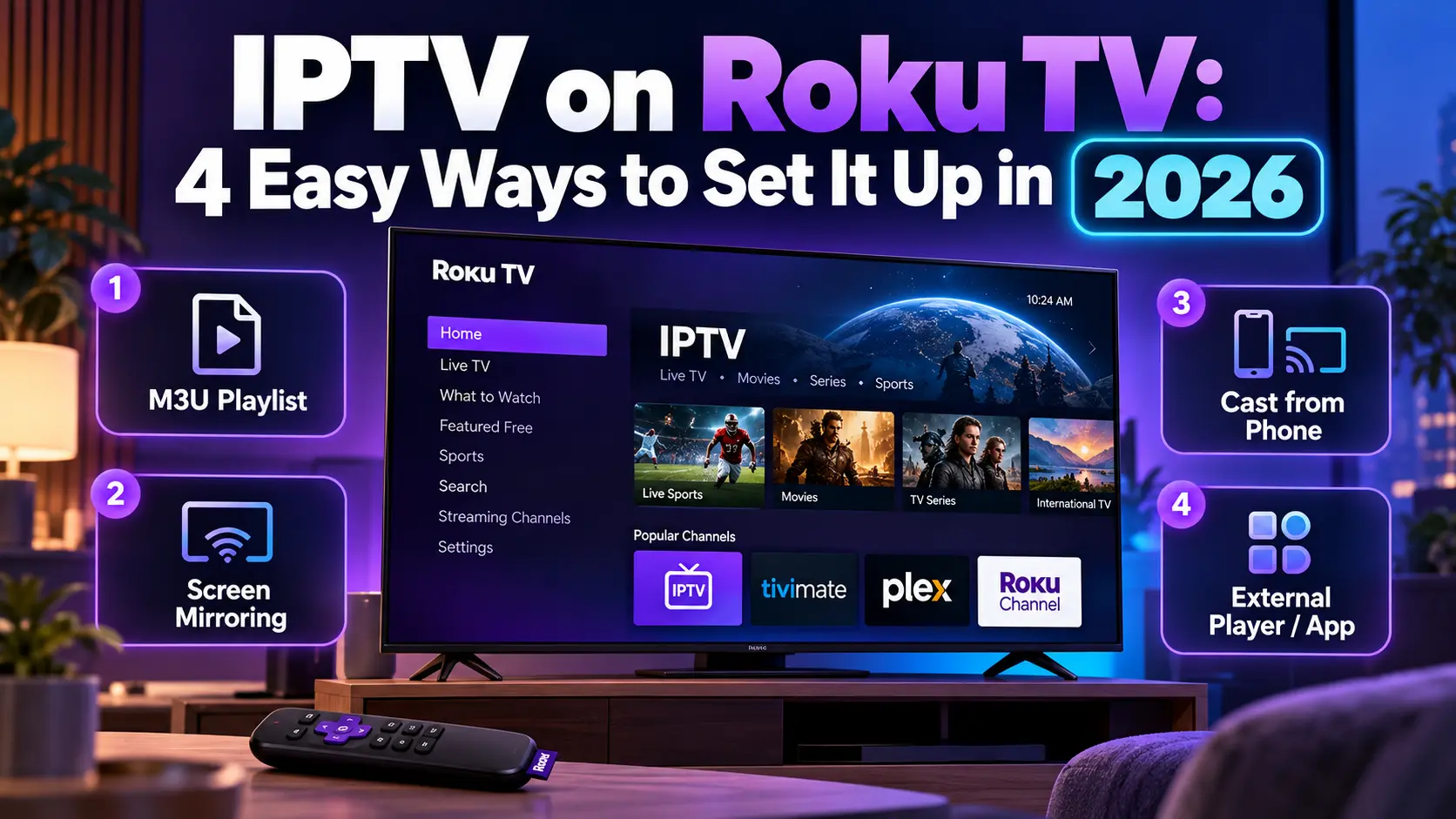

Want to watch IPTV on Roku TV? Roku doesn’t let you install Android apps or sideload APKs like a Firestick, so the usual IPTV players aren’t available. You still have four reliable ways to get IPTV on a Roku TV or Roku streaming stick: licensed live TV apps, an M3U player app from the Roku Streaming Store, Plex, or screen mirroring from your phone or PC. This guide walks you through each method step by step, explains which one suits your setup, and shows you how to fix the most common Roku IPTV problems.
Key takeaways (TL;DR)
- Roku has no APK sideloading for normal users. Developer mode allows only one test app at a time and isn’t meant for everyday use.
- The easiest IPTV on Roku is a licensed live TV app, or The Roku Channel, which now has more than 500 free live channels.
- To play your own M3U playlist, use a Roku IPTV player app such as Smart IPTV Player, Plex with Threadfin, or screen mirroring from Android or Windows.
- Roku apps are players only. Load channels from a licensed provider or a legal free playlist.
Can You Get IPTV on Roku TV?
Yes, but not the same way as on Android devices. IPTV simply means TV delivered over the internet; if you’re new to it, read our guide to what IPTV is and how it works. On Roku, every app must come from the Roku Streaming Store. Roku removed its non-certified (private) channels in March 2022, The Washington Times reported, closing a route many unofficial IPTV apps once used.
Roku’s developer mode still exists, but Roku’s developer documentation says it’s for testing your own apps and that “only one app can be sideloaded at a time”. That makes it impractical for watching TV, so this guide focuses on methods that work for everyone.
Requirements: What You’ll Need
- A Roku device: a Roku TV, Roku Streaming Stick or Roku Ultra, connected to the internet.
- A Roku account: needed to add apps from the Roku Streaming Store.
- An IPTV source: a subscription to a licensed live TV service, or an M3U playlist link from one of the licensed IPTV providers we recommend.
- A stable connection: a wired connection (Roku Ultra and many Roku TVs have Ethernet) or 5 GHz Wi-Fi works best for live streams.
- For mirroring only: an Android phone or Windows PC on the same Wi-Fi network as your Roku.
Which Roku IPTV Method Should You Use?
| Method | Works with M3U? | TV guide | Best for |
|---|---|---|---|
| Licensed live TV apps | No (service’s own channels) | Yes | Easiest, fully legal live TV |
| Roku IPTV player app | Yes | Depends on the app | Your own playlist, directly on Roku |
| Plex + Threadfin | Yes | Yes, with DVR | Plex server owners |
| Screen mirroring | Yes (via phone or PC app) | From the phone app | Quick, no Roku app needed |
Method 1: Install a Roku IPTV App From a Licensed Service
Most US live TV streaming services are IPTV services, and many have official Roku apps. This is the simplest and safest IPTV for Roku. For prices and channel line-ups, see our guide to IPTV in the USA.
Step 1: Press the Home button on your Roku remote.
Step 2: Open the Streaming Store from the home screen menu.
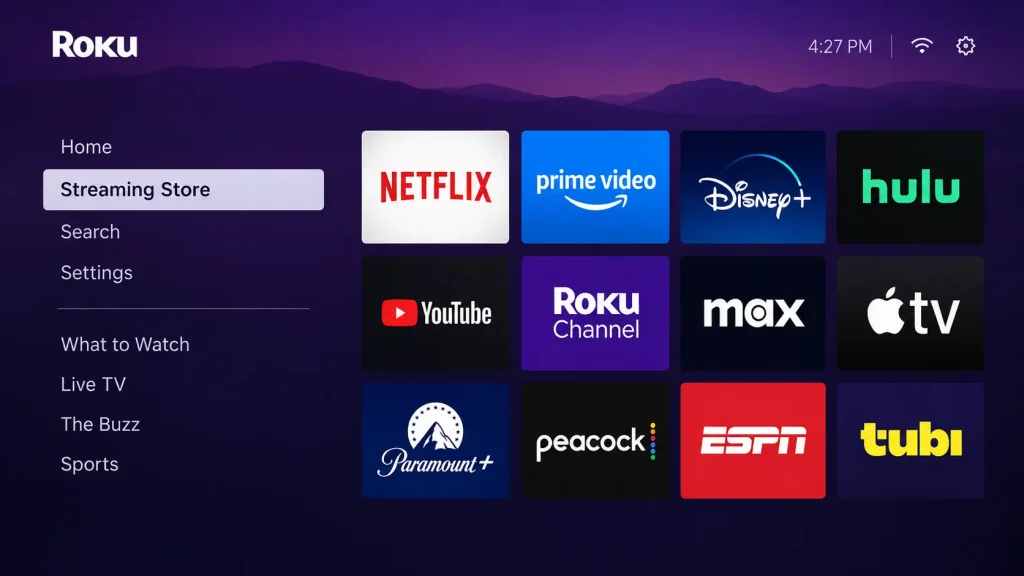
Step 3: Search for your provider’s app by name.
Step 4: Select Add app to install it.
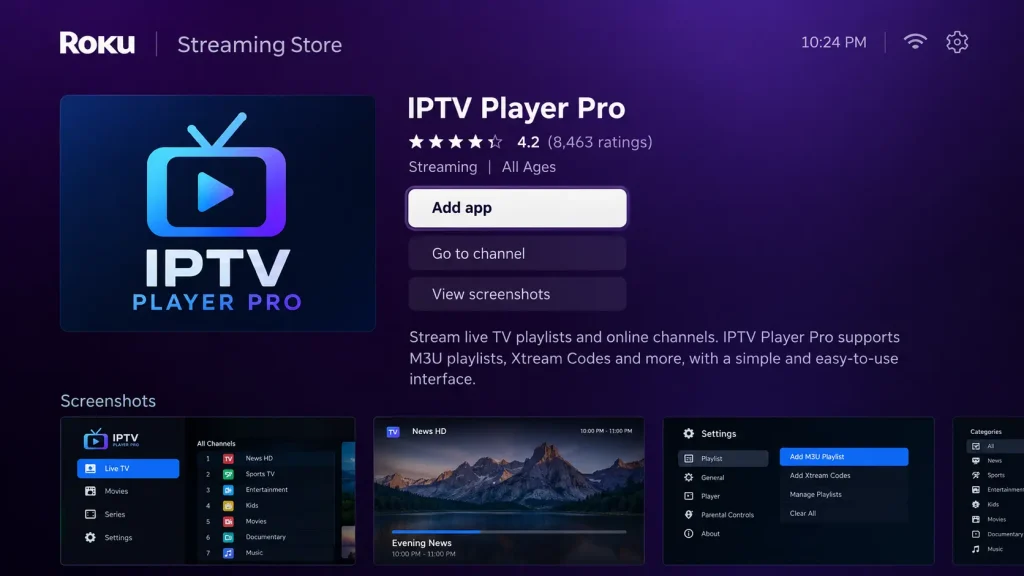
Step 5: Open the app from your home screen and sign in with your subscription.
Want free live TV instead? The Roku Channel is built into Roku devices and now offers more than 500 free, ad-supported live channels, Cord Cutters News reported in October 2026.
Method 2: Use an IPTV Player on Roku for M3U Playlists
A few M3U playlist player apps for Roku are available in the Roku Streaming Store. For example, the Smart IPTV Player listing says it supports “M3U, M3U8, Xtream, XUI.one, Custom Playlist”. Its listing doesn’t name a developer or a price, so check the details before you pay for anything.
Step 1: Open the Streaming Store on your Roku.
Step 2: Search for “IPTV player” or “M3U player”.
Step 3: Select a player and choose Add app.
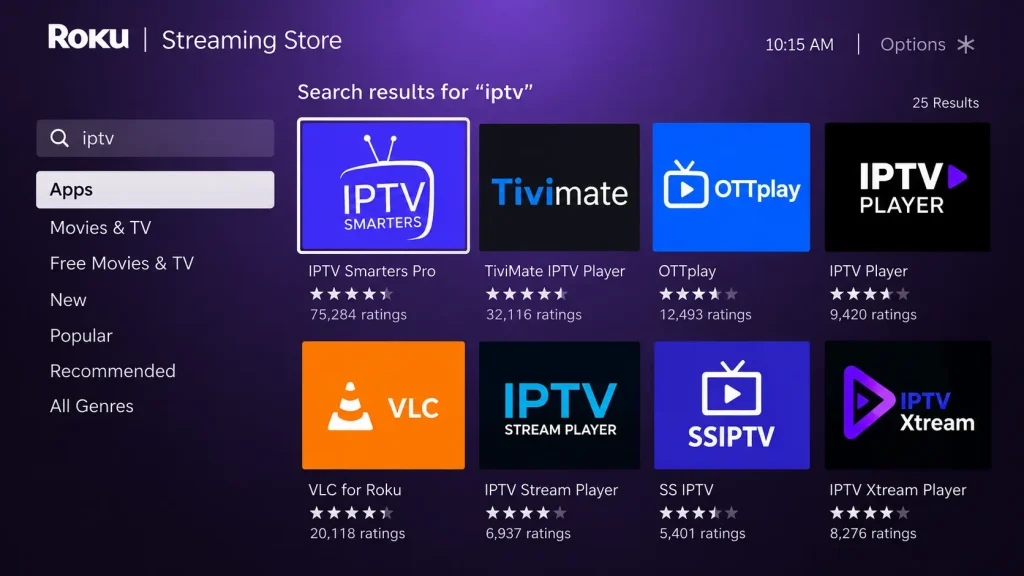
Step 4: Open the app and note the code or web address it shows for adding a playlist.
Step 5: On your phone or computer, enter your M3U link or Xtream Codes details as the app instructs.
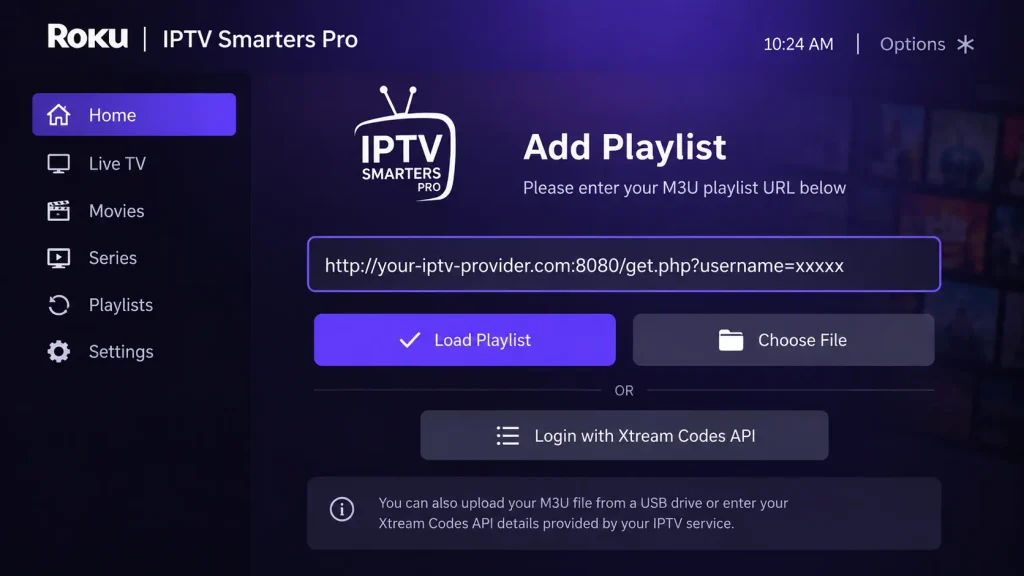
Step 6: Return to the Roku app and refresh to load your channels.
Roku player apps come and go, so the exact names in the store change over time. Stick to apps with a clear developer name, and never pay for an app that claims to include channels.
Method 3: Watch IPTV on Roku With Plex
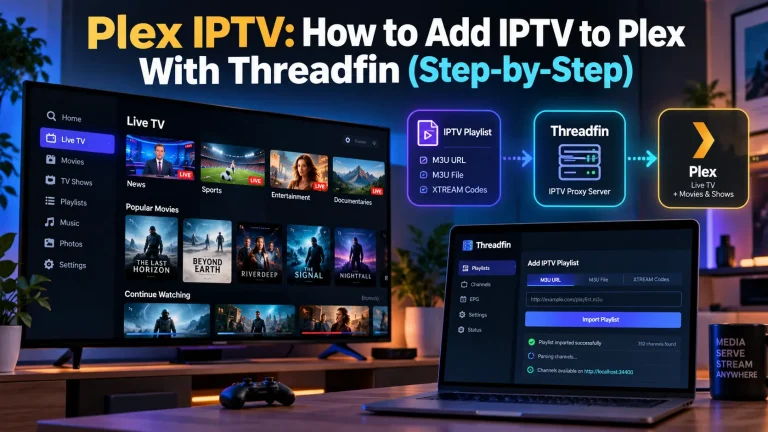
If you run a Plex Media Server, you can add your M3U playlist to Plex with Threadfin and then watch it on Roku through the official Plex app, complete with a TV guide and DVR. Plex Pass is required. Follow our full Plex IPTV setup guide first, then:
Step 1: Add the Plex app from the Roku Streaming Store.
Step 2: Open Plex and sign in to the same Plex account as your server.
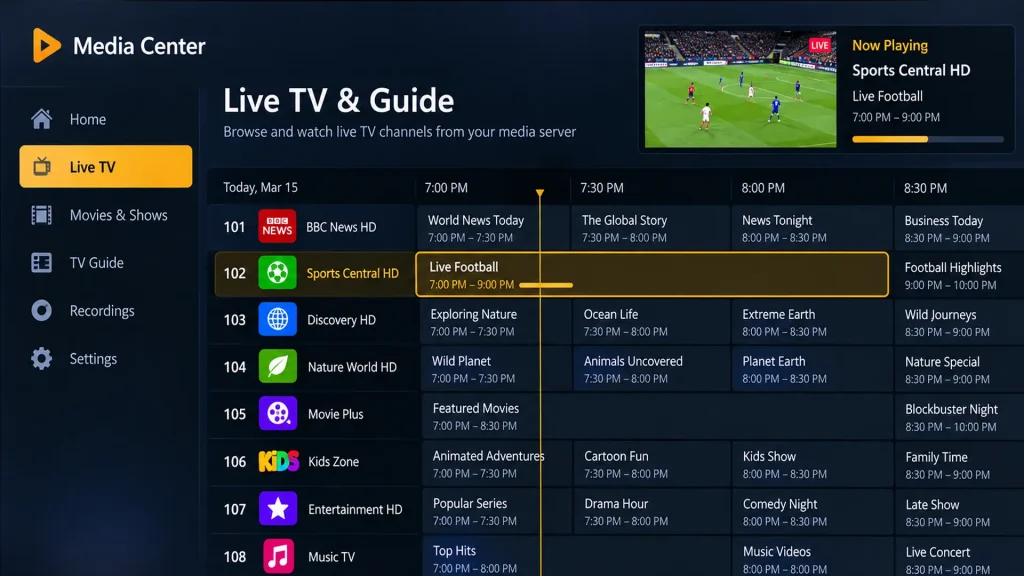
Step 3: Select Live TV from your server and pick a channel from the guide.
Method 4: Stream IPTV to Roku With Screen Mirroring
Screen mirroring sends your phone or PC screen to your Roku, so you can use any IPTV app there and watch on the TV. According to Roku support, mirroring works with Android and Windows devices and is turned on by default.
Mirror IPTV from Android to Roku
Step 1: Connect your phone and Roku to the same Wi-Fi network.
Step 2: Open an IPTV player on your phone and load your playlist.
Step 3: Open your phone’s quick settings and tap Smart View (or Screen Cast, Quick Connect or SmartShare, depending on the brand).
Step 4: Select your Roku from the list.
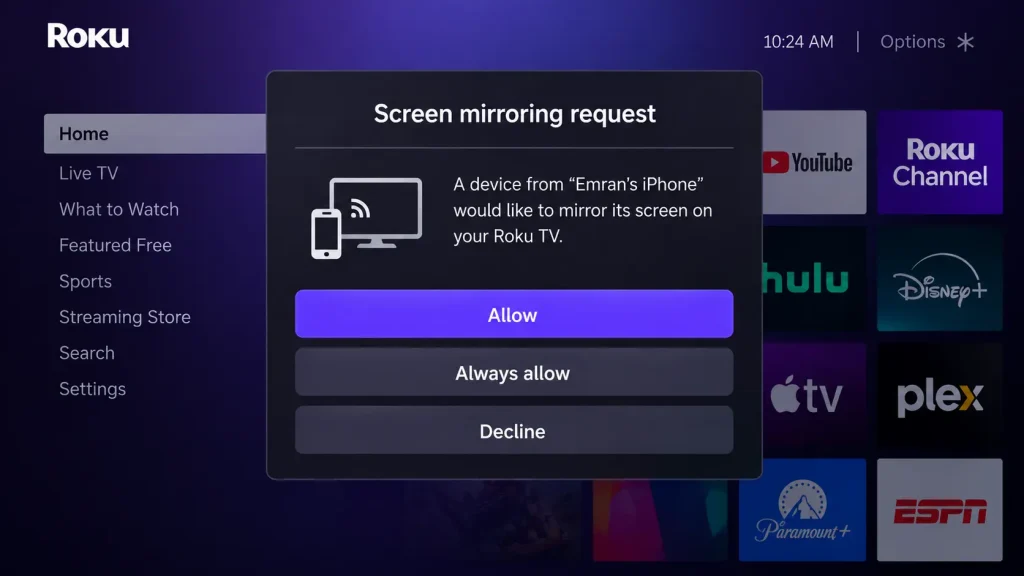
Step 5: On the Roku prompt, choose Allow or Always allow.
Mirror IPTV from Windows to Roku
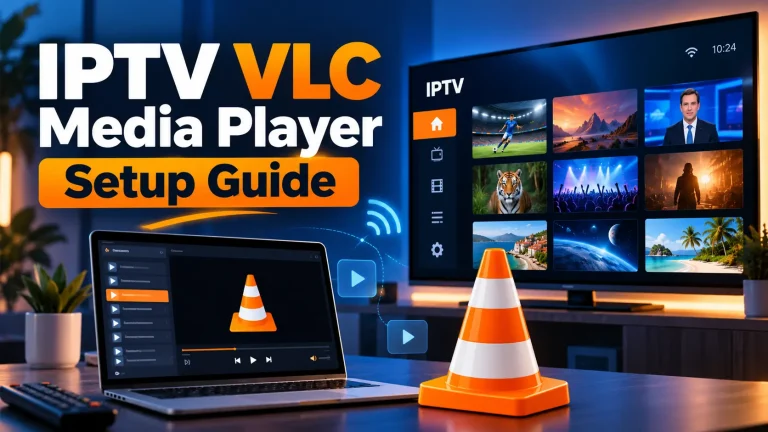
Step 1: Open your IPTV player on the PC, such as VLC.
Step 2: Go to Settings › System › Display › Connect to a wireless display.
Step 3: Select your Roku and allow the connection on the TV.
iPhone, iPad and Mac don’t support Roku screen mirroring. Instead, select 4K Roku devices support Apple AirPlay 2, which Roku added in 2020, TechCrunch reported. Keep in mind that mirroring needs your phone or PC to stay on for the whole session, and it uses its battery and Wi-Fi.
Roku vs Firestick for IPTV
If IPTV is the main reason you’re buying a streaming device, it helps to know how Roku compares:
- App choice: Roku only runs apps from its own store. Fire TV and Android TV devices can install a much wider range of IPTV players, including TiviMate and IPTV Smarters Pro.
- Ease of use: Roku’s simple home screen and built-in free channels make it easier for licensed live TV apps and casual viewing.
- Playlists and guides: on Roku, a full M3U setup with a TV guide usually means Plex. On Android-based devices, a single player app handles both.
In short, Roku is great for licensed services and free live TV, while an Android-based device is better if you mainly want to load your own playlist.
Roku IPTV Troubleshooting: Common Problems and Fixes
- The IPTV app on Roku won’t load channels: check that your M3U link is complete and active, then refresh the playlist. Test the same link in another player to rule out a dead link.
- Buffering on Roku TV: switch to Ethernet or 5 GHz Wi-Fi, restart your router, and lower the stream quality if the app allows it.
- Your Roku doesn’t appear for mirroring: make sure both devices are on the same network, and check Settings › System › Screen mirroring on the Roku is not set to “Never allow”.
- Mirroring lags or has no sound: move closer to the router, close other apps on the phone, or use Plex or a native Roku app instead.
- An IPTV app disappeared from Roku: Roku removes apps that break its rules. Choose a different player or a licensed service, and don’t rely on unofficial installers.
- Login errors in a licensed app: sign out and back in, check your subscription is active, and update the app from the Streaming Store.
Is IPTV on Roku Legal?
Roku and its player apps are legal. What matters is the content you load. Licensed services and legal free playlists, such as public playlists from the iptv-org project on GitHub, are fine. Cheap “Roku IPTV” subscriptions with thousands of premium channels are usually unlicensed, and you can lose access overnight. Read is IPTV legal? and our list of legal IPTV services before you subscribe.
Frequently Asked Questions About IPTV on Roku
-
Which IPTV service works with Roku?
Most licensed US live TV services have official Roku apps, so they work without any extra setup. For your own M3U playlist, you need a Roku IPTV player app, Plex with Threadfin, or screen mirroring. Compare licensed options in our IPTV service guide.
-
What IPTV apps are on Roku?
The Roku Streaming Store has official apps from licensed live TV services, the free Roku Channel, Plex, and a few M3U player apps such as Smart IPTV Player. Popular Android players like TiviMate and IPTV Smarters Pro aren’t available on Roku.
-
Can I install IPTV myself?
Yes. On Roku, you add an IPTV app from the Streaming Store and sign in or enter your playlist, which takes a few minutes. You can’t sideload APK files on Roku, so stick to the methods in this guide.
-
Is there a totally free IPTV app?
Yes. The Roku Channel streams more than 500 free live channels on Roku, and free apps such as Pluto TV and Tubi also carry live TV. For more free players on other devices, see our best IPTV player guide.
Final Thoughts: The Best Way to Get IPTV on Roku TV
The best way to watch IPTV on Roku TV depends on what you have. A licensed live TV app or The Roku Channel is the easiest; a Roku IPTV player app handles your own M3U playlist; Plex gives you a full guide and DVR; and screen mirroring works in a pinch. If you need more flexibility, a device that runs Android apps, covered in our IPTV player guide, may suit you better. New to all this? Start with how IPTV works, and choose from our legal IPTV options after reading IPTV legality explained.