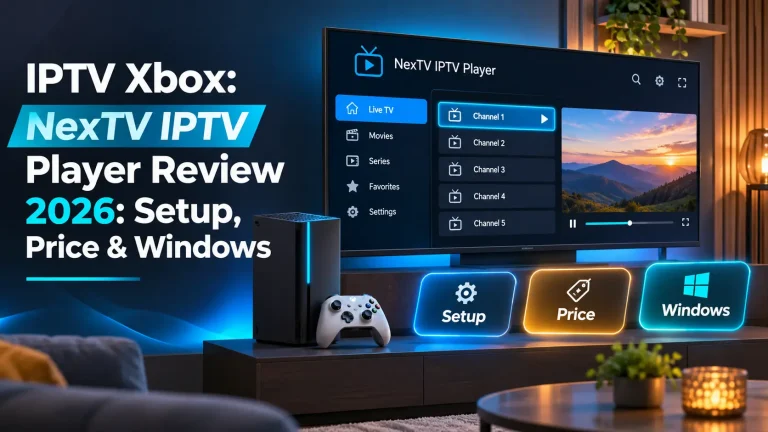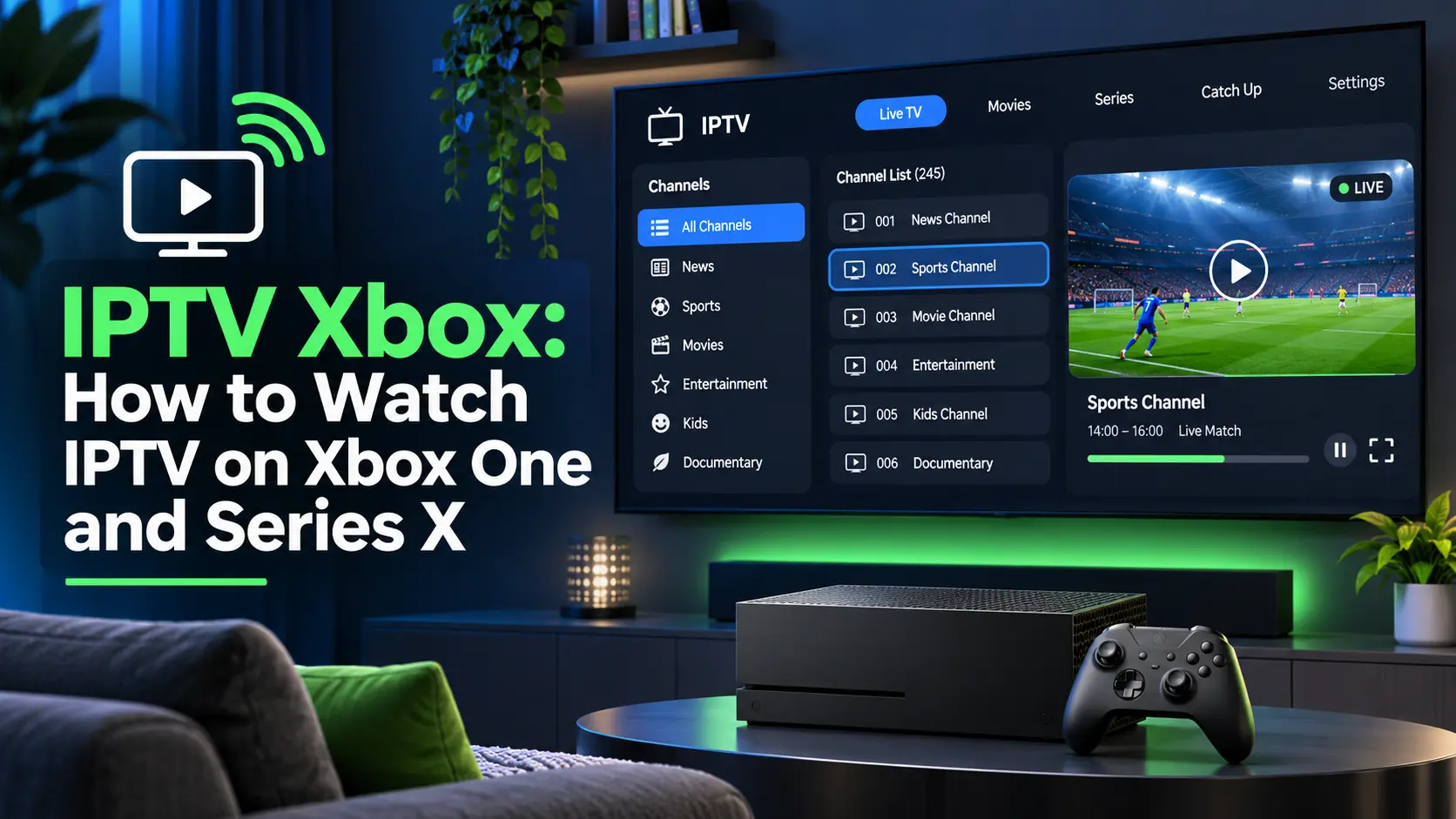

Want to watch IPTV Xbox style, on the console already connected to your TV? Xbox Series X|S and Xbox One run apps from the Microsoft Store, so you can watch live TV through licensed streaming apps, play your own M3U playlist in an IPTV player app, or stream through Plex. You can’t sideload Android apps like TiviMate on Xbox, though, and the Xbox 360 is no longer an option. This guide shows you how to get IPTV on Xbox step by step, which IPTV apps for Xbox are worth trying, and how to fix common playback problems.
Key takeaways (TL;DR)
- Yes, IPTV works on Xbox One and Xbox Series X|S through apps from the Microsoft Store.
- For licensed live TV, use official apps such as Sling TV or Hulu. For your own M3U playlist, use an IPTV player app such as MyIPTV Player or Fluent Player.
- Xbox 360 can’t get new IPTV apps: Microsoft closed the Xbox 360 Store on 29 July 2024.
- IPTV apps are legal players. What matters is whether your channels come from a licensed source.
Can I Watch IPTV on My Xbox?
Yes. IPTV is simply TV delivered over the internet; if you’re new to it, read our guide to what IPTV is and how it works. On Xbox, everything goes through the Microsoft Store. Microsoft’s Xbox console apps page says entertainment apps such as Sling TV, Hulu, Netflix and Disney+ can be installed for free from the Store.
There are three main ways to watch IPTV on Xbox:
- Licensed live TV apps: official apps from IPTV services that stream their own channels.
- IPTV player apps: Microsoft Store apps that play an M3U playlist or Xtream Codes login from your provider.
- Media server apps: Plex, which can stream IPTV channels you’ve added to your own server.
Requirements: What You’ll Need
- A supported console: Xbox Series X, Xbox Series S or Xbox One, updated to the latest system software.
- A Microsoft account: signed in on the console to download apps from the Store.
- An IPTV source: a subscription to a licensed service, or an M3U link or Xtream Codes login from one of the licensed IPTV providers we recommend.
- A stable connection: a wired Ethernet connection gives the smoothest live streams.
- Optional: an EPG (XMLTV) link for a TV guide, and a USB keyboard to type long URLs.
Method 1: Install a Licensed IPTV App on Xbox
This is the easiest way to get IPTV on Xbox, and it’s fully legal. Many US live TV services, such as Sling TV and Hulu + Live TV, are IPTV services with Xbox apps. Sign-in with your existing subscription is all you need.
Step 1: Press the Xbox button on your controller to open the guide.
Step 2: Go to Store.
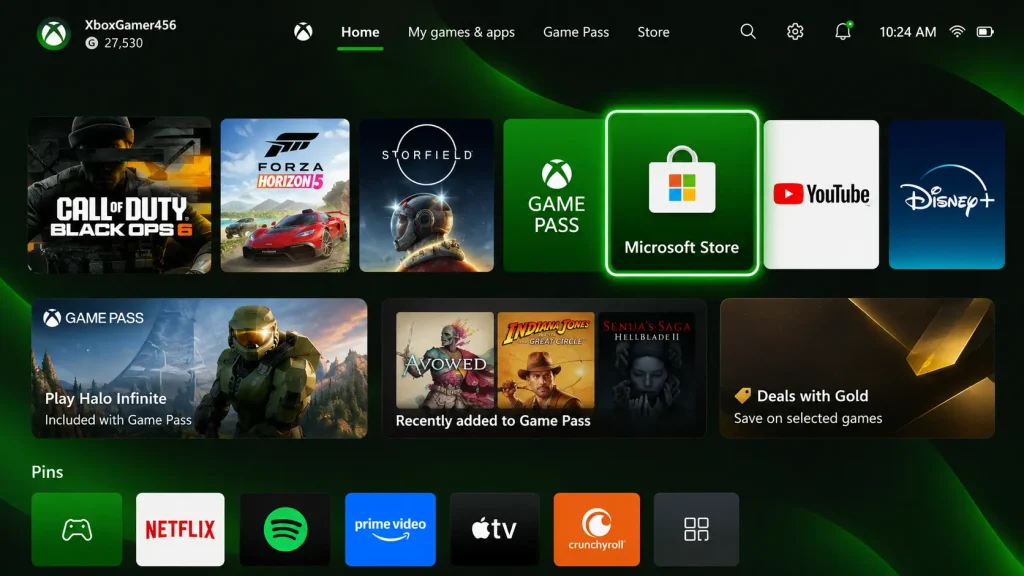
Step 3: Search for your service’s app, such as Sling TV.
Step 4: Select Get or Install.
Step 5: Open the app and sign in with your subscription.
Method 2: Use an IPTV Player App for Xbox (M3U and Xtream)
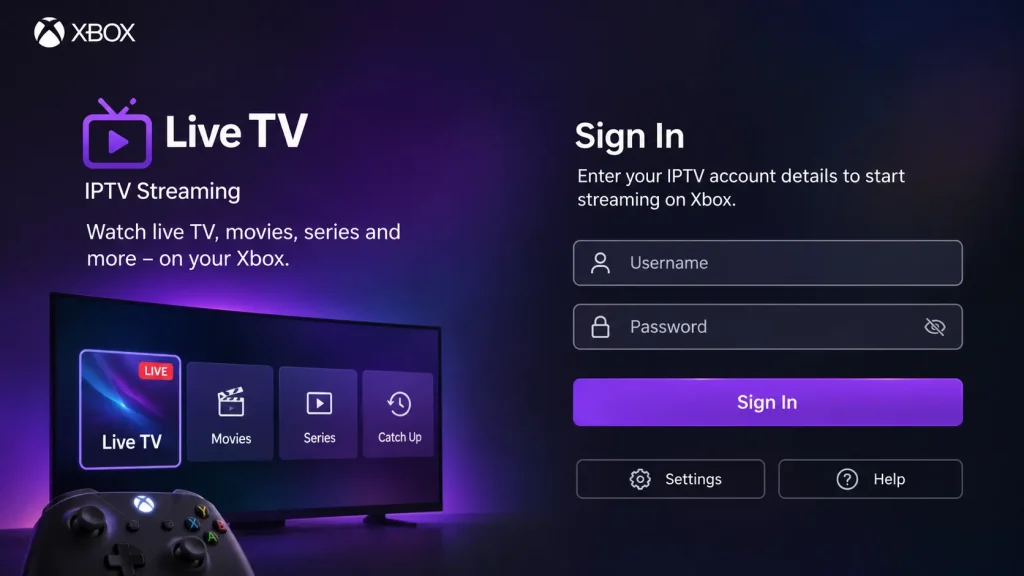
If your provider gives you an M3U link or Xtream Codes login, you need an IPTV player for Xbox from the Microsoft Store. Popular options include:
- MyIPTV Player: its Microsoft Store listing supports “Xtream or M3U” playlists, “EPG support built-in” and Xtream catch-up. Check that Xbox appears under available devices before installing.
- Fluent Player: a media hub and IPTV app that its developer says offers “native playback for Windows 10/11 and Xbox Series S|X”, built to stream M3U8 content, according to the developer’s Jellyfin forum post. Most features are free.
- Best Player: its Store listing mentions Xtream and M3U support, three EPG views, catch-up and “Xbox & gamepad /remote control support”.
Store listings change often, so check each app’s description, devices and in-app purchases before you install.
How to add IPTV to an IPTV app on Xbox
Step 1: Open the Store on your Xbox.
Step 2: Search for the IPTV player you want, such as MyIPTV Player.
Step 3: Select Get or Install.
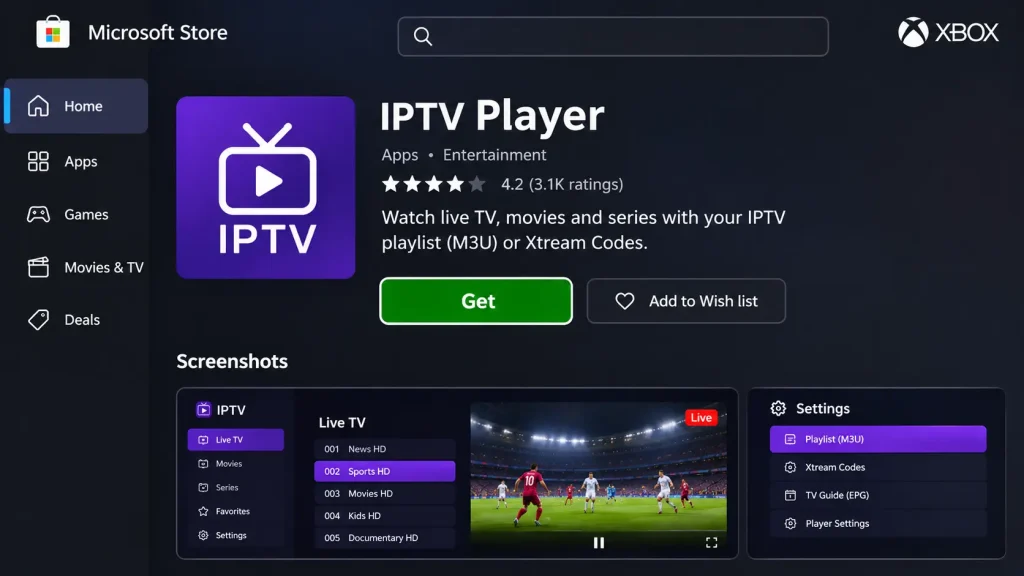
Step 4: Open the app and go to its settings or playlist menu.
Step 5: Add a new playlist and paste your M3U URL, or enter your Xtream Codes server, username and password.
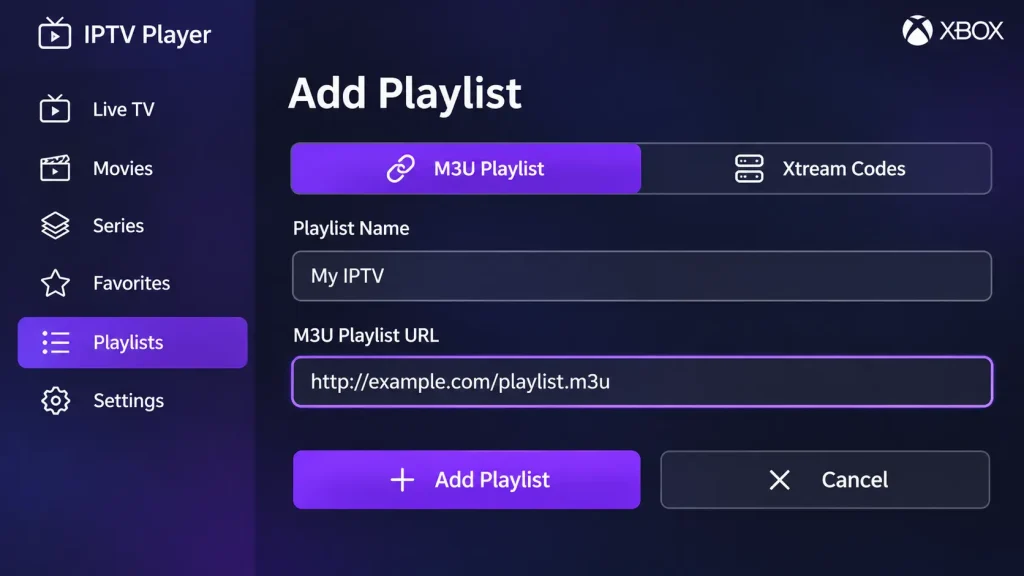
Step 6: Add your EPG URL if the app asks for one.
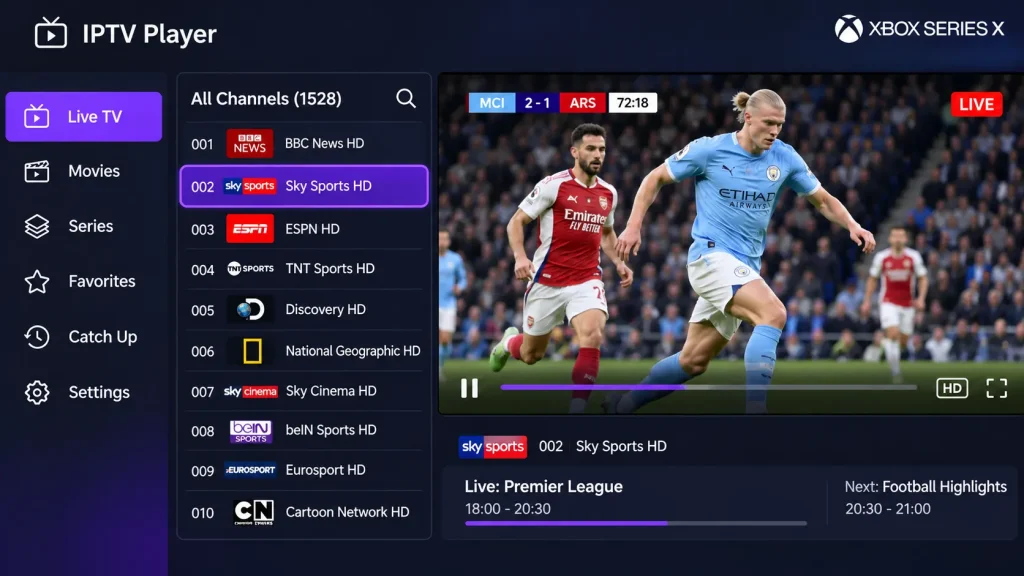
Step 7: Save and refresh the playlist to load your channels.
Step 8: Select a channel to start watching.
Typing long links with a controller is slow. Plug in a USB keyboard to type URLs and passwords faster.
Method 3: Watch IPTV on Xbox Through Plex
If you run a Plex Media Server with Plex Pass, you can add your M3U playlist to Plex with Threadfin and watch it in the Plex app on Xbox, complete with a TV guide and DVR. Follow our Plex IPTV guide to set up the server, then install Plex from the Xbox Store and open Live TV.
Kodi users can try the same approach: Kodi has been released for Xbox One in the past, and it supports IPTV through the PVR IPTV Simple Client add-on. Availability of Kodi on the Xbox Store has varied over time, so check the Store first.
Can You Get IPTV on Xbox 360?
Not anymore. Microsoft closed the Xbox 360 Store and Marketplace on 29 July 2024, so you can’t download new apps for the console, Tom’s Hardware reported. If you want IPTV on your TV, use an Xbox One, Xbox Series X|S, or a dedicated streaming device.
IPTV Xbox vs Other Streaming Devices
An Xbox works well for IPTV if it’s already under your TV, but it isn’t the most flexible device for it:
- App choice: Xbox only runs Microsoft Store apps. Android TV and Fire TV devices can install many more IPTV players, including TiviMate and IPTV Smarters Pro.
- Power use and noise: a games console uses more power than a streaming stick, which matters if you leave live TV running for hours.
- Picture quality: Xbox Series X and Xbox One X/S support 4K output, so 4K streams look great when the app supports them.
- Convenience: one device for games and TV, controlled with the same controller or a media remote.
If IPTV is your main use, a dedicated streaming device may be easier. If you already own an Xbox, the apps above are a free way to start.
Xbox IPTV Troubleshooting: Common Problems and Fixes
- The IPTV app on Xbox won’t load channels: check that your M3U link or Xtream details are correct, then refresh the playlist. Test the same link in another player to rule out a dead link.
- Buffering on Xbox One or Series X: switch to Ethernet, restart your router, and close games or other apps running in the background.
- No TV guide: add an XMLTV EPG link and make sure the channel IDs in your playlist match the guide.
- Some channels won’t play: the stream format may not be supported by the app. Try another IPTV player for Xbox, or check whether the channel works on another device.
- The app disappeared from the Store: IPTV player apps are sometimes removed or renamed. Search for an alternative, and avoid unofficial installers.
- App crashes or freezes: fully restart the console by holding the power button for 10 seconds, then reinstall the app.
Frequently Asked Questions About IPTV on Xbox
-
Can I watch IPTV on my Xbox?
Yes. Xbox One and Xbox Series X|S can play IPTV through licensed live TV apps, IPTV player apps from the Microsoft Store, or Plex. Xbox 360 can’t, because its Store closed in July 2024.
-
What is the best IPTV app for Xbox?
For licensed live TV, the best IPTV app for Xbox is your provider’s official app, such as Sling TV. For your own M3U or Xtream playlist, MyIPTV Player and Fluent Player are popular choices.
-
Is IPTV legal in the USA?
Yes, IPTV is legal in the USA when the service holds the rights to its channels, as YouTube TV, Sling TV and Hulu + Live TV do. Unlicensed IPTV services are illegal. Read is IPTV legal? for details.
-
Is the IPTV app legal?
Yes. IPTV player apps on the Microsoft Store are legal, because they’re just players and include no channels. Legality depends on the playlist you load, so choose from our list of legal IPTV services.
Final Thoughts: The Best Way to Get IPTV on Xbox
The easiest IPTV Xbox setup is a licensed live TV app from the Microsoft Store. For your own M3U playlist, an IPTV player app such as MyIPTV Player or Fluent Player does the job, and Plex adds a full guide and DVR if you run a server. Use a wired connection, add an EPG for a proper TV guide, and stick to licensed sources from our legal IPTV options. For more help, read IPTV legality explained, compare our IPTV service guide, or start with how IPTV works.